Table of contents
The WordPress dashboard is your site's control panel, and its left-hand sidebar is the map: Posts and Pages hold your content, Media holds your files, Appearance controls how the site looks, Plugins add features, Users manages people, and Settings controls how the site behaves. This guide explains every core menu and links to a step-by-step tutorial for each.
Log in at yoursite.com/wp-admin and you're in the dashboard — the private back-end of your WordPress site. Everything you'll ever do to your site starts from the sidebar on the left, so this guide walks that sidebar top to bottom, in the same order you see it.
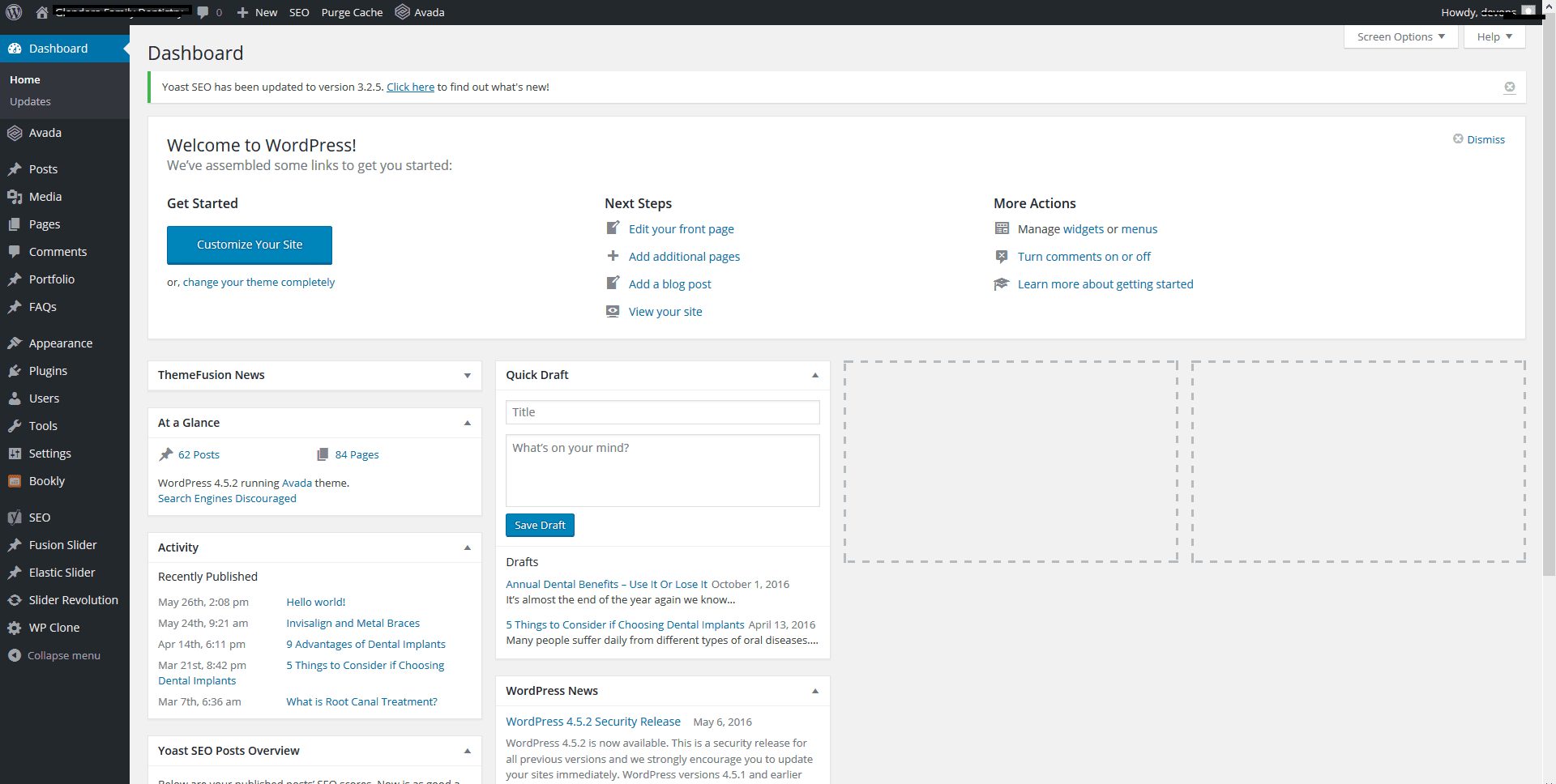
Your dashboard may show extra menus — plugins and themes add their own. The ten below are the core menus every WordPress site has.
Dashboard
The home screen. Home shows at-a-glance widgets (site activity, drafts, news), and Updates is where WordPress core, themes and plugins tell you a new version is available. Make a habit of visiting Updates regularly — most hacked sites got that way by running old software. See how WordPress updates work.
Posts
Your blog lives here: every article, sorted newest first. From this menu you can write an Add New post, organize with categories and tags, and edit or trash existing posts. Posts are for dated, flowing content — news, articles, updates. If you're writing your first one, start with the paragraph block.
Media
The library of every image, PDF, video and audio file you've uploaded. You can add images, do light editing (crop, scale, rotate), and copy a file's URL. Tip: give images descriptive filenames and alt text before uploading — it helps both accessibility and SEO.
Pages
Like posts, but for timeless content: your homepage, About, Contact, Services. Pages don't have categories or dates. Here's how to create a new page and how to edit the text on one.
Comments
Every comment visitors leave, with bulk approve, reply, spam and trash actions. If you allow comments, check this weekly — a comment section full of spam hurts trust. See editing comments and replying to a comment.
Appearance
How your site looks:
- Themes — install, preview and switch designs. Read how to change themes safely first, and our picks for beginner-friendly themes.
- Editor (block themes) — the Site Editor, where you edit headers, footers and templates visually. New to it? Start with full site editing basics.
- Customize, Widgets, Menus (classic themes) — the Customizer for colors and logos, widgets for sidebars and footers, and Menus for your navigation.
Which items you see depends on your theme — block themes show Editor; classic themes show Customize, Widgets and Menus.
Plugins
Plugins add features — contact forms, SEO tools, shops, backups. This menu lists what's installed and lets you add, activate, deactivate, update and delete. Two rules keep you out of trouble: install only what you need, and keep everything updated. Start with how to install a plugin.
Users
Everyone who can log in to your site, each with a role that controls what they're allowed to do — Administrator, Editor, Author, Contributor, Subscriber. Understand user roles and permissions before handing out accounts, and see adding a new user.
Tools
The utility drawer. Import and Export move content between sites, and Site Health grades your site's configuration and flags problems before they bite — here's how to use Site Health.
Settings
The site-wide switches. The submenus you'll actually touch:
- General — site title, tagline, timezone and date format.
- Reading — which page is your homepage, and how many posts your blog page shows.
- Discussion — whether and how comments work.
- Media — the sizes WordPress generates for uploaded images.
- Permalinks — the structure of your URLs. Set this once, early; changing it later breaks links.
In Settings → General, the WordPress Address and Site Address fields can take your whole site offline if changed incorrectly. If you need to move or rename your site, back up first — or ask someone who's done it before.
Menus added by plugins and themes
Anything else in your sidebar — WooCommerce, an SEO plugin, a form builder, your theme's own panel — was added by something you (or your developer) installed. If you've inherited a site and don't know what half the menus do, that's exactly what our site documentation service untangles.
Keep learning
This tour pairs with What is WordPress? if you're brand new, and the Unofficial WordPress Manual (PDF) covers every one of these menus in full-color depth. Prefer a guided tour of your own dashboard? That's the first session most one-on-one tutoring clients book.
Leave a comment