NewThe WP Tutoring WordPress training platform is live — on demand video courses and interactive WordPress lessons. Free lessons included.Start free
Helping site owners learn WordPress since 2012 · (844) WP-TUTOR
Plugins

Elementor Editor Not Loading? Fix It Step by Step

Elementor stuck on the loading screen? Work through the real causes in order: memory, plugin conflicts, Safe Mode, cache, and PHP version.

WT
WP Tutoring TeamWordPress Instructors
Updated Aug 4, 2026
2 min read
Table of contents

The gray screen that never finishes loading is Elementor's most-searched problem — and it's almost never random. The editor is a big JavaScript app; something on the site is starving or breaking it. Work this list in order and you'll find the culprit. Current for Elementor 4.x on WordPress 7.0, August 2026.

TL;DR The 30-second version
  • First stop: Elementor → Tools → Safe Mode. Editor loads there? It's a conflict.
  • Check PHP memory (256MB+) and PHP version in Elementor → System Info.
  • Exclude /wp-admin/ and editor assets from caching/optimization plugins.
  • Regenerate CSS (Tools → Regenerate CSS & Data) after big changes.
Try Safe Mode

Elementor → Tools has the troubleshooting arsenal — enable Safe Mode and reopen the editor.
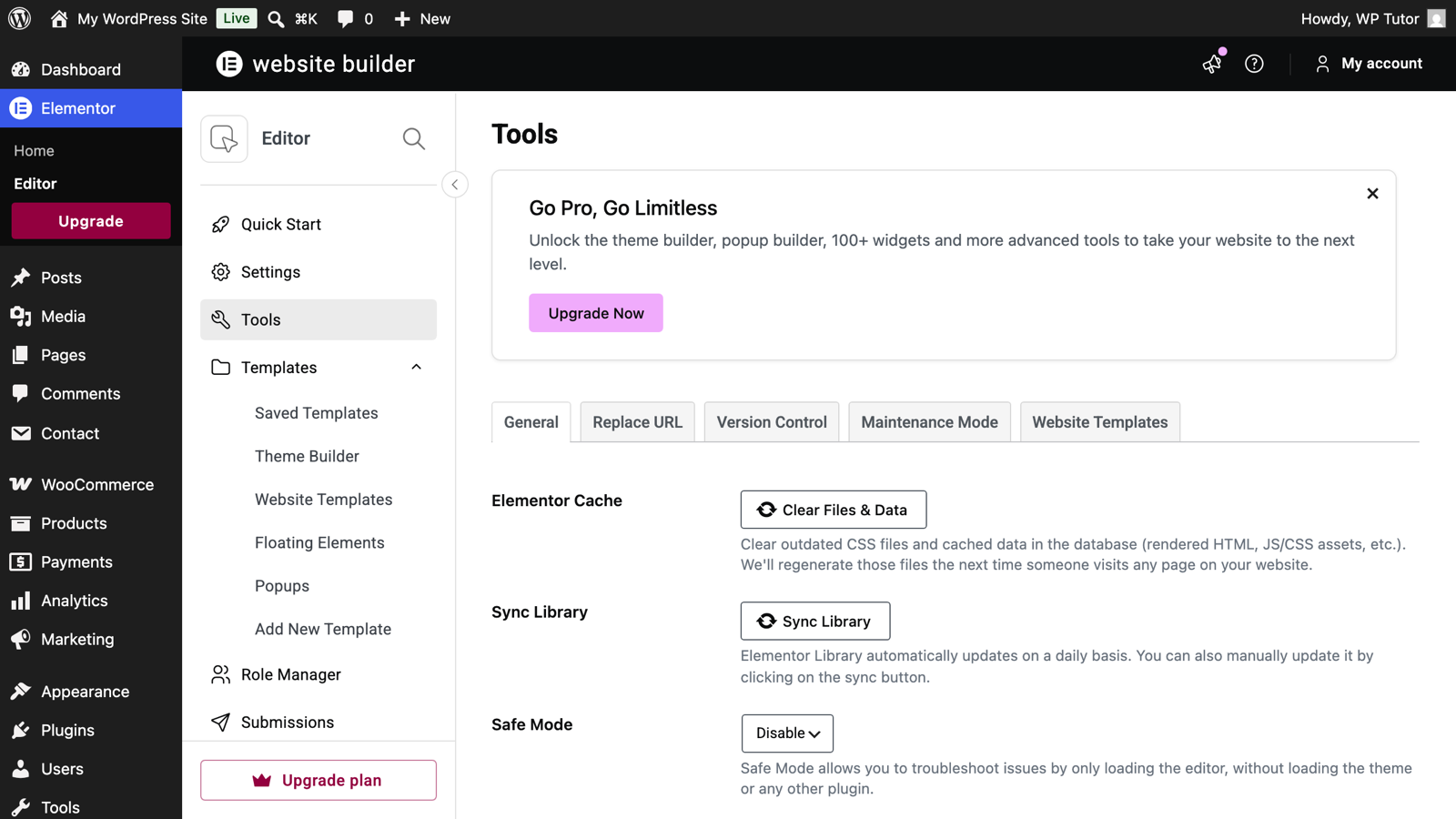
The Elementor Tools screen with Safe Mode and Regenerate CSS

  • Loads in Safe Mode → a plugin or theme conflict. Deactivate plugins in halves until the editor loads normally, then update or replace the culprit (optimization and security plugins are the usual suspects).
  • Still stuck → it's environmental; keep going.
Check memory and PHP

Elementor → System Info reports PHP version and memory limit. You want PHP 8.1+ and 256MB memory or more. Both are host-side settings; a quick support ticket ("please raise PHP memory to 512M and PHP to 8.x") fixes more loading hangs than anything else.

Take caching out of the picture

Minify/combine JavaScript and "optimize delivery" features can mangle the editor's assets. In your caching or optimization plugin, exclude wp-admin and Elementor's assets, purge everything, and hard-refresh the editor (Ctrl/Cmd+Shift+R). Test with the optimizer off entirely to confirm or clear it as a suspect.

Regenerate CSS and update in the right order

Tools → Regenerate CSS & Data rebuilds Elementor's generated files — harmless and often curative after migrations or big updates. Keep Elementor and your theme updated together; a theme built for an old Elementor version can hang a new editor.
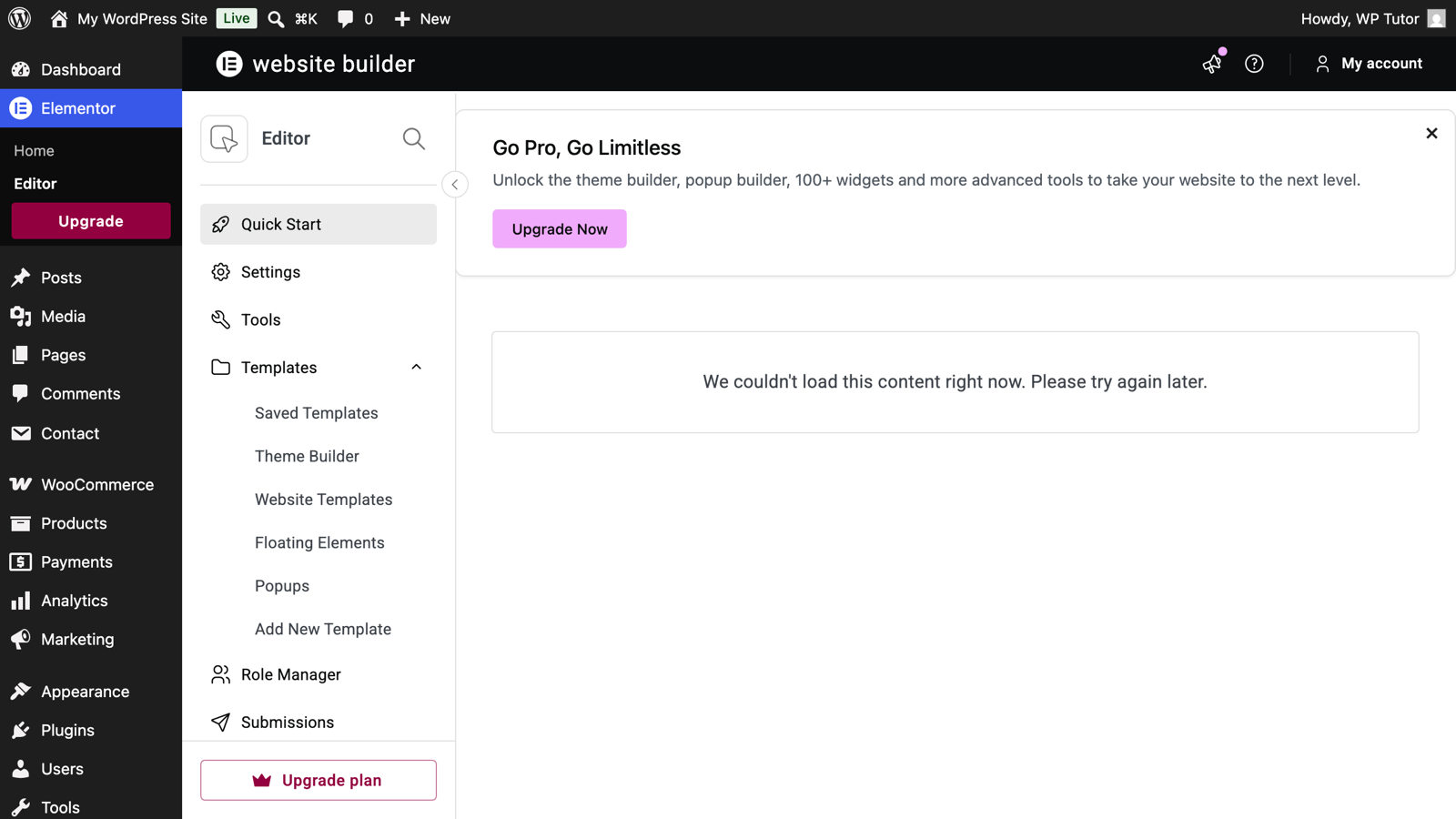
Elementor's settings screen

Stuck at 2am with a deadline?

This exact triage is a 20-minute screen-share session — we find the conflict on your actual site instead of guessing from a checklist.

Keep learning

Frequently asked questions

Why does Elementor get stuck on the gray loading screen?
The editor is a heavy JavaScript app — anything that breaks or starves it hangs the loader: PHP memory limits, a conflicting plugin, aggressive caching/optimization of admin assets, or an outdated PHP version. The fix is elimination, not one magic switch.
What is Elementor Safe Mode?
A troubleshooting mode (Elementor → Tools) that loads the editor without your theme and other plugins for that session only. If the editor works in Safe Mode, a conflict — not Elementor — is your problem.
How much memory does Elementor need?
256MB PHP memory is the practical floor; 512MB is comfortable. Your host sets this — Elementor's System Info screen shows the current limit, and most hosts raise it on request or via wp-config.
WT

WP Tutoring Team

WordPress Instructors

We’ve been teaching WordPress to individuals and businesses since 2013 — through step-by-step tutorials, video courses, and 1-on-1 tutoring sessions.

Leave a comment

Comments are reviewed before they appear.

Get our free WordPress starter guide

Join thousands of site owners and get step-by-step WordPress tutorials in your inbox, plus printable cheat sheets.

Beginner-friendly, no jargon
Printable cheat sheets & checklists
Unsubscribe anytime

Request your session

We’ll reply quickly — usually the same business day.

By using this form you agree with the storage and handling of your data by this site.

Access our WordPress Training Academy videos

Step-by-step video courses covering the block editor, themes, plugins, and everything you need to build a site you’re proud of. Free lessons included — browse the full library before you sign up for anything.

Explore the Academy