Table of contents
Plugins are very important to add additional features to your WordPress website. Follow the instructions below to install a plugin:
Tutorial on Managing WordPress Plugins
This tutorial demonstrates how to add, update, and delete plugins
1. Click Plugins
2. Click Add New
3. Click Search Plugins
4. Type WP Forms
5. Click Install Now
6. Click Activate Contact Form by WPForms – Drag &...
7. Click Add New
8. Click Upload Plugin
9. Click Plugin zip file
10. Click Install Now
11. Click Activate Plugin
12. Click Update now
13. Click Enable auto-updates
14. Click Deactivate WPForms Lite
15. Click Delete WPForms Lite
16. That's it. You're done.
Here's an interactive tutorial
https://www.iorad.com/player/1768564/Plugin-Skills
Installing a WordPress plugin
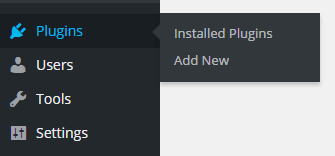
STEP 1 : First thing you need to do is go to your WordPress Dashboard area and click on Plugins » Add New.
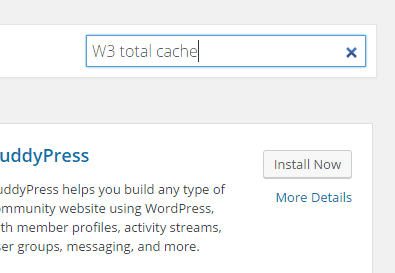
STEP 2 : Find the plugin by typing the plugin name or the functionality you are looking for.
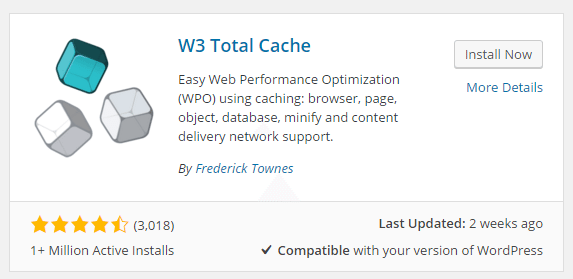
STEP 3 : Click the Install Now button to install it for your site.
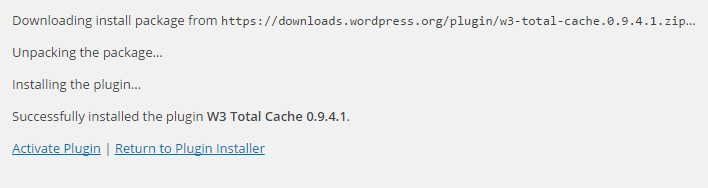
STEP 4 : WordPress will now download and install the plugin for you. After this, you will see the success message with a link to Activate the plugin or Return to plugin installer.
What about uploading a WordPress plugin manually?
In addition to the free WordPress plugins that you find in the WP repository, there are also other premium plugins, such as gravity forms, or pro versions of free plugins that you may want to use. In order to do that, you'll need to do the following:
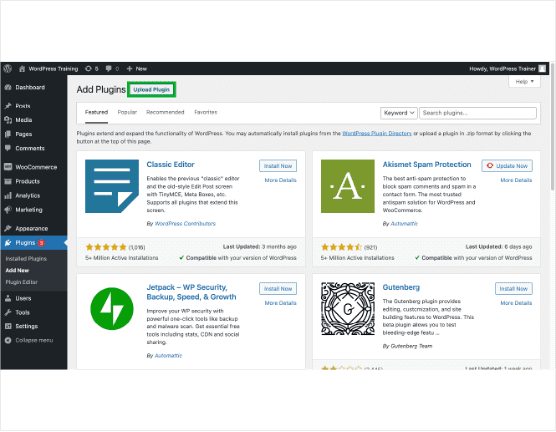
Step 1: Go to your WordPress Dashboard area and click on Plugins » Add New.
Step 2: Click on Upload Plugin
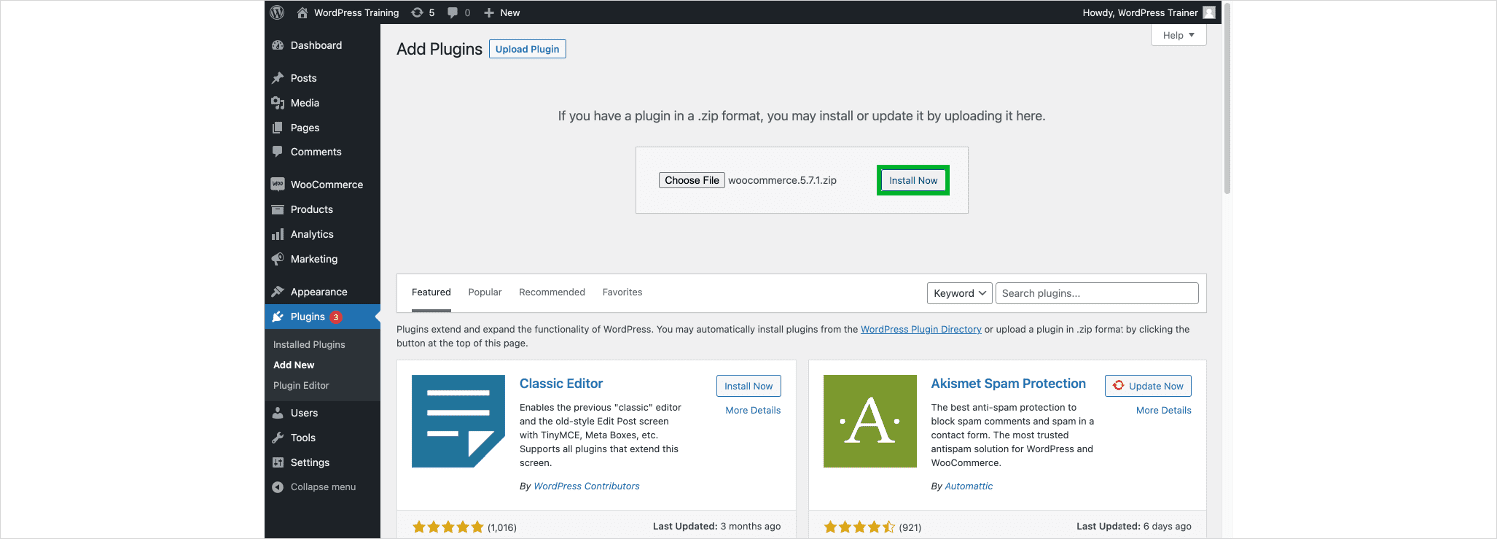
Step 3: After clicking on Choose File and selecting the proper .zip file, click Install
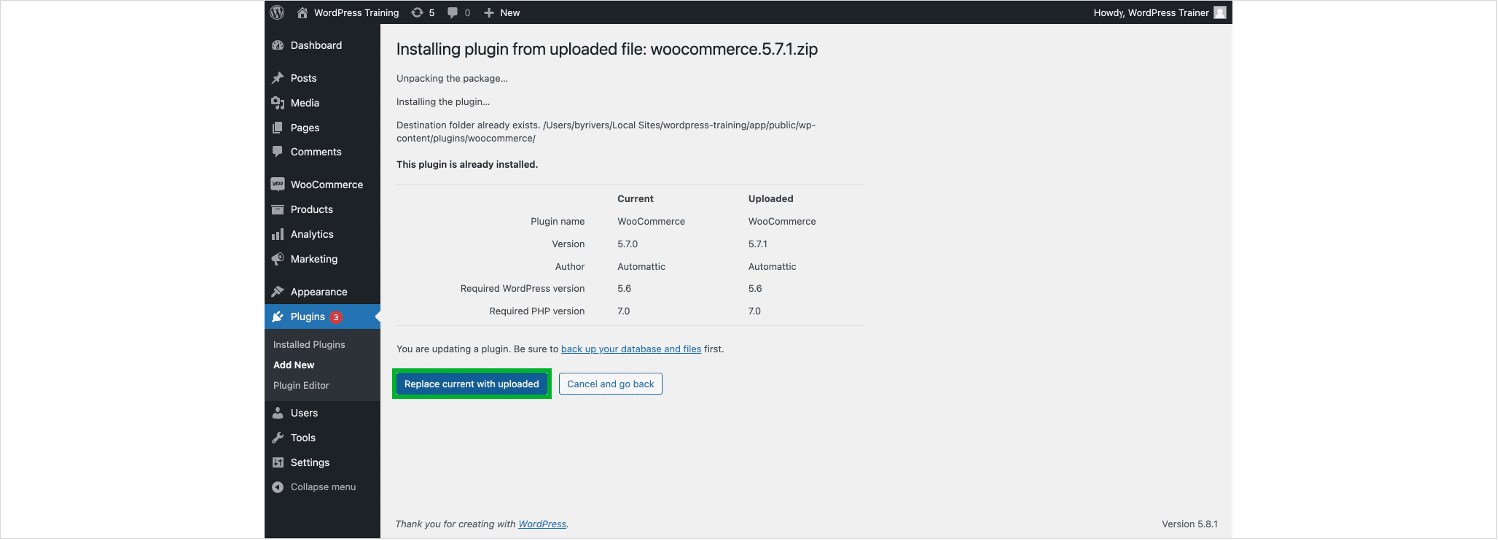
Step 4: If the plugin that you're uploading is a newer version of one that is already installed, then you'll see the following screen. Click Replace current with uploaded.
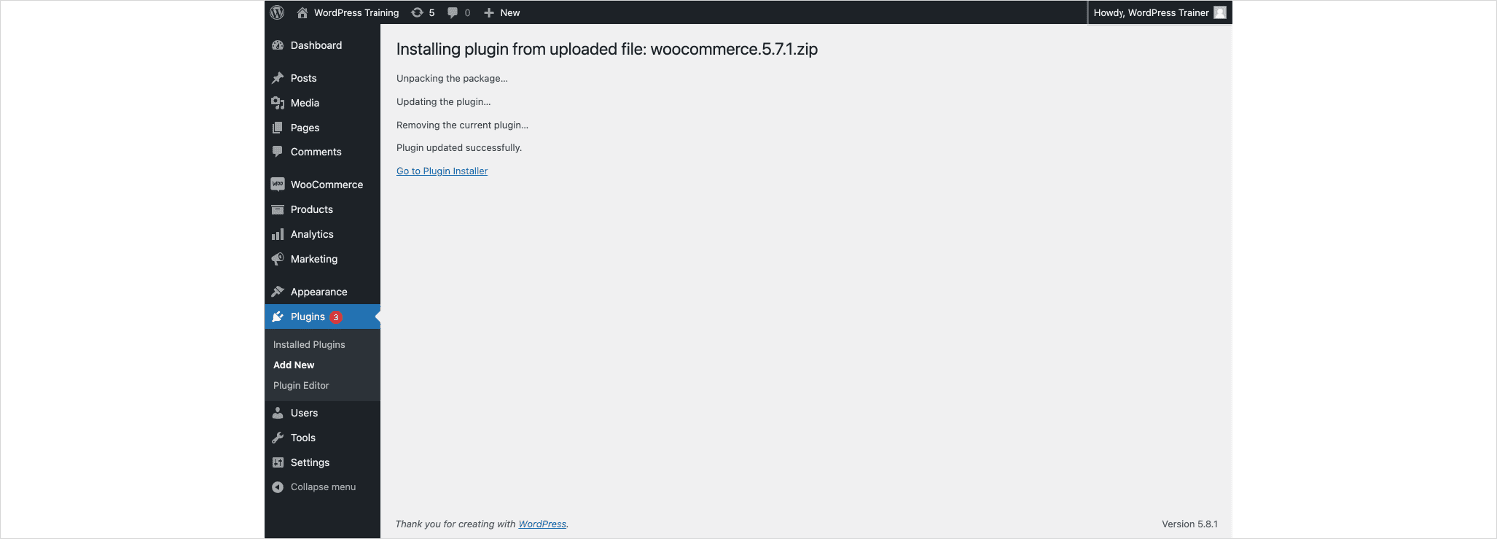
Step 5: Your plugin should be installed successfully
https://www.youtube.com/watch?v=fH03aMrOJGs
Learn how to add, activate, upload, and delete WordPress Plugins
Leave a comment