Table of contents
A category block allows you to display a list of all of your post categories. Think of this as a block version of the popular category widget.
Step 1- Hover your mouse over the Add Block icon (the plus sign in the upper left hand corner within the Gutenberg editor). Scroll to Widgets. Select Categories.
Step 2 - The categories block will appear. You’ll see a list of your categories appear within the block.
Step 3- The sub menu above the block will allow you to change the text alignment of your category list. The sub menu on the right allows you to further customize how the categories will be listed on your page.
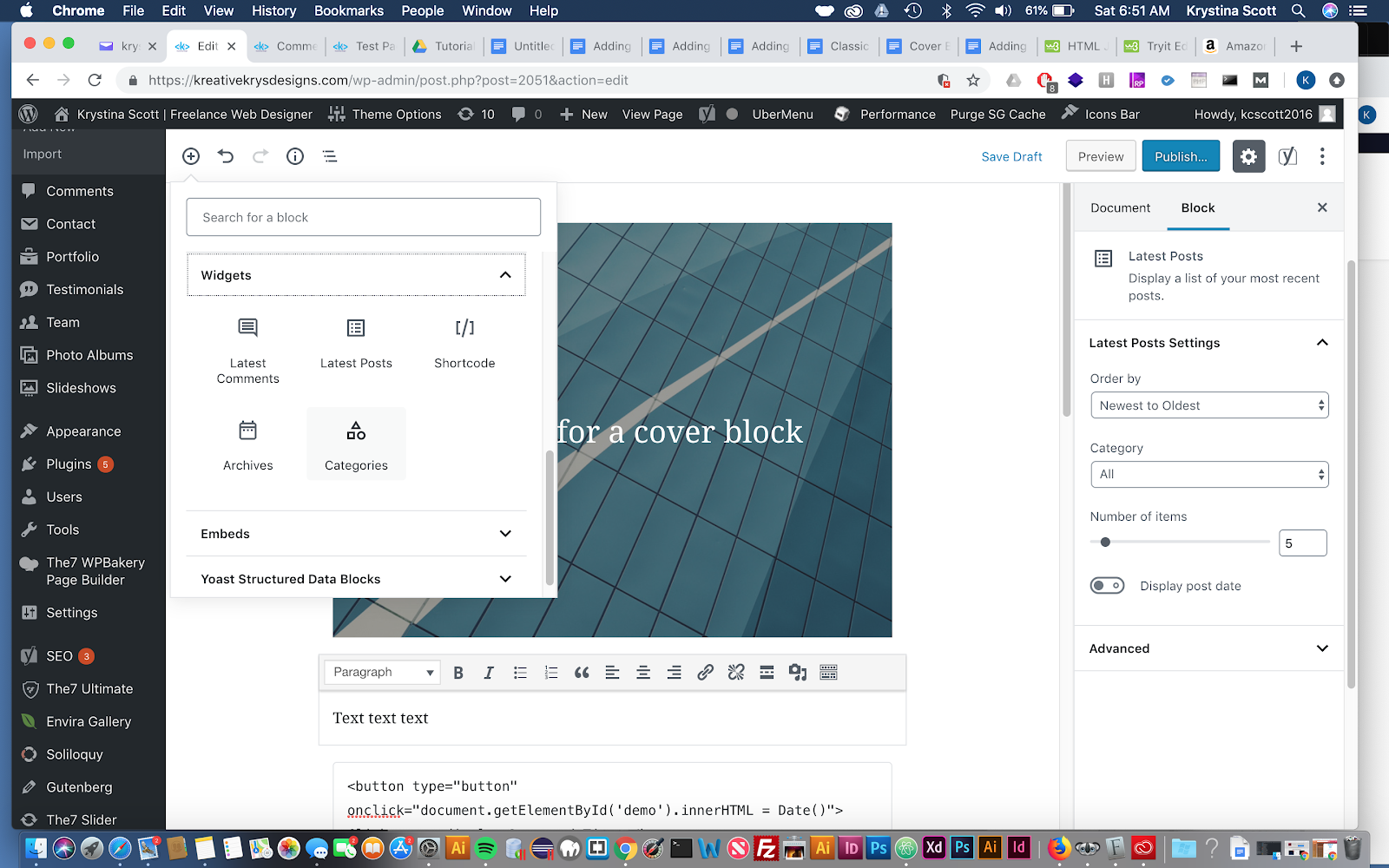
Choosing the Category Block in Gutenberg
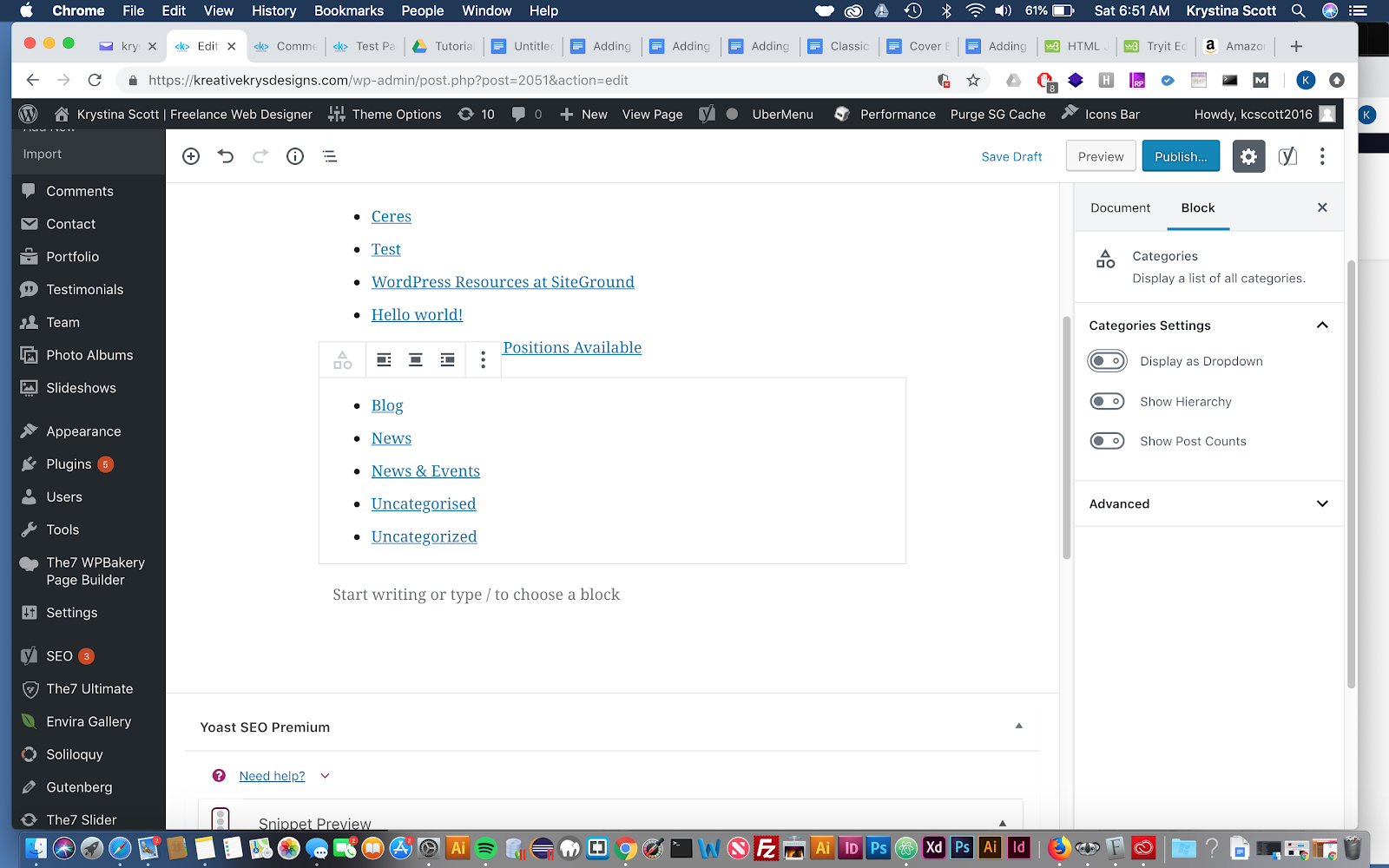
List of Post Categories using the Category Block in Gutenberg
Step 4 - Choose whether or not you want to have the categories display as a dropdown or list, show hierarchy, (categories and sub-categories), and whether or not to show the number of posts that are in each category.

Leave a comment