Table of contents
We can reply to a comment on our WordPress site easily. Follow the steps below to reply to a comment:
How to reply to a comment
STEP 1 : Go to the post where you want to reply to a comment. STEP 2 : Click Reply and put your reply in the text area. 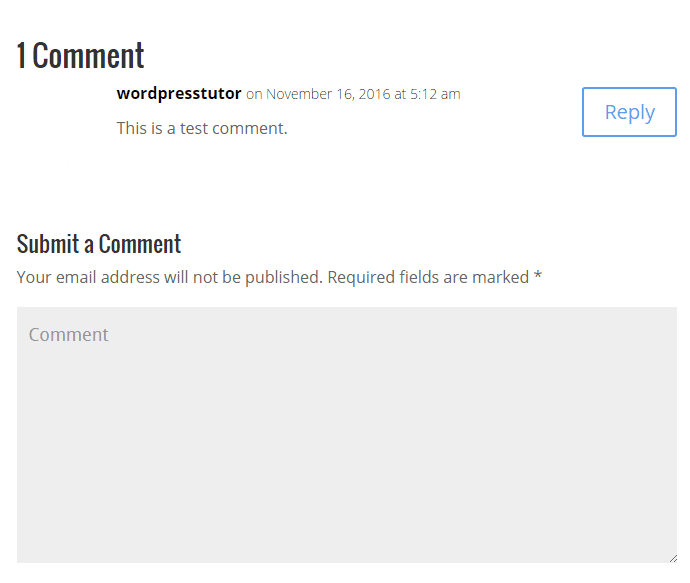 STEP 3 : Now add your Name and Email.
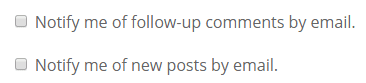
 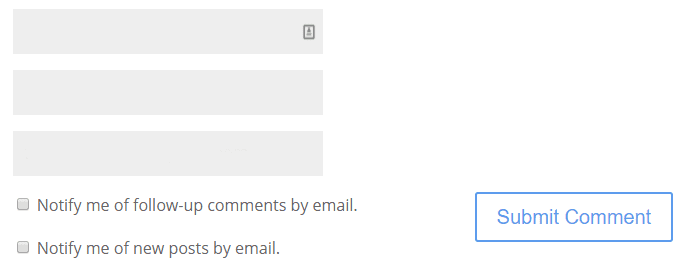 STEP 4 : You can select the follow-up-comments by email and new post by email check-boxes if you want.
  STEP 5 : Now click Submit Comment and wait until the admin approves the reply.
  Your comment reply will show as a reply once the admin approves that.

Leave a comment