Table of contents
This is the guide we wish everyone had before they went looking for WordPress training: what the skill actually consists of, who genuinely benefits from a trainer, what the going rates are in 2026, and how to tell a real instructor from a recycled screencast. It applies whether you train with us or somebody else.
What WordPress training actually is (and what it isn’t)
WordPress training is instruction in how to run a WordPress website: publishing and editing content, organising media, controlling who can do what, installing and configuring plugins, changing how the site looks, and keeping the whole thing updated, backed up and secure. It is not web development training. You are not learning PHP, and the overwhelming majority of site owners never need to.
That distinction matters more than anything else on this page, because it changes what you should buy. WordPress separates content from code deliberately — the editor, the media library, the menus and the settings screens all exist so a non-developer can run a site without opening a template file. Most people who say “I need to learn WordPress” need perhaps fifteen hours of structured practice with those screens, not a computing course and not a developer.
The second thing training isn’t: a substitute for having a site. You can’t learn WordPress the way you learn history. Every skill is procedural — you learn it by doing it, forgetting it, and doing it again next month. Training that works puts you in a real dashboard early and keeps you there. Training that doesn’t is the kind you watch on the sofa and never open again.
It also isn’t one skill. “Learning WordPress” bundles at least four unrelated jobs — writing and publishing, design and layout, site administration, and growth work like SEO and email. People stall because they try to learn all four at once, in no particular order, from whichever tutorial the search results happened to surface. Sequence is most of the value a trainer adds, and if you want that sequence written down, it is the eight-week plan on our WordPress training for beginners page.

Who actually needs WordPress training
Five situations account for nearly everyone who books, and each wants something slightly different:
- You inherited a site.A designer built it, handed over a password, and left. You’re now responsible for a site made of a page builder, a custom theme and fifteen plugins you didn’t choose. Generic tutorials are close to useless here, because nothing on your screen matches the screenshots. This group gets the most out of live training by a wide margin.
- You’re starting from zero. You have a domain, maybe hosting, and a plan to build the site yourself. What you need first is a route through the material in a sensible order — start with WordPress training for beginners and book time with a trainer for whatever it doesn’t cover.
- You administer the site for other people.WordPress admin training is its own thing: users and roles, permissions, what to do when someone leaves, and how to stop five people holding administrator accounts they don’t need. Half an hour here prevents most of the security incidents we get called about.
- You have a team that all touch the same site.The problem isn’t skill, it’s consistency — three editors with three private conventions degrade a site quietly over a couple of years. See training for teams below.
- You’re an agency handing sites to clients. Your clients need user training and you need to stop answering the same question for the eleventh time. That is a white-label training problem rather than a teaching one.
Five ways to get trained on WordPress
“Training” covers five quite different products. This page is about the last two — the ones with a person in them. The first three have pages of their own, because they answer a different question and cost a different amount.
| Format | Typical 2026 cost | Best for |
|---|---|---|
| Free WordPress training | Free | One specific question, answered fast |
| Self-paced WordPress courses | $40–$200 once, or $20–$40/mo | Fundamentals, in the right order, at your pace |
| Online classes | $150–$900 per seat | A scheduled group session that keeps you honest |
| Live one-on-one training | $75–$150 / hour | Your site, your theme, your inherited mess |
| Team & business training | Quoted on scope | Getting everyone who edits the site to the same standard |
Most people should not pick one. The pattern that works is a course for the fundamentals, free tutorials as a reference alongside it, and paid hours saved for the two or three things that are specific to your site. That is consistently both the cheapest total cost and the fastest route to competence — in that order.
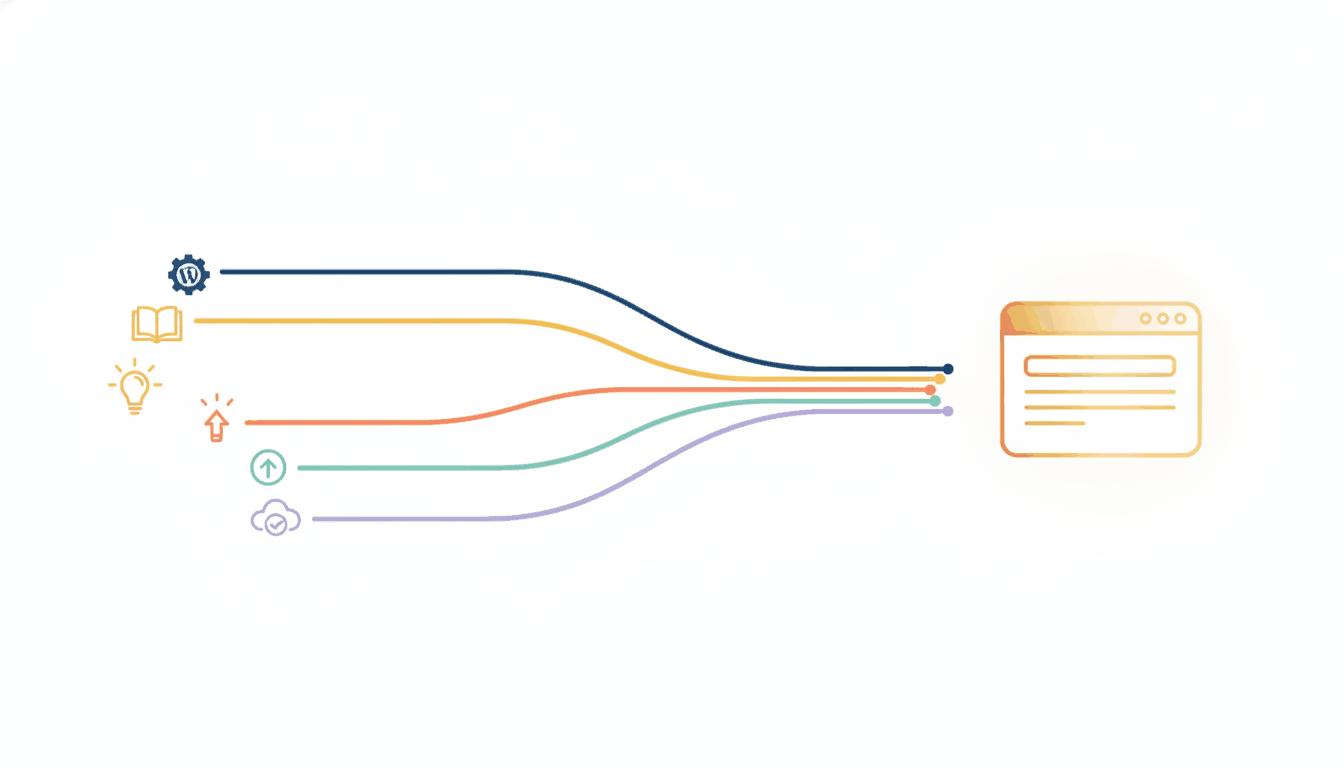
How much training each role actually needs
“Train the team” is four different jobs, and buying one syllabus for all of them is the most common way organisations waste a training budget. Roughly what each role needs:
| Role | Hours | What it has to cover |
|---|---|---|
| Content editor | 2–3 | The block editor, media, links, previewing and publishing, and the house conventions for headings and image sizes. Nothing else. |
| Marketer | 4–6 | All of the above plus landing pages, forms, tracking, and enough SEO settings to stop fighting the plugin. |
| Site administrator | 4–6 | Users and roles, the update routine, backups and restores, staging, and what to do the day someone leaves. This is WordPress admin training, and it is the one that prevents incidents. |
| Owner / accountable person | 6–10 | Enough of all three to judge whether the site is being looked after — plus what to ask a developer, and when to hire one. |
The trap is training everyone as if they were the administrator. It is expensive, most of it is never used, and the parts that matter get diluted. Train the editors narrowly and deeply, train one administrator properly, and record both.
Building a WordPress training program that survives staff turnover
A one-off session teaches the people in the room. A training program keeps working after they leave, and the difference between the two is almost entirely documentation rather than teaching.
Four things make a program rather than an event:
- A written house standard. One page: how you name pages, what size images go in, which heading levels are used where, who approves publishing. Most WordPress inconsistency is a missing decision, not a missing skill.
- A recorded baseline. The session everyone sat in, kept somewhere findable. This becomes the first day of every future hire and costs nothing to reuse.
- A named administrator.One person accountable for updates, backups and access, with a deputy. Sites decay when this is everybody’s job.
- A refresher trigger, not a schedule. Retrain when WordPress ships a major release that changes the editor, when the site is rebuilt, or when two new people have joined — not annually out of habit.
We will help you build all four in a single session and hand you the written standard afterwards; you do not need us on retainer to keep it working.
Why live training beats another video course
We sell both, so take this as a description of where each one stops rather than a pitch. A recorded course is the better buy for anything universal — the dashboard is the dashboard, and paying a person to describe it to you individually is paying a premium for nothing.
Live instruction earns its rate in four specific places:
- Your site is the lesson. No translation step. Your theme, your plugin menus, your page builder, your content. For an inherited site this is not a nice-to-have — it is the entire difference between progress and guessing.
- You can ask the follow-up.The second question is where learning actually happens, and a video cannot answer it. Most sessions turn on a question the learner didn’t know they had until something on screen prompted it.
- Diagnosis, not instruction.A trainer looking at your site spots the things you didn’t think to ask about: no backups, four administrators, a plugin that has not updated since 2022. A course cannot see your site.
- You finish with real work done. Not exercises — the actual page you needed, published, while somebody watched you do it.

What booking a session actually gets you
Live training is sold by the hour, which tells you nothing about what you receive. Here is the shape of an engagement with us, and a fair checklist for judging anybody else’s.
One honest boundary: we teach you to run your site. We do not do PHP or heavy CSS work in sessions. If that is what you need, you need a developer, and we will tell you so rather than bill you for the discovery.
WordPress training for teams and staff
Individual training makes one person capable. Team training makes a site maintainable, and those are different goals.
The failure mode in organisations is never that nobody can use WordPress. It is that four people can, each in their own way — one uploads images at full resolution, one builds every page from scratch instead of duplicating the template, one has been an administrator since 2019 and left in 2023. Nothing breaks loudly. The site just gets slower, less consistent and harder to hand over, and by the time anyone notices, unpicking it is a project.
Team sessions are shaped around that rather than around a syllabus:
- One agreed way of doing each routine job. Publishing a post, adding a person, swapping a hero image, putting up a job listing. Agreed in the session, written down after it.
- Roles set correctly, once. Most people who need to edit need Editor or Author, not Administrator. This is the cheapest security work available.
- Trained on your site or a practice copy. A staging copy when the site is busy or the work is risky; the real thing when it is not, so the team finishes the session with real work done.
- Recordings that become onboarding. The fifth hire watches the session the first four sat in. This is where team training quietly pays for itself twice.

Team and business training is quoted on scope, because “train our team” means something very different at four people than at forty. Tell us the shape of your team and what the site is built with, and you will get a straight number.
WordPress training for agencies and their clients
If you build or maintain WordPress sites for other people, your training problem is the opposite of everyone else’s on this page: you already know WordPress. What costs you money is that your clients don’t, and every handover turns into a support relationship you never priced for.
The usual fix is to record a walkthrough for each client, which works exactly once and then goes out of date. The better fix is training that carries your name instead of ours — a library of unbranded WordPress video training sitting inside the sites you manage, so the client watches the answer instead of emailing you.
That is what white-label WordPress training is: the same lessons, no WP Tutoring branding anywhere, licensed by the number of sites you look after. Agencies also book live sessions for their clients under their own banner — askand we’ll quote it.
What WordPress training costs in 2026
Rates for live instruction, which is what this page sells. Course pricing is a different product and lives on the WordPress courses page.
| What | Typical market rate | Ours |
|---|---|---|
| Live one-on-one, per hour | $75–$150 | $85, in one- to four-hour blocks |
| Small-group or classroom day | $500–$2,000 / day | Quoted on scope |
| Team & business program | Quoted | Quoted on scope, recordings included |
| Agency / white-label licence | Per site or per seat | From $149/yr for 10 client sites |
An hourly rate only looks expensive next to the wrong comparison. Set $85 against a $29 subscription and it looks steep; set it against the eleven evenings you would otherwise spend searching, or against a developer’s emergency rate after something breaks, and it is the cheap option. The question is never “what does the hour cost” but “what is the hour replacing”.
And spend nothing at all until free has run out. Free WordPress training — videos, dozens of free courses, 230+ written tutorials and an 83-page manual — covers the fundamentals completely. Paid training buys sequence and answers, not secret material.
How to choose a WordPress trainer
The category is crowded and quality varies enormously. These are the signals worth trusting, and they apply to us as much as to anyone else.
Green flags
- Recent material with visible dates. WordPress changed more between 2020 and 2026 than in the decade before. A trainer who opens in the classic editor without saying so is teaching an interface most sites no longer use by default.
- They will say what they don’t cover. Confident instructors scope their claims and point you elsewhere when somebody else fits better.
- You keep something afterwards. Recordings, notes, written steps. A session you cannot revisit is worth a fraction of one you can.
- They ask about your site before quoting.A trainer who doesn’t ask what the site is built with is going to teach you a generic lesson at a bespoke price.
- They train on your site, not theirs. The whole reason to pay a person.
Red flags
- “Master WordPress in one hour.” You can master a task in an hour. Not the platform.
- No dates anywhere. Undated WordPress content is a tell, and usually an old one.
- The training is a funnel. If every lesson terminates in a pitch for a plugin or a hosting affiliate link, you are the product.
- Certification as the headline. There is no official WordPress certification — it is open-source software with no governing body issuing credentials. Completion certificates are fine as a record; no client has ever hired on one.
- Pre-recorded video marketed as personalised. Video is excellent. It is not personal, and providers who blur that line usually blur others.
Where to start this week
Whatever you end up buying, the first three steps are the same and cost nothing.
- Write down three things you want to be able to do.Concrete ones. “Add a new person to the About page.” This turns training from studying into practising, and it is what any decent trainer will ask for anyway.
- Spend ninety minutes in the dashboard changing nothing. Open every menu just to see what is there. Most of what stops beginners is unfamiliarity, not difficulty.
- Exhaust the free material on your specific question. If the free videos and courses answer it, you have saved the money. If they don’t, you now know exactly what to ask — and that specificity is what makes a paid hour cheap.
Then pick the format that matches your situation: beginner training if you are starting from zero, the course catalog if you want the whole sequence, online classes if you would rather be scheduled than self-disciplined, and a live session if the thing you are stuck on is specific to your own site. In the San Francisco Bay Area? There is a page for WordPress training in Benicia and Solano County.
If you are not sure which, tell us what you are stuck on and we will say honestly whether an hour with a trainer is the right purchase — or whether a free tutorial already answers it.