Table of contents
Your contact form says "message sent," but nothing arrives. Password reset emails go missing. Customers never get their order receipts. The fix is an SMTP plugin, and two plugins do most of that work on WordPress sites: FluentSMTP and WP Mail SMTP. Both send your site's email through a real mail service instead of your web server, and either one solves the problem. They differ in what's free, which mail services they connect to without paying, and how the setup works. We installed both on a fresh WordPress 7.1 site in November 2026 (WP Mail SMTP 4.10 and FluentSMTP 2.4) and sent real test emails through each. Every screenshot below comes from that setup. (New to SMTP? Start with what SMTP is and why your site needs it.)
- Both plugins fix WordPress email. Choose one; never run both.
- FluentSMTP: 100% free, including email logs, resend, failure alerts, and a backup connection.
- WP Mail SMTP: the most-installed option; logs, alerts, backup connection, and some mail services need Pro.
- Either way, add your mail service's SPF and DKIM records to your domain's DNS.
The short answer
If you want everything free, use FluentSMTP. It has no paid version, so the email log, resend button, failure alerts, and backup connection are all included.
If you want paid support, open and click tracking, or you already use other plugins from the same company (WPForms, MonsterInsights), use WP Mail SMTP. The free version (called "Lite") sends email reliably. The extras cost money.
Search for "SMTP" under Plugins → Add Plugin and you'll see both near the top. WP Mail SMTP has more installs (4+ million); FluentSMTP has 700,000+.
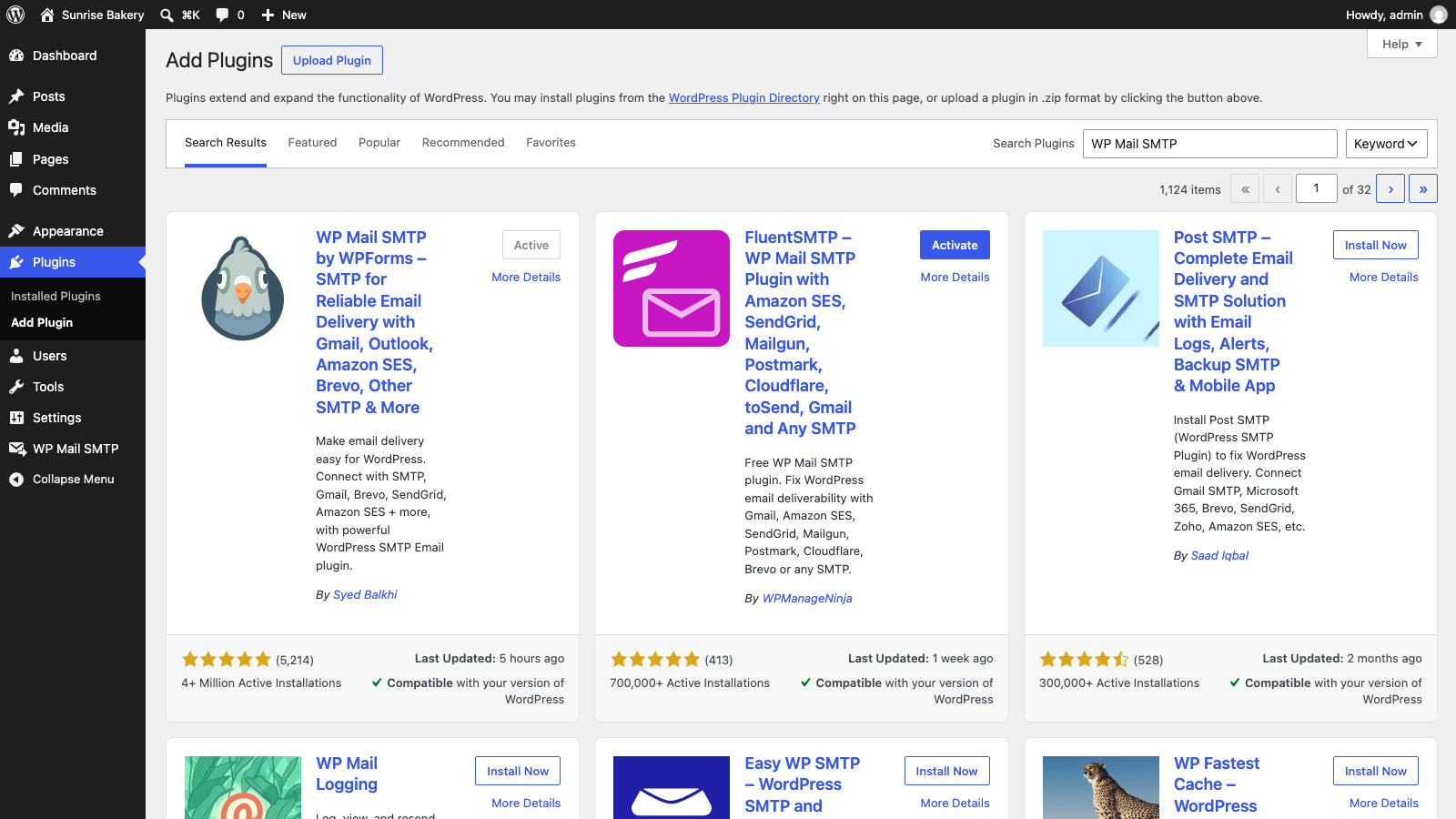
FluentSMTP vs WP Mail SMTP at a glance
| FluentSMTP | WP Mail SMTP Lite (free) | WP Mail SMTP Pro | |
|---|---|---|---|
| Price | Free, no paid plan | Free | Paid yearly plan |
| Email log with resend | Yes | No | Yes |
| Backup connection if the main one fails | Yes | No | Yes |
| Different mail service per "From" address | Yes | No | Yes (Smart Routing) |
| Alerts when an email fails | Yes (Slack, Discord, Telegram, Pushover) | No | Yes |
| Amazon SES and Microsoft 365 / Outlook | Yes | No | Yes |
| Zoho Mail | No | No | Yes |
| Gmail / Google Workspace, Brevo, Mailgun, Postmark, SendGrid, SparkPost, SMTP2GO, any SMTP server | Yes | Yes | Yes |
| Test email checks your SPF/DKIM/DMARC | No | Yes | Yes |
| Open and click tracking | No | No | Yes |
| Support | Community forum | Community forum | Ticket support |
The biggest difference is the email log. When a customer says "I never got the email," a log tells you whether your site sent it, when, and what the mail service said. FluentSMTP gives you that free. In WP Mail SMTP Lite, the Email Log tab is just an upgrade screen:
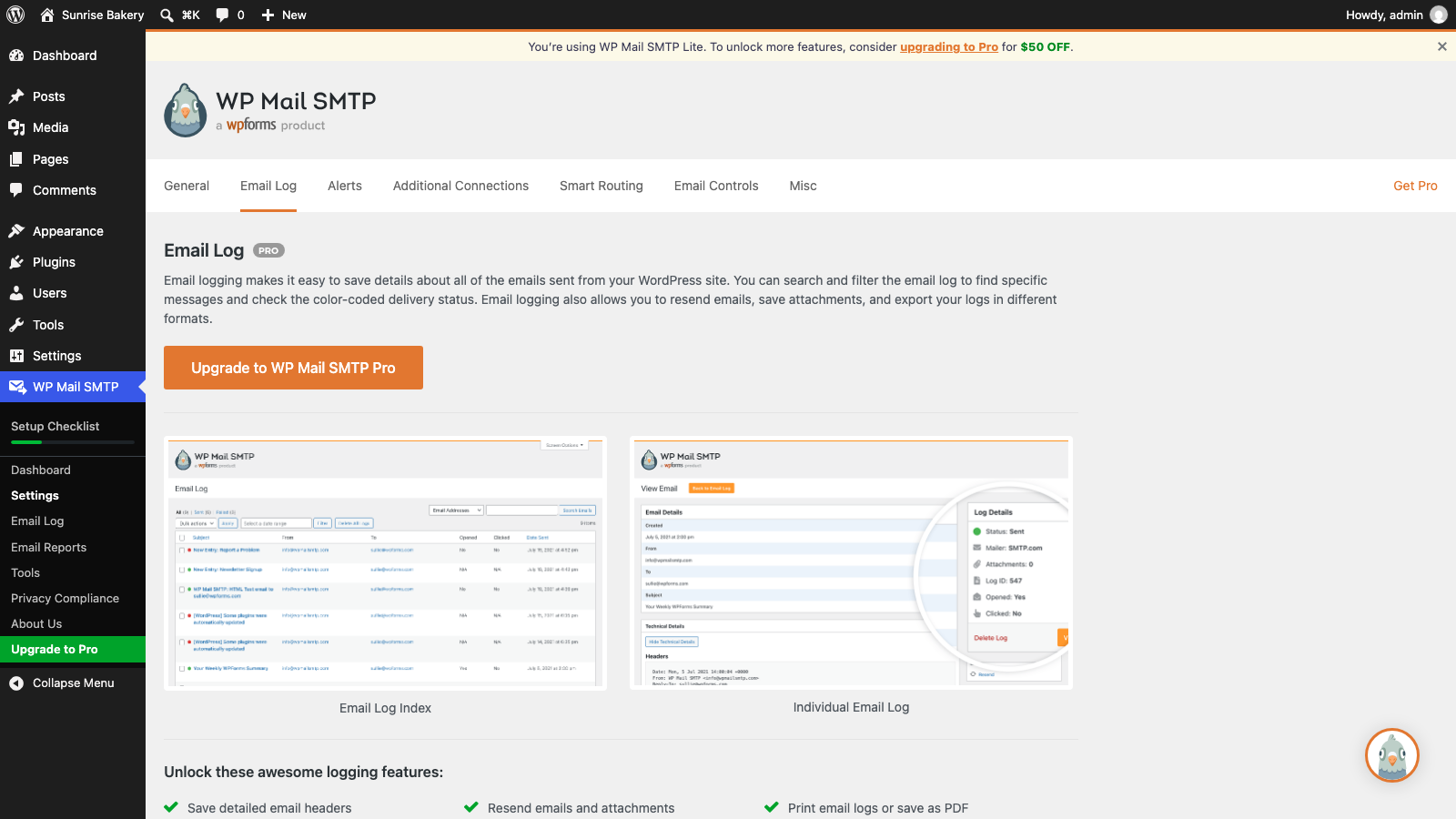
WP Mail SMTP does have one free feature FluentSMTP lacks: after a test email, it checks your domain's DNS and tells you if SPF, DKIM, or DMARC records are missing. That's handy for the last step of any setup.
Both plugins take over WordPress's mail function. If both are active, you can't predict which one sends. Before you install one, deactivate any other SMTP plugin, including ones bundled with your host.
Before you start: pick a mail service
An SMTP plugin is a delivery driver. It still needs somewhere to deliver through. Choose your mail service first, because you'll need its login details or API key during setup:
- Google Workspace or Microsoft 365: if your business email already lives there, use it. Good for low-volume sites (contact forms, password resets). (Microsoft 365 needs Pro in WP Mail SMTP.)
- Brevo or SMTP2GO: free tiers big enough for most small sites.
- Amazon SES: very cheap at high volume, good for busy WooCommerce stores. (Also Pro-only in WP Mail SMTP.)
- Your web host's email: works through "Other SMTP" in either plugin, but hosts often limit how much you can send.
Use a From email on your own domain (like hello@yourbusiness.com), not a
Gmail or Yahoo address. Inbox providers reject mail that claims to be from
Gmail but comes from your server.
How to set up FluentSMTP
Go to Plugins → Add Plugin, search for FluentSMTP, then click Install Now and Activate. Open Settings → FluentSMTP.
Click Add Connection (on a new install, the setup screen opens for you) and pick your mail service. Choose Other SMTP for your host's mail server or any service not shown.
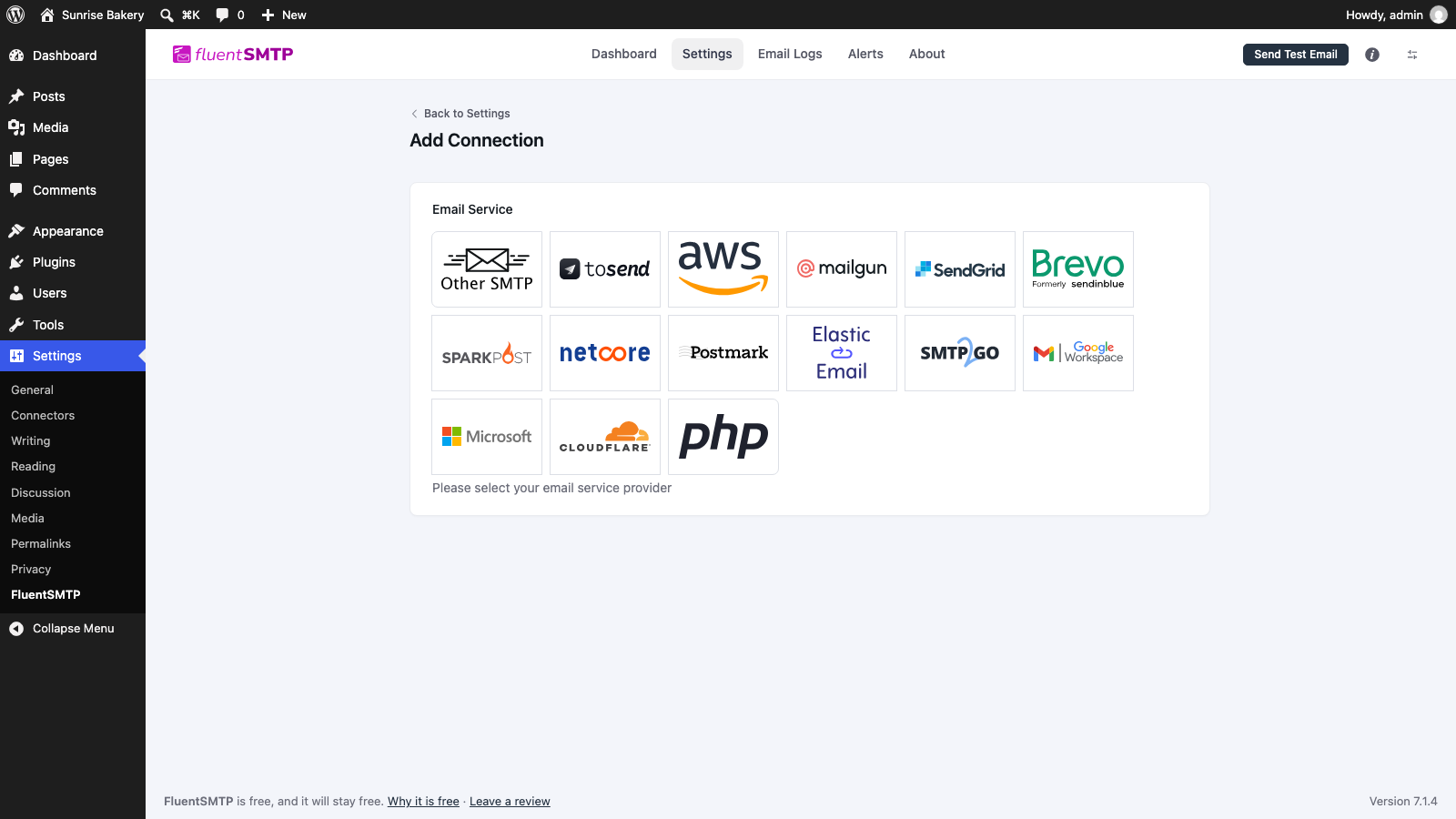
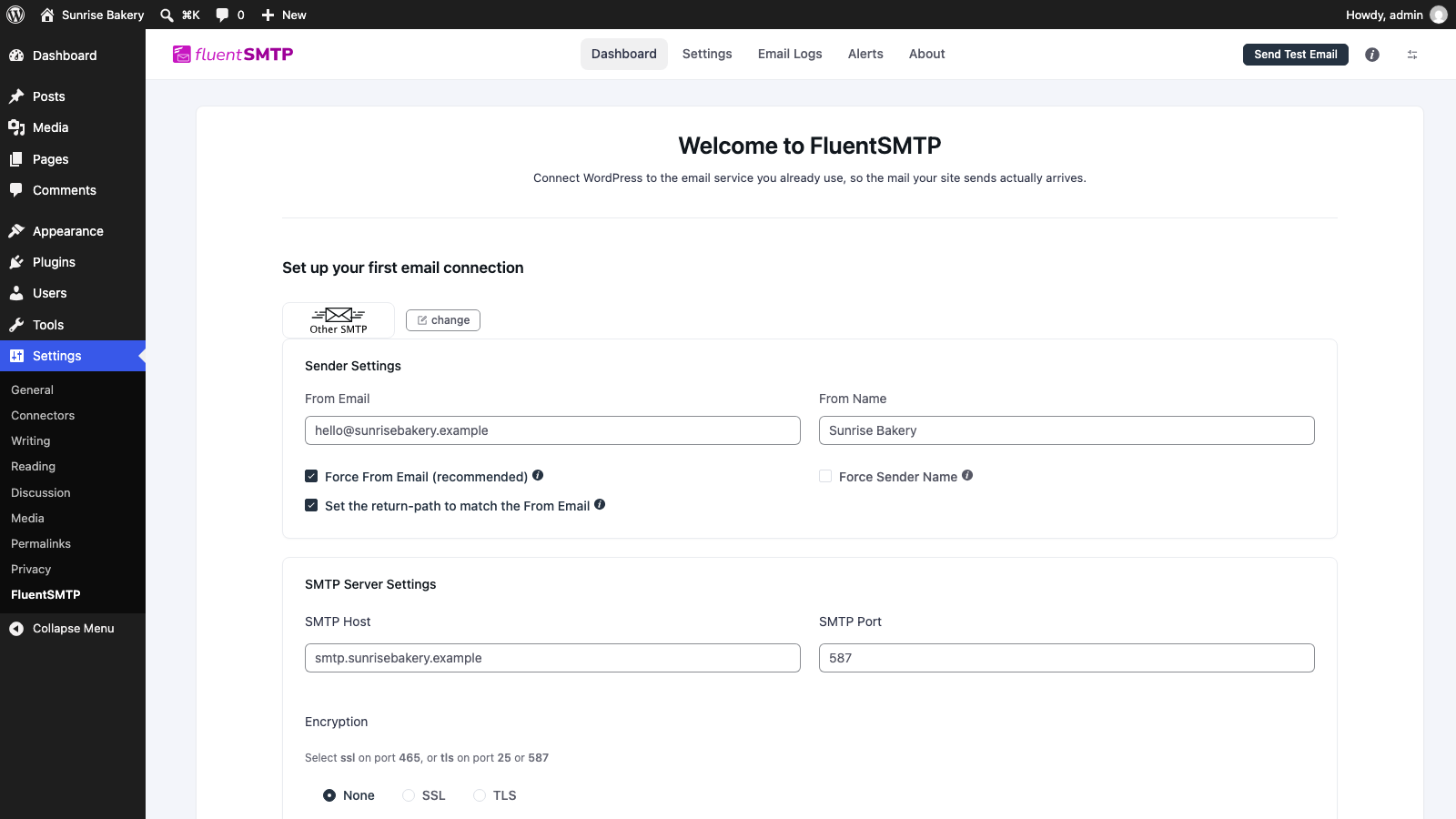
Fill in the From Email and From Name people should see, and leave Force From Email (recommended) ticked so every plugin on your site sends from the same address. Then paste the API key, or the SMTP host, port, and login from your mail service, and click Save Connection Settings.
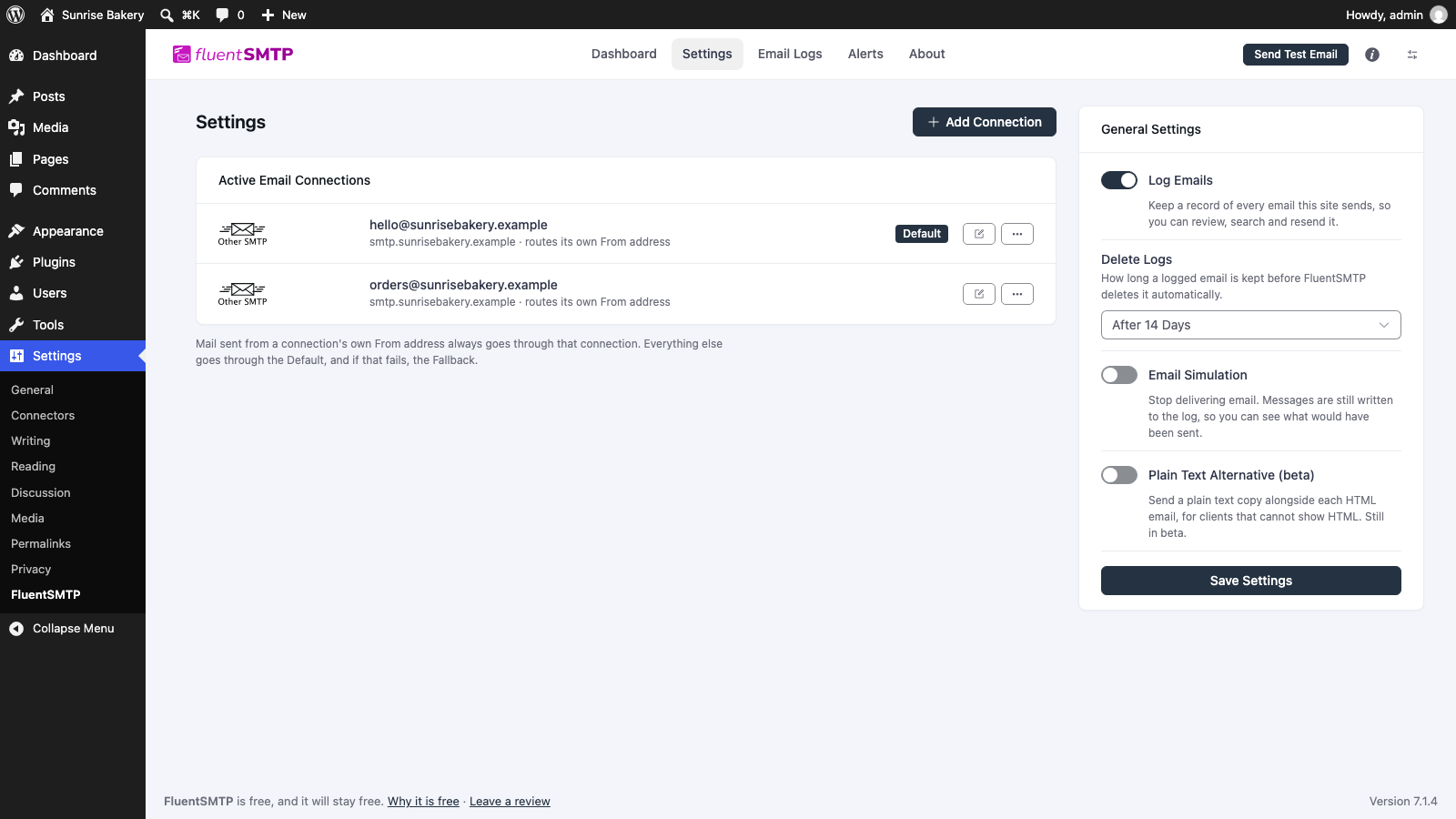
On the Settings tab, Log Emails is on by default. Under Delete Logs, choose how long to keep them (the default of 14 days is fine). Logs store full message content, so don't keep them forever.
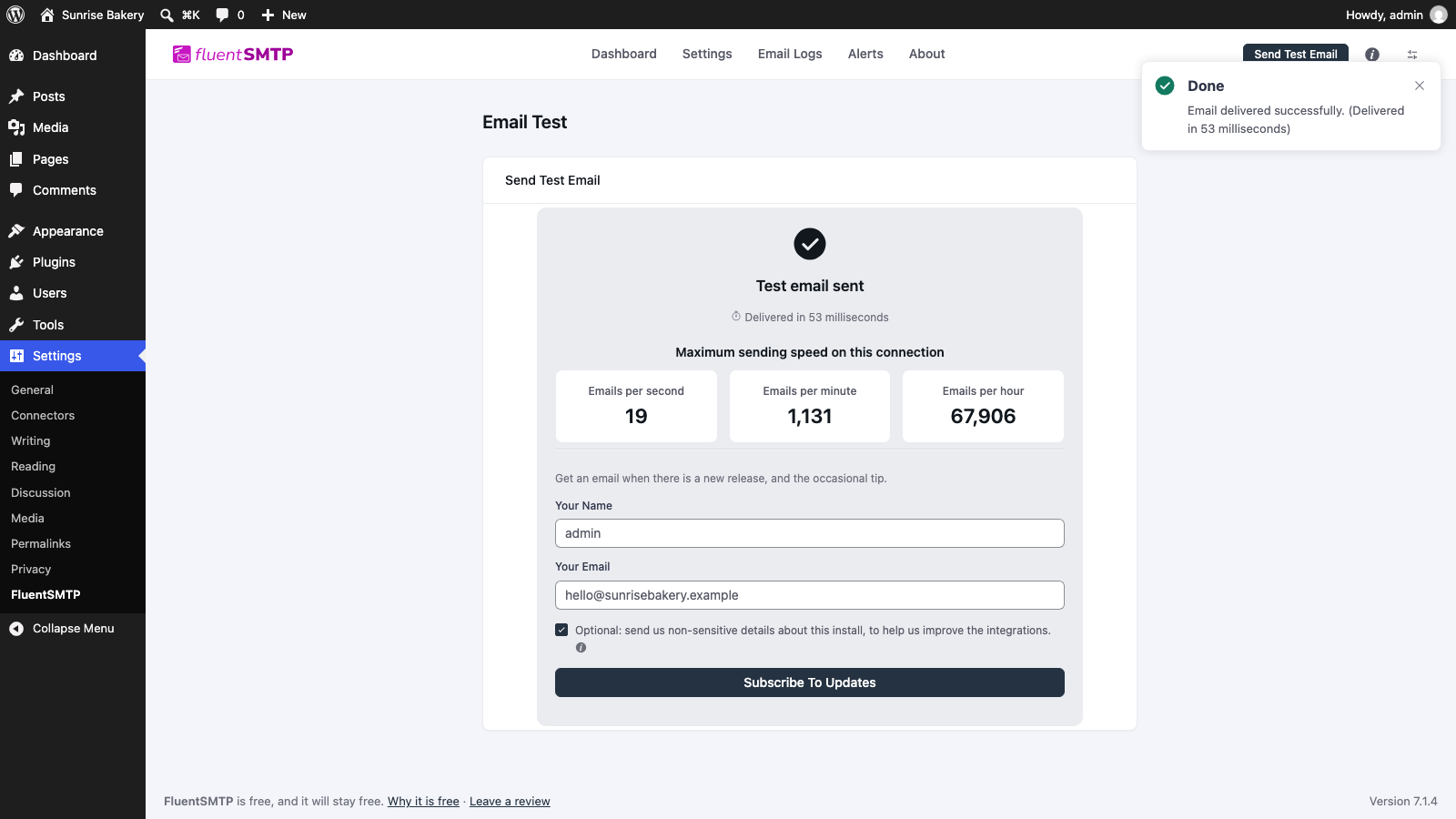
Click Send Test Email at the top right, enter an address you can check, and send. A working connection says Test email sent. If it fails, the error tells you why: a wrong password, a blocked port, or an unverified domain.
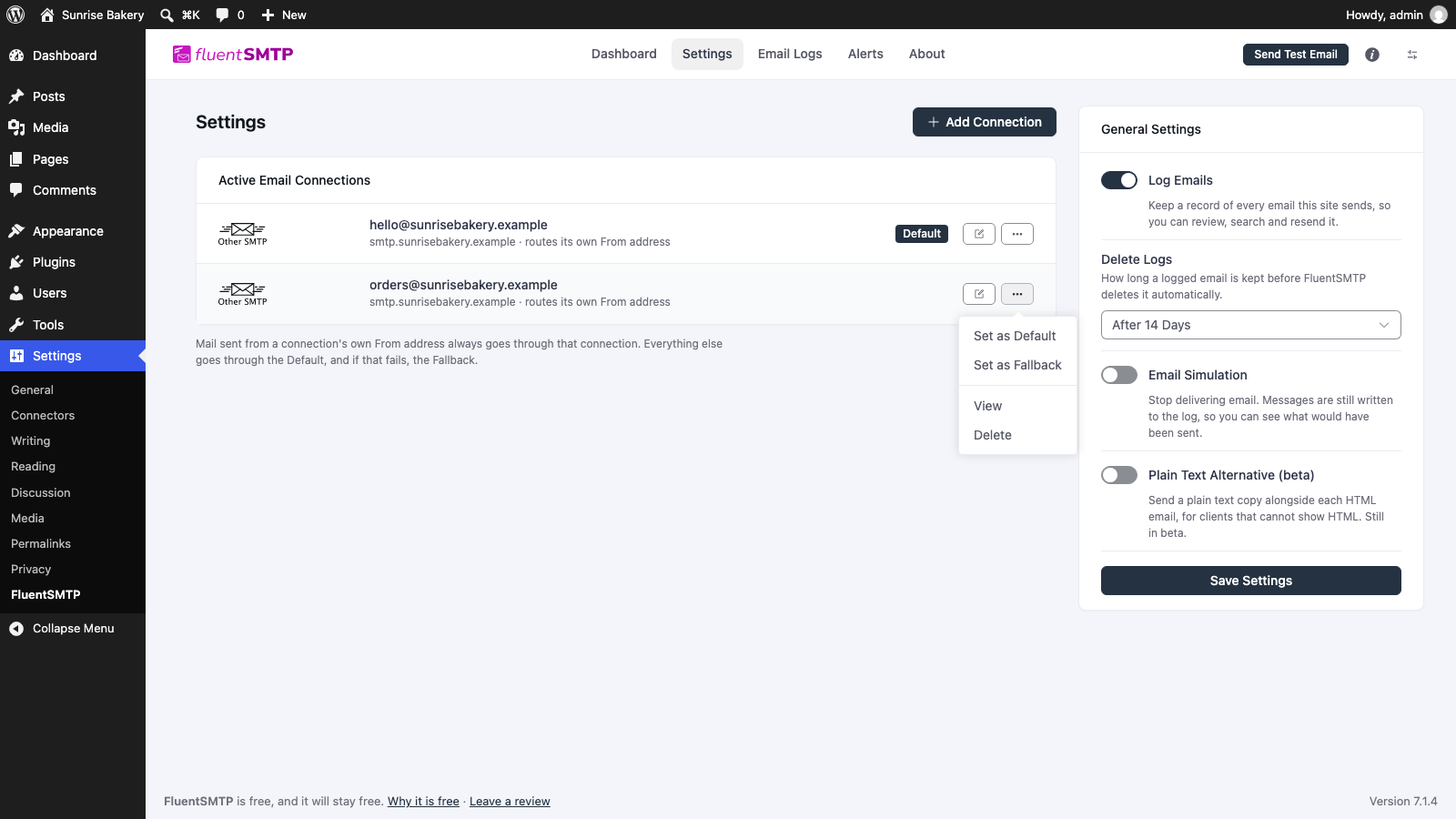
Add a second connection (for example, your host's SMTP). Then click the ••• button next to it and choose Set as Fallback. If your main service goes down, email keeps flowing through the backup.
Once you're live, Email Logs lists every email your site sends, with its status and a Resend button:
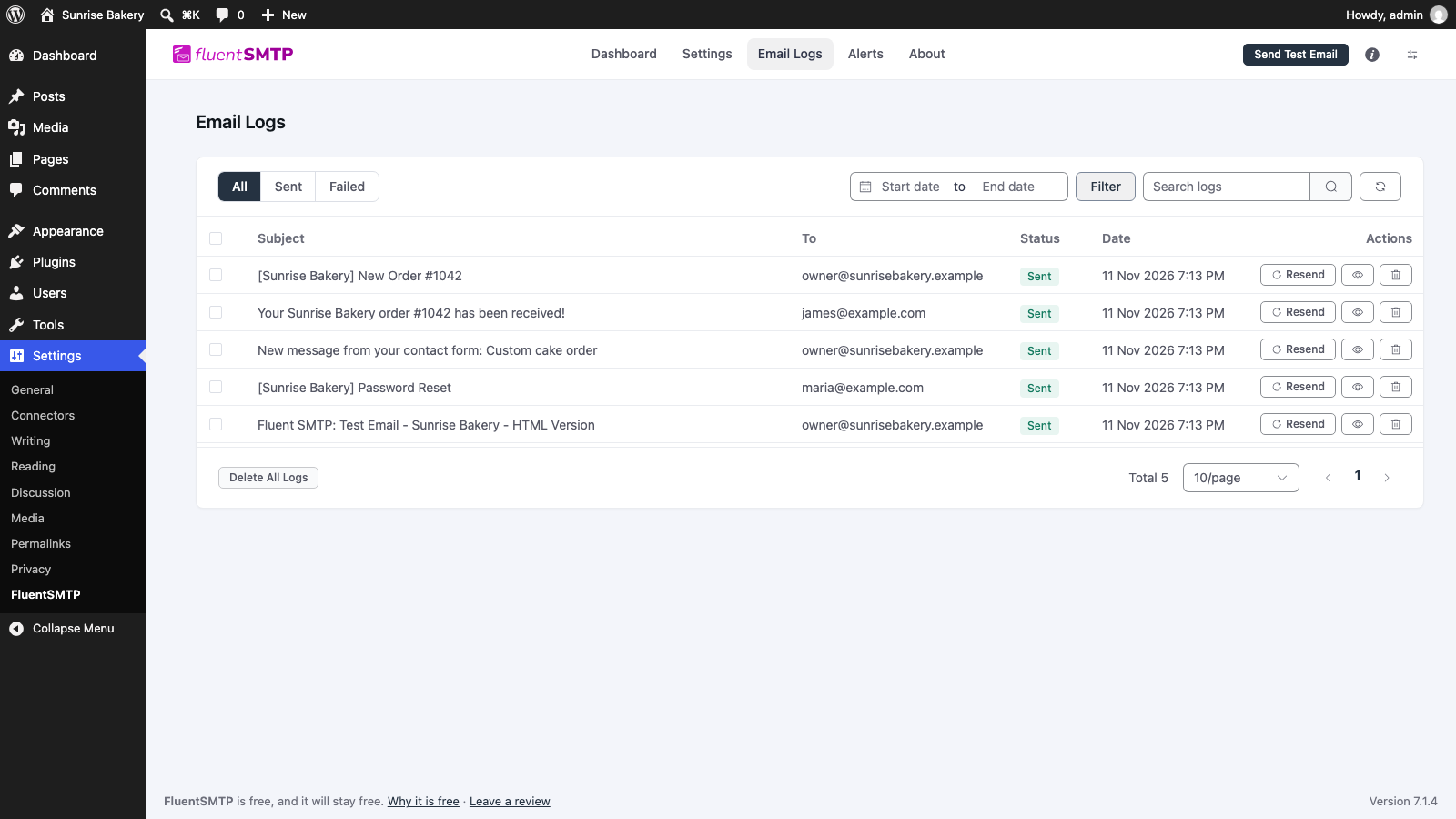
Our FluentSMTP email logs guide shows how to read the log and resend failed messages. To get a message when an email fails, connect Slack, Discord, Telegram, or Pushover on the Alerts tab.
How to set up WP Mail SMTP
Go to Plugins → Add Plugin, search for WP Mail SMTP, then click Install Now and Activate. Then go to WP Mail SMTP → Settings.
There's a Launch Setup Wizard button, but the wizard now sends you to the WP Mail SMTP website to finish. The steps below use the Settings page, which keeps everything inside your own dashboard.
Enter the From Email and From Name. Force From Email is on by default; leave it on so every plugin sends from the same address.
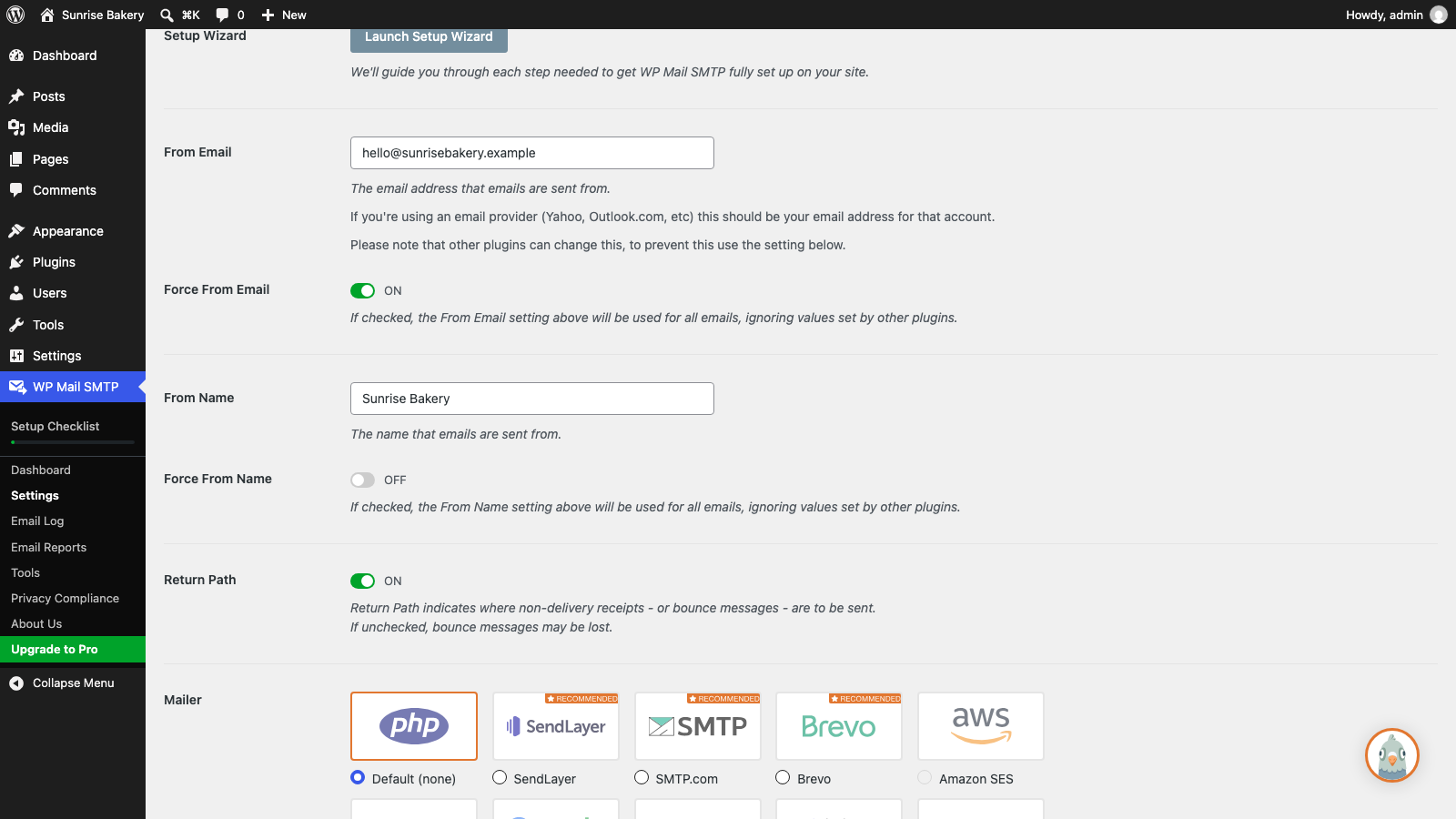
Scroll to Mailer and pick your mail service. The greyed-out options (Amazon SES, 365 / Outlook, and Zoho Mail) need Pro. For your host's mail server or any service not shown, choose Other SMTP.
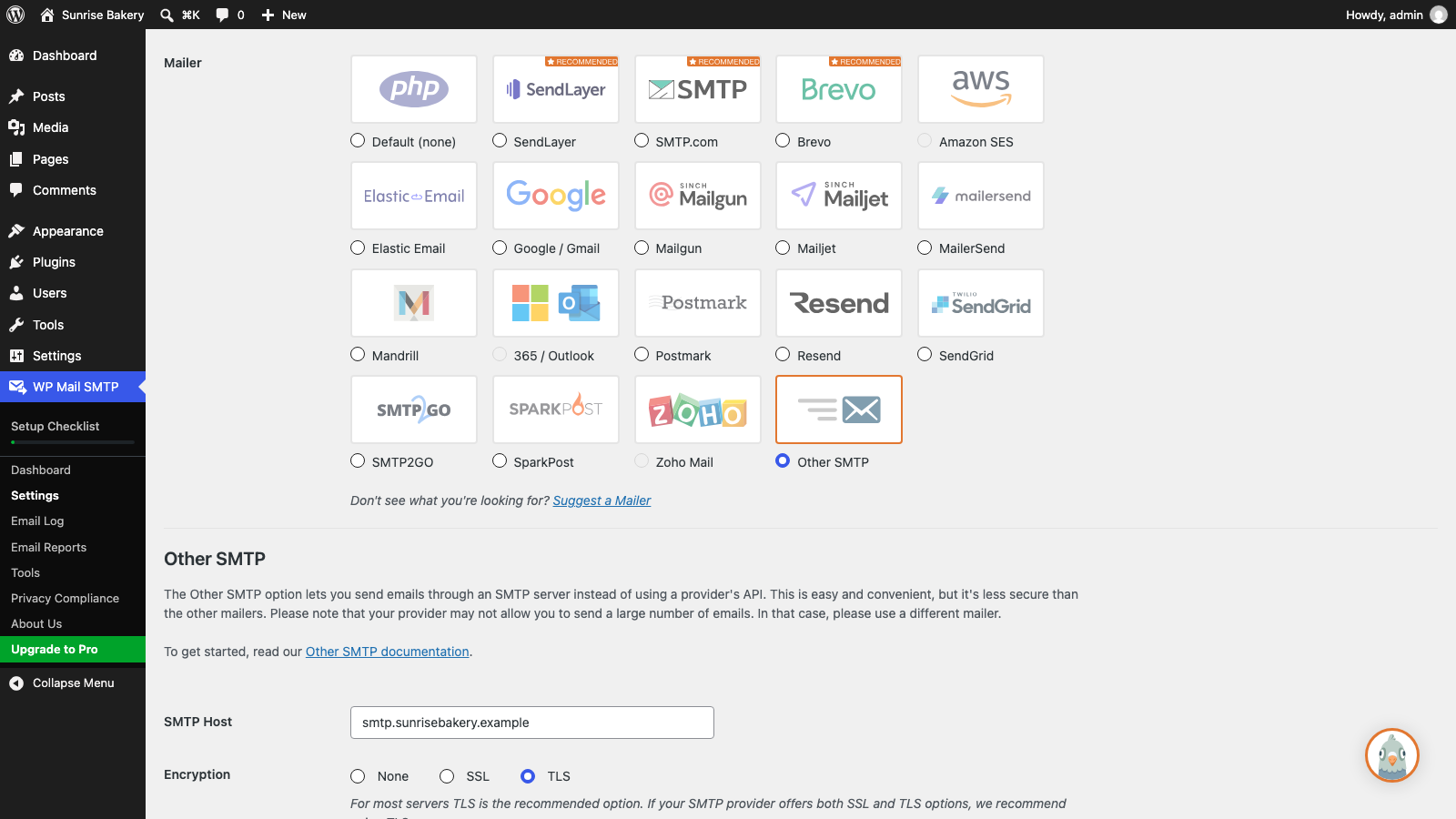
Paste the API key, or for Other SMTP fill in the SMTP Host, Encryption (TLS for most services), SMTP Port (587 with TLS), and your SMTP Username and Password. Click Save Settings at the bottom.
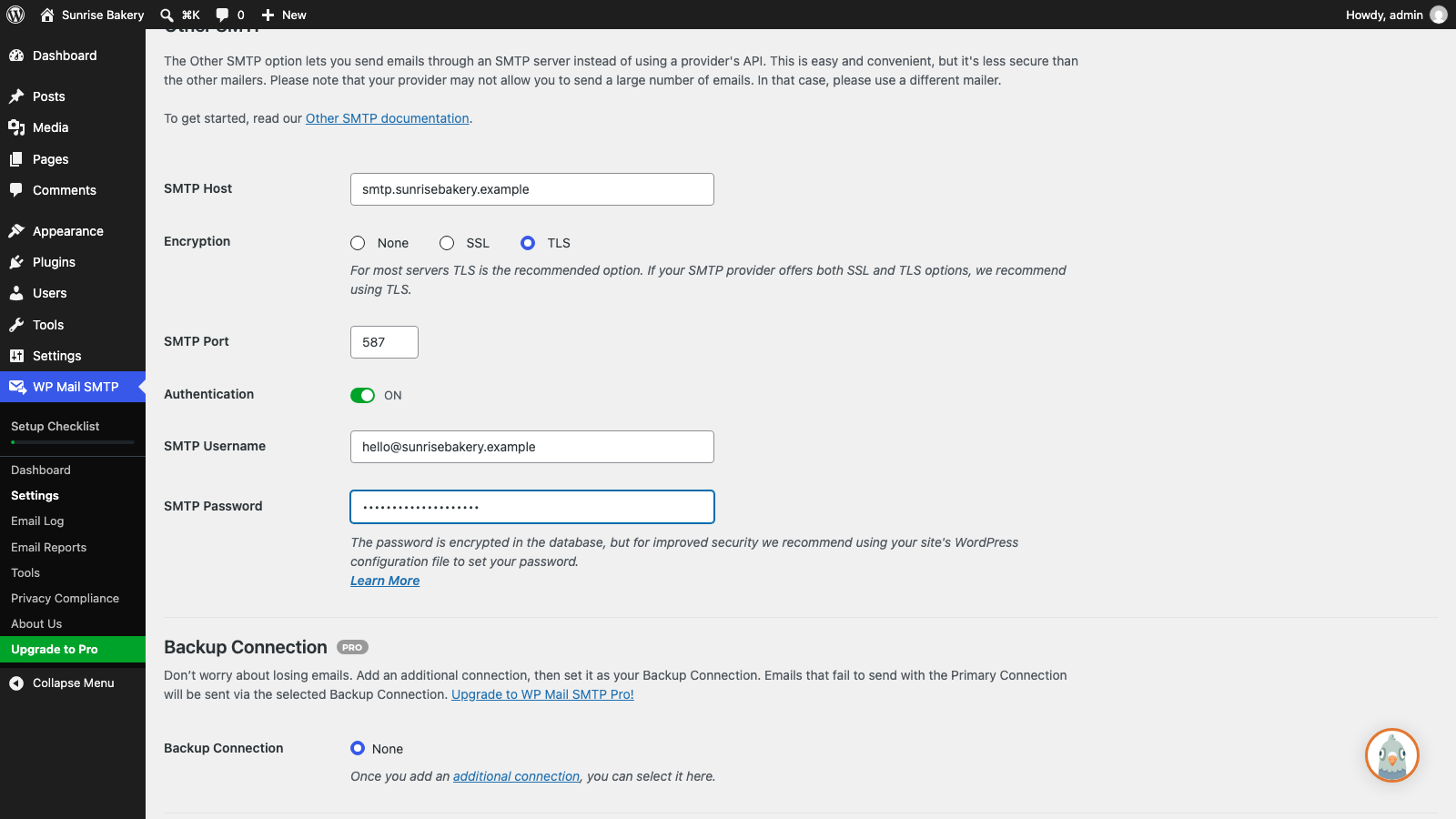
Notice the Backup Connection section below it is marked PRO.
Go to WP Mail SMTP → Tools → Email Test, enter an address you can check, and click Send Email. Along with the result, WP Mail SMTP checks your domain's DNS. In our test, the email went through, but the plugin warned that the domain was missing its SPF and DMARC records:
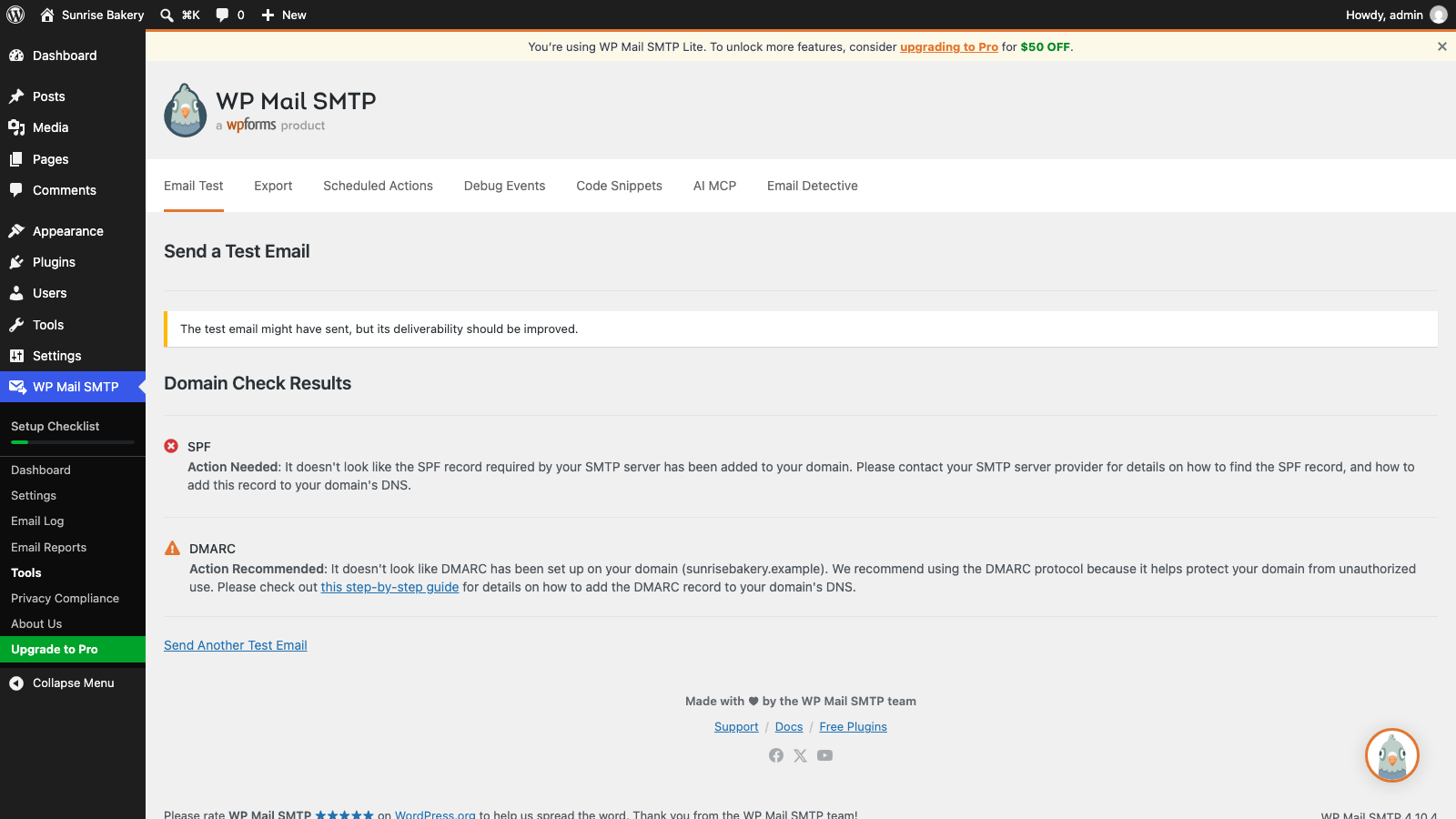
Warnings like these are why emails land in spam even when sending works. Fix them with the DNS step below.
For mail that lands in the inbox instead of spam, your domain's SPF and DKIM records must allow the mail service you connected, and a DMARC record is strongly recommended. The service's setup page lists the exact records to add. It takes about ten minutes, and you only do it once, whichever plugin you choose.
Switching from WP Mail SMTP to FluentSMTP
Switching is safe and quick. Your forms and WooCommerce don't care which plugin sends their email.
- Install FluentSMTP, but don't activate it yet.
- Deactivate WP Mail SMTP, then activate FluentSMTP.
- Open Settings → FluentSMTP. It detects your old settings and offers Import From WP Mail SMTP. Click it.
- Check the imported details and click Save Connection Settings.
- Send a test email and submit one of your own forms to confirm.
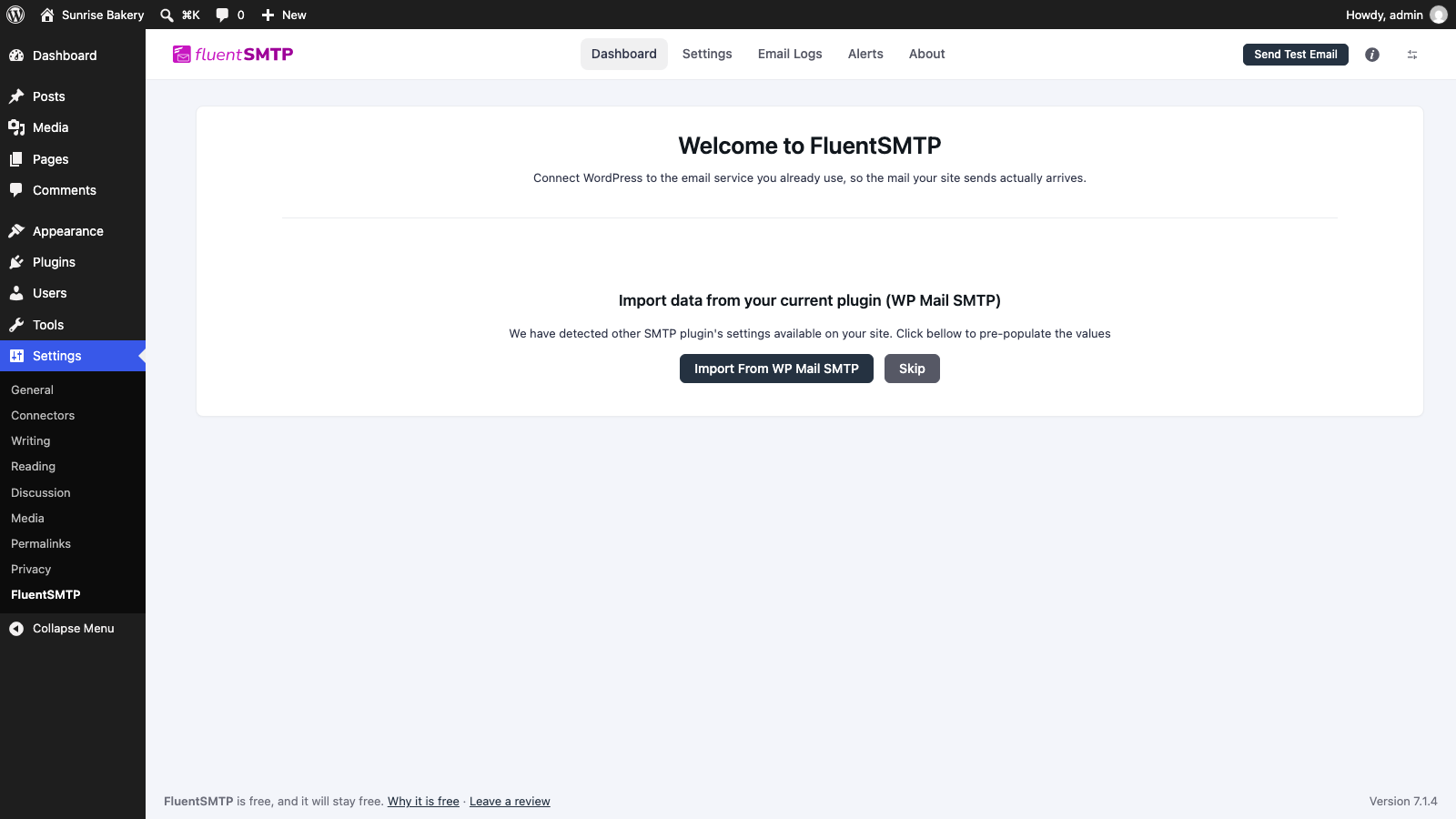
Going the other way (FluentSMTP to WP Mail SMTP) works the same, except you re-enter your mail service details by hand.
Which one should you pick?
- Small business site, nonprofit, or blog: FluentSMTP. Free logs and alerts make tracking down missing emails much easier.
- WooCommerce store with lots of orders: FluentSMTP with Amazon SES is the low-cost option. WP Mail SMTP Pro works too if you want open and click reports.
- You want someone to call: WP Mail SMTP Pro, which includes ticket support.
- Already using WP Mail SMTP and it works: keep it. Switch only when you need a log and don't want to pay.
Keep learning
- What is SMTP and why your WordPress site needs it
- WordPress not sending email? Fix it for good with FluentSMTP
- FluentSMTP email logs: see every email your site sends
- Contact Form 7 not sending email
Leave a comment