Table of contents
If you want to learn WordPress in 2026, here is the good news: it is a very learnable skill, and you do not need to be technical to pick it up. WordPress runs a massive portion of the web precisely because ordinary people — business owners, writers, nonprofit staff, hobbyists — can build and run real websites with it. We have taught WordPress since 2012, in thousands of hours of live one-on-one sessions, and we have watched complete beginners become confident site owners over and over. The pattern that works is always the same: learn things in the right order, practice on a real site, and get help at the specific moments where self-study stalls.
That is what this roadmap gives you. Seven stages, in order, with realistic time estimates for each, plus advice on practicing safely and an honest guide to choosing between free self-study, video courses, and live training on WordPress. Bookmark this page — it is meant to be a path you return to, not a one-sitting read.
Stage 0 — Understand What WordPress Actually Is (1–2 hours)
Before you touch anything, get two distinctions straight. They cause more beginner confusion than everything else combined.
First: WordPress is a content management system (CMS). It is software that stores your content — pages, posts, images — and assembles it into a website. You manage everything through an admin area in your web browser. No software to install on your computer, no code required for everyday use. Our primer on what WordPress is covers this in plain English.
Second: WordPress.org and WordPress.com are different things.
- WordPress.org is the free, open-source software itself. You (or your host) install it on hosting you control. You own everything, can install any theme or plugin, and pay only for hosting and your domain. This is what most businesses use, and it is what this roadmap assumes.
- WordPress.com is a commercial hosting service built on that software. It is simpler to start with, but the free and lower tiers restrict what you can install and how you can customize.
Neither is wrong, but they have different rules, different admin screens in places, and different limits. Knowing which one you are on — or choosing deliberately — is step zero. If you are unsure which fits your project, this is a classic five-minute question for a live session or a quick read through the official explanation at wordpress.org.
Time estimate: an hour or two of reading. Do not overthink this stage; understand the distinction and move on.
Stage 1 — First Site Setup and the Dashboard (Week 1)
Your first real milestone is having a WordPress site you can log into and click around without fear.
Getting a site to practice on. You need hosting and a domain (or a temporary subdomain, which most hosts provide). Nearly every reputable host offers one-click WordPress installation now, so "installing WordPress" usually means clicking a button and filling in a site name. Choosing that host matters more than beginners expect — slow or flaky hosting gets blamed on WordPress itself. Our guide to choosing the right WordPress host walks through the decision.
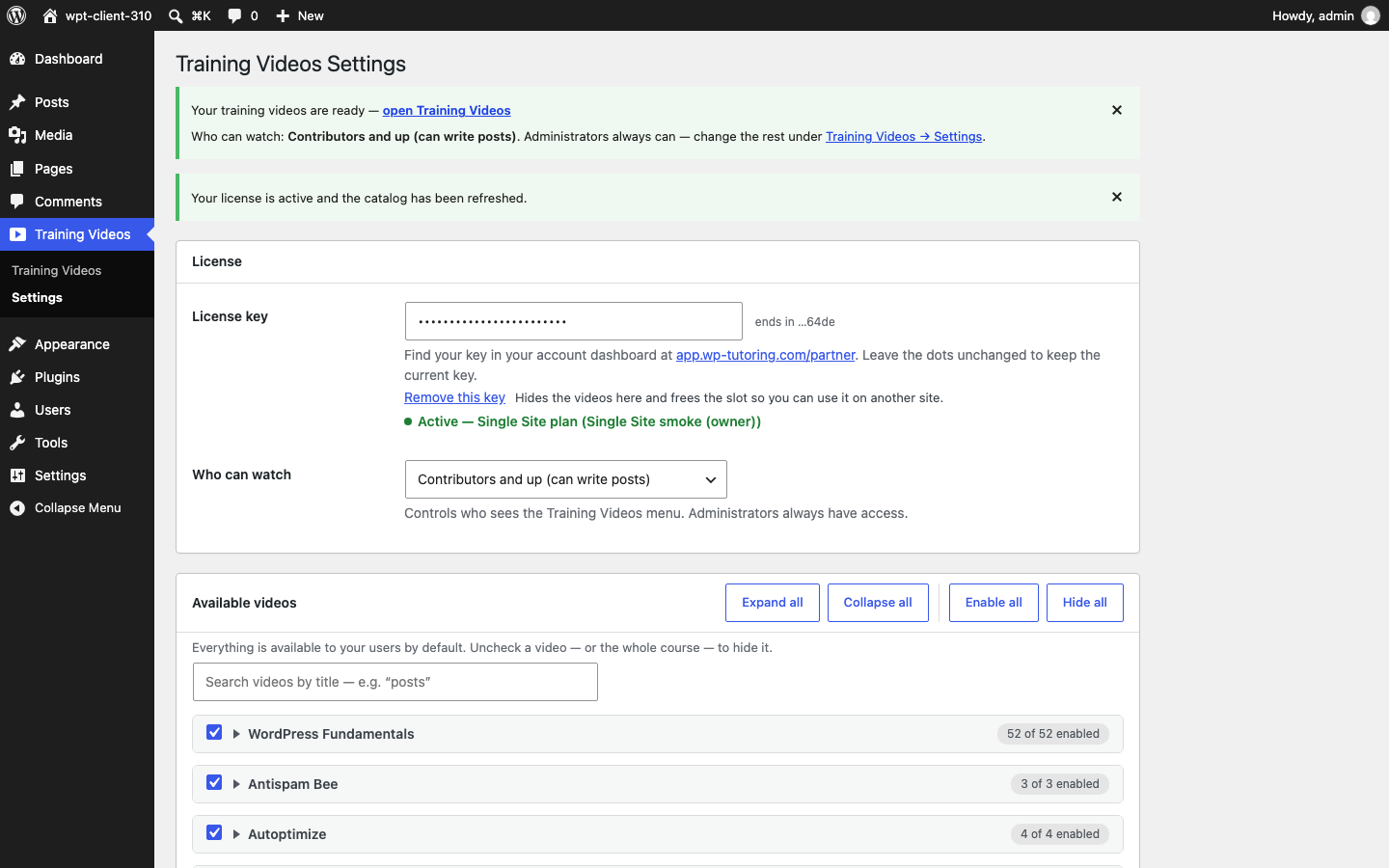
Learning the dashboard. Once you log in at yoursite.com/wp-admin, you are looking at the WordPress dashboard: a dark menu down the left (Posts, Media, Pages, Comments, Appearance, Plugins, Users, Tools, Settings) and a work area on the right. This screen is home base for everything you will ever do. Spend genuine time here. Open every menu. Nothing breaks from looking. Our dashboard walkthrough explains each section.
Three settings to visit in week one:
- Settings → General — your site title and tagline.
- Settings → Permalinks — make sure your page addresses use the "Post name" style (readable words, not numbers).
- Users → Profile — set a strong password and fill in your display name.

Time estimate: about a week of short daily sessions. The goal is not mastery — it is familiarity. By the end of the week, the admin area should feel like a place you know your way around.
Stage 2 — Content: Posts, Pages, and the Block Editor (Weeks 2–3)
Content is where you will spend most of your WordPress life, so this stage deserves the most practice time.
Pages vs. posts. Pages are the fixed structure of your site: Home, About, Services, Contact. Posts are dated, flowing content: blog articles, news, updates, sorted newest-first and organized by categories and tags. Every site needs pages; not every site needs posts. Deciding which content belongs where is a genuine skill, and it is one of the first things we straighten out in beginner training sessions.
The block editor. Since 2018, WordPress has used a block-based editor (you will also hear it called Gutenberg). Everything on a page is a block: a paragraph is a block, a heading is a block, an image, a button, a list — all blocks. You stack and arrange them to build the page. If you have read older tutorials describing a single big text box, that was the classic editor; our overview of the WordPress block editor explains what changed and why the block approach won.
Practice, in roughly this order:
- Editing text — open an existing page, change words, save, view the result.
- The paragraph block — your bread-and-butter block; learn its toolbar.
- Headings — structure your pages with heading blocks (one main heading, then subheadings in order).
- Images — upload to the Media Library, place image blocks, write alt text.
- Lists, buttons, and columns — the blocks that make pages look designed rather than typed.
Two editor habits worth building immediately: use Preview before you publish, and remember that WordPress keeps revisions — you can restore an earlier version of a page, which takes most of the fear out of experimenting.
One more tip from our sessions: when the editor frustrates a beginner, the culprit is usually block selection — editing the wrong block, or nesting a block somewhere unintended. Learn to use the List View button in the editor toolbar. It shows every block on the page as an outline, lets you select exactly the one you mean, and turns most "the editor is fighting me" moments into a one-click fix.
Time estimate: two weeks of regular practice. A good exit test: you can build a new page with a heading, several paragraphs, an image, and a button, publish it, then revise it the next day — all without consulting a tutorial.
Stage 3 — Design: Themes and Full Site Editing (Week 4)
Your theme controls how your site looks: fonts, colors, spacing, header, footer, and overall layout. Here is the mental model that unlocks everything: content and design are separate in WordPress. Your pages and posts live independently of your theme. Change the theme and your content remains — it just gets dressed differently.
Choosing a theme. There are thousands of free themes in the official directory and thousands more commercial ones. Beginners tend to choose on looks, which is how you end up fighting a theme for months. Choose on fit for your content, quality of support, and update history — our guide to choosing the perfect WordPress theme for your business gives you a practical checklist. Whatever you pick, resist theme-hopping: pick one solid theme and learn it well.
Classic themes vs. block themes (FSE). Modern WordPress has two theme generations, and knowing which kind you have tells you which instructions apply to you:
- Classic themes are configured through Appearance → Customize, plus widgets and menus screens.
- Block themes use Full Site Editing (FSE): you edit your header, footer, and page templates with the same block editor you learned in Stage 2, via Appearance → Editor. Newer default themes work this way.
FSE is powerful — the same block skills now edit your whole site, not just page content — but it also means a template edit can change every page at once. Check twice which you are editing: one page, or the template behind many pages.
Time estimate: about a week to choose a theme, set up your header, menu, and footer, and get your basic design in place. Perfection is not the goal; a clean, working design is.
Stage 4 — Functionality: Plugins (Week 5)
Plugins are add-ons that give WordPress features it does not ship with: contact forms, backup tools, SEO helpers, security scanners, event calendars, online stores. There are tens of thousands of them, and learning to handle plugins well is what separates confident site owners from nervous ones.
The mechanics are easy. Installing a WordPress plugin takes a minute: Plugins → Add New, search, Install, Activate. You will have it down after doing it twice.
The judgment is the real skill. Every plugin you add is code running on your site that must be maintained. Our standing advice from years of cleaning up plugin-heavy sites in training sessions:
- Install only what you need. If you are not sure you need it, you do not need it yet.
- Check before installing: when was it last updated, how many active installations does it have, and does the developer answer support questions?
- One plugin per job. Two SEO plugins or two caching plugins will conflict.
- Delete, don't just deactivate. Deactivated plugins still sit on your server as a maintenance liability.
A sensible starter set for most sites: a contact form, a backup plugin, an SEO plugin, and a security/firewall plugin. Add beyond that only when a real need appears.
Time estimate: a few days to install and configure a starter set; ongoing judgment develops over months. If a plugin's settings pages read like a foreign language — some are genuinely unfriendly — that is a very common thing to bring to a one-on-one session.
Stage 5 — Maintenance and Safety (Week 6, then ongoing)
This is the least glamorous stage and the one most likely to save you real money and grief. WordPress sites do not run themselves; they need a small, regular habit of care.
Updates. WordPress core, your theme, and every plugin release updates — features, bug fixes, and critically, security patches. The majority of hacked WordPress sites got that way through known holes in outdated software. Set a weekly time to run updates. (Auto-updates exist and are reasonable for minor releases; many site owners still prefer to update plugins manually so they notice if something changes.)
Backups. The rule is simple: have a backup before the day you need one. A good backup plugin runs on a schedule and stores copies somewhere other than your own server. Test a restore once so it is not theoretical.
Users and access. Review who can log into your site and what role they hold. WordPress user roles exist so your content writer does not need — and should not have — administrator power. Strong passwords for everyone, administrator accounts for almost no one, and delete accounts for people who no longer help with the site.
A monthly once-over. Click through your key pages, submit your own contact form, and confirm backups are actually running. Fifteen minutes.
Time estimate: a week to set the systems up; then perhaps 20–30 minutes a week forever. This habit is non-negotiable — it is the cheapest insurance in web ownership.
Stage 6 — Growth: SEO Basics (Weeks 7–8, then ongoing)
Once your site works and is safe, attention turns to being found. Search engine optimization (SEO) is a deep field, but the WordPress-specific basics are approachable and go a long way. Our WordPress SEO basics tutorial covers the foundation; the short version:
- Readable permalinks (you set these in Stage 1) so page addresses describe the page.
- One clear topic per page, with a title and main heading that use the words your customers actually search.
- Titles and meta descriptions managed through your SEO plugin — the text searchers see in results.
- Alt text on images, which serves accessibility and search alike.
- Internal links between your related pages, so visitors and search engines both find your content.
- Speed and mobile, which trace back to your Stage 3 theme choice and Stage 1 hosting more than anything else.
The most important SEO advice we give beginners: consistent, genuinely useful content beats clever tricks, every year, in every algorithm update.
Time estimate: a weekend to configure the basics and tune your key pages, then ongoing as you publish. SEO is a garden, not a project.
How to Practice Safely
The fastest learners share one trait: they click things. The fear of breaking your site is the biggest brake on learning WordPress, so remove the danger instead of avoiding practice:
- Use a practice site. A temporary subdomain from your host, a staging copy of your live site (many hosts offer one-click staging), or a spare install that exists purely to be experimented on. On a practice site, nothing is precious.
- Back up before you change things. On your real site, a fresh backup turns "what if this breaks everything" into "worst case, I restore."
- Use drafts and previews. Nothing is public until you publish. Build wild experimental pages as drafts and delete them freely.
- Trust revisions. Page and post revisions mean text changes are almost always reversible.
- Change one thing at a time. When something does go odd, you will know exactly which change caused it.
With those in place, be genuinely curious. Every menu you open on a practice site is free education.
When Self-Study Stalls — and Structured Training Helps
Everything above can be self-taught, and plenty of people do it. But after teaching WordPress since 2012, we can tell you exactly where self-study tends to stall, because we meet learners at precisely these moments:
- The sequencing problem. Free tutorials answer single questions brilliantly but do not tell you what to learn next. Learners hop between articles for months, busy but not progressing.
- The "my screen doesn't match" problem. Your theme, your plugins, and your host make your WordPress subtly different from every generic tutorial. When instructions do not match your screen, self-study hits a wall that a live human clears in minutes.
- The stuck-for-days problem. A missing menu, a layout that will not cooperate, a plugin conflict. Alone, these cost evenings. With someone who has seen the problem a hundred times, they cost minutes.
- The confidence problem. Some learners know more than they think but will not touch their live site without someone confirming they are doing it right. A session or two converts knowledge into confidence.
None of this means self-study failed — it means you have reached the point where feedback is worth more than more reading. That is exactly the gap structured training for WordPress fills, whether that is an organized video course or a person on a Zoom call looking at your actual site.
Choose Your Path: Free Tutorials → Video Courses → Live Sessions
Here is how we would honestly route a new learner through the options, including our own:
Start free. Work through this roadmap using our 230+ free written tutorials — the basics category maps closely to Stages 0–2 — and download the free 83-page WordPress Manual v7.0 for a structured, keepable reference (the Deluxe edition adds 30+ pages). Many people get all the way to a working site on free materials alone, and we think that is great.
Add video courses when you want an organized path. Our self-paced WordPress video courses sequence the material for you and show every click on screen. This suits learners who want structure and visual instruction without scheduling anything, at a price well below live teaching. The honest limitation: videos demonstrate on a demo site, and you still translate to yours.
Add live sessions when you want it done on your site. Our live one-on-one training runs over Zoom, on your own website, at $85 per hour, booked in 1–4 hour blocks. You set the agenda: your questions, your theme, your stuck points. The next day you receive a recording of the entire session, so you can rewatch instead of scribbling notes. Group, team, and business rates are available on request. Two honest boundaries: we schedule sessions rather than being instantly available, and we do not teach PHP coding or heavy CSS in sessions — we teach you to run and grow your site, which is what this roadmap is about. Full details are on our pricing page, and many learners mix paths: free materials for the basics, a course for structure, and a session or two at the stuck points. There is no wrong combination — only the one that keeps you moving.
The Roadmap at a Glance
- Stage 0: What WordPress is; .org vs .com — 1–2 hours
- Stage 1: First site setup and the dashboard — about a week
- Stage 2: Posts, pages, and the block editor — two weeks
- Stage 3: Themes and Full Site Editing — about a week
- Stage 4: Plugins — a few days, judgment ongoing
- Stage 5: Maintenance and safety — a week to set up, 30 minutes weekly forever
- Stage 6: SEO basics — a weekend, then ongoing
Add it up and a steady beginner can learn WordPress — really learn it, to the point of running a site with confidence — in about two months of part-time effort, and be comfortable in the dashboard within the first week or two. Faster with help, a bit slower alone, and either way entirely achievable without writing a line of code.
We have watched this exact path work since 2012. Whenever you are ready for a structured next step, our self-paced video courses will carry you through every stage screen by screen — and when you would rather have a real person work through it with you on your own website, get in touch or call (844) WP-TUTOR and we will get you unstuck.

Leave a comment