NewThe WP Tutoring WordPress training platform is live — on demand video courses and interactive WordPress lessons. Free lessons included.Start free
Helping site owners learn WordPress since 2012 · (844) WP-TUTOR
Maintenance

UpdraftPlus: Set Up Automatic WordPress Backups

Configure UpdraftPlus scheduled backups: how often, how many to keep, offsite storage, and the test that proves your backups are real.

WT
WP Tutoring TeamWordPress Instructors
Updated Sep 18, 2026
2 min read
Table of contents

A backup you configured once and never think about is the single highest value/effort ratio in WordPress maintenance. UpdraftPlus is the most-installed way to get there. Here's the setup that actually protects you. Shot on UpdraftPlus under WordPress 7.0, August 2026.

TL;DR The 30-second version
  • Configure at Settings → UpdraftPlus Backups → Settings tab.
  • Schedule database and files separately (database more often).
  • Pick a remote storage destination — local-only backups die with the server.
  • Keep 3–7 recent backups; verify one restore before you trust the system.
Set the schedules

On the Settings tab, two dropdown pairs control everything: files backup schedule + retained copies, and database schedule + retained copies.
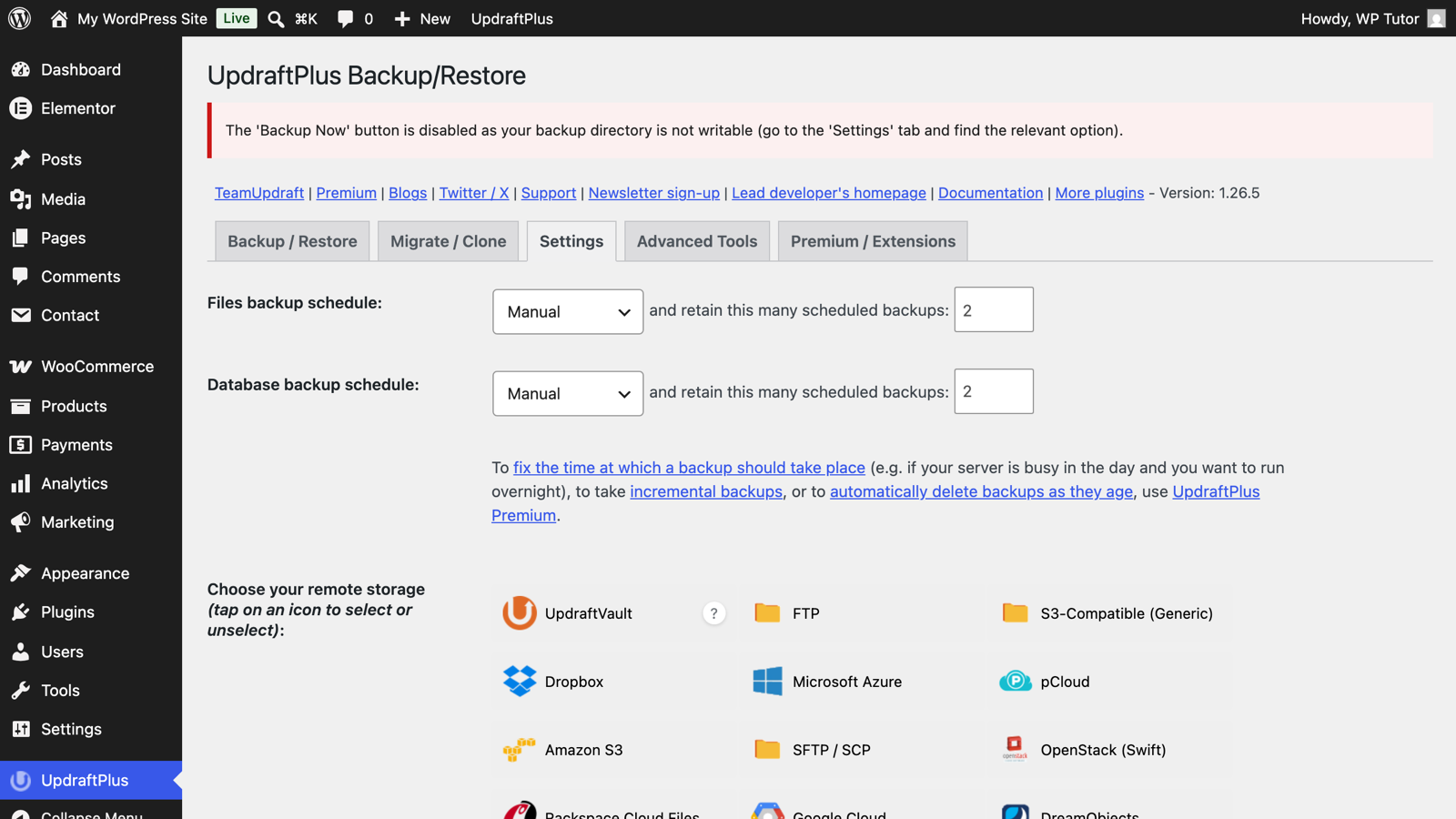
UpdraftPlus settings with schedule dropdowns and storage options

A solid default: files weekly keep 3, database daily keep 7. The database is where posts, orders, and comments live — it changes fastest and costs least to back up.

Choose remote storage

The storage grid on the same screen connects Google Drive, Dropbox, S3-compatible services, FTP and more. Click one, follow its authentication flow, save. From then on every backup ships offsite automatically — which is the entire point: a backup on the dying server is a diary in a burning house.

Run one manually and look at the pieces

Click Backup Now on the Backup/Restore tab. When it finishes, the backup appears in the "Existing backups" list as five components — database, plugins, themes, uploads, others:
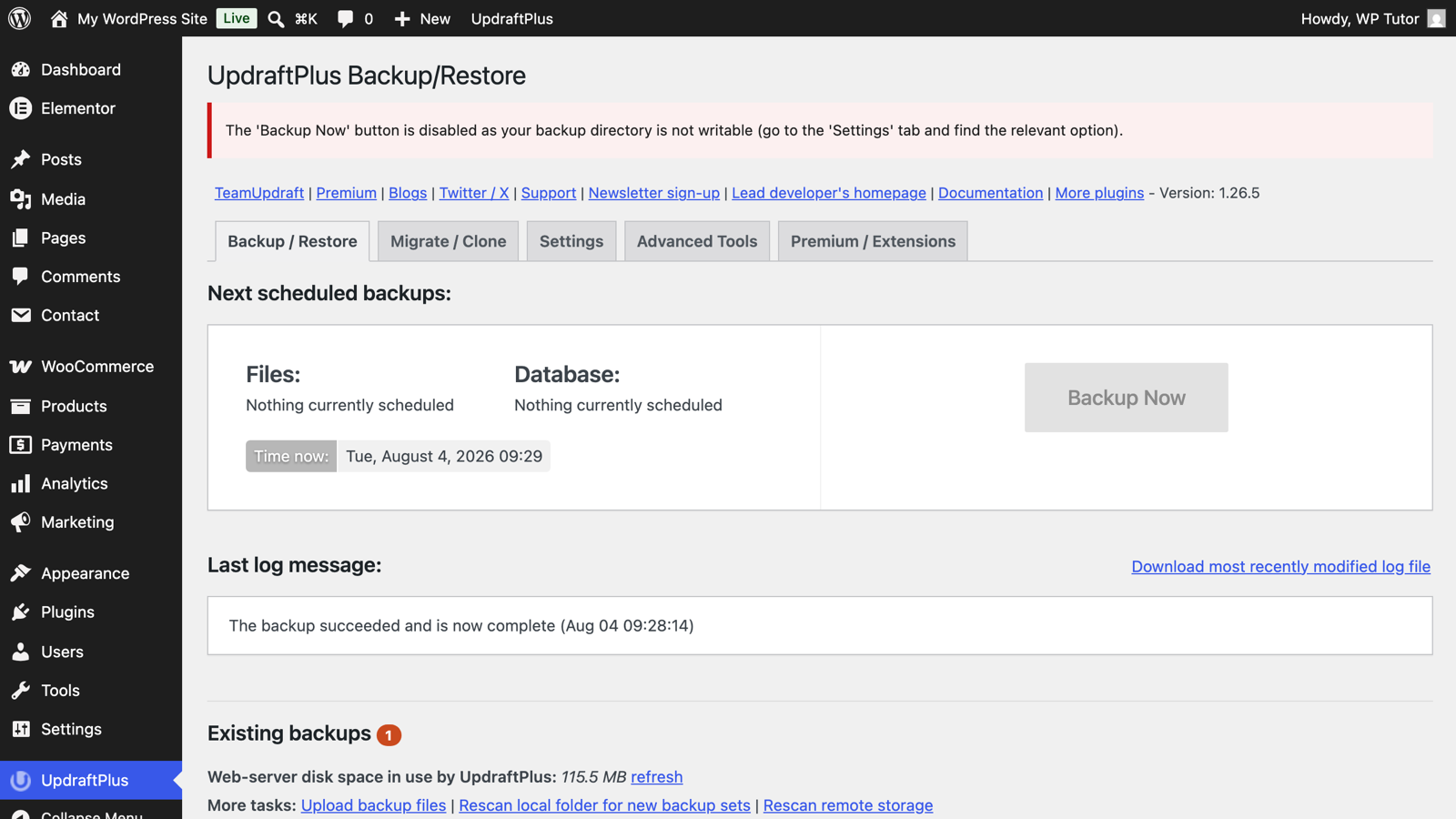
The existing backups list after a completed backup

Prove it restores

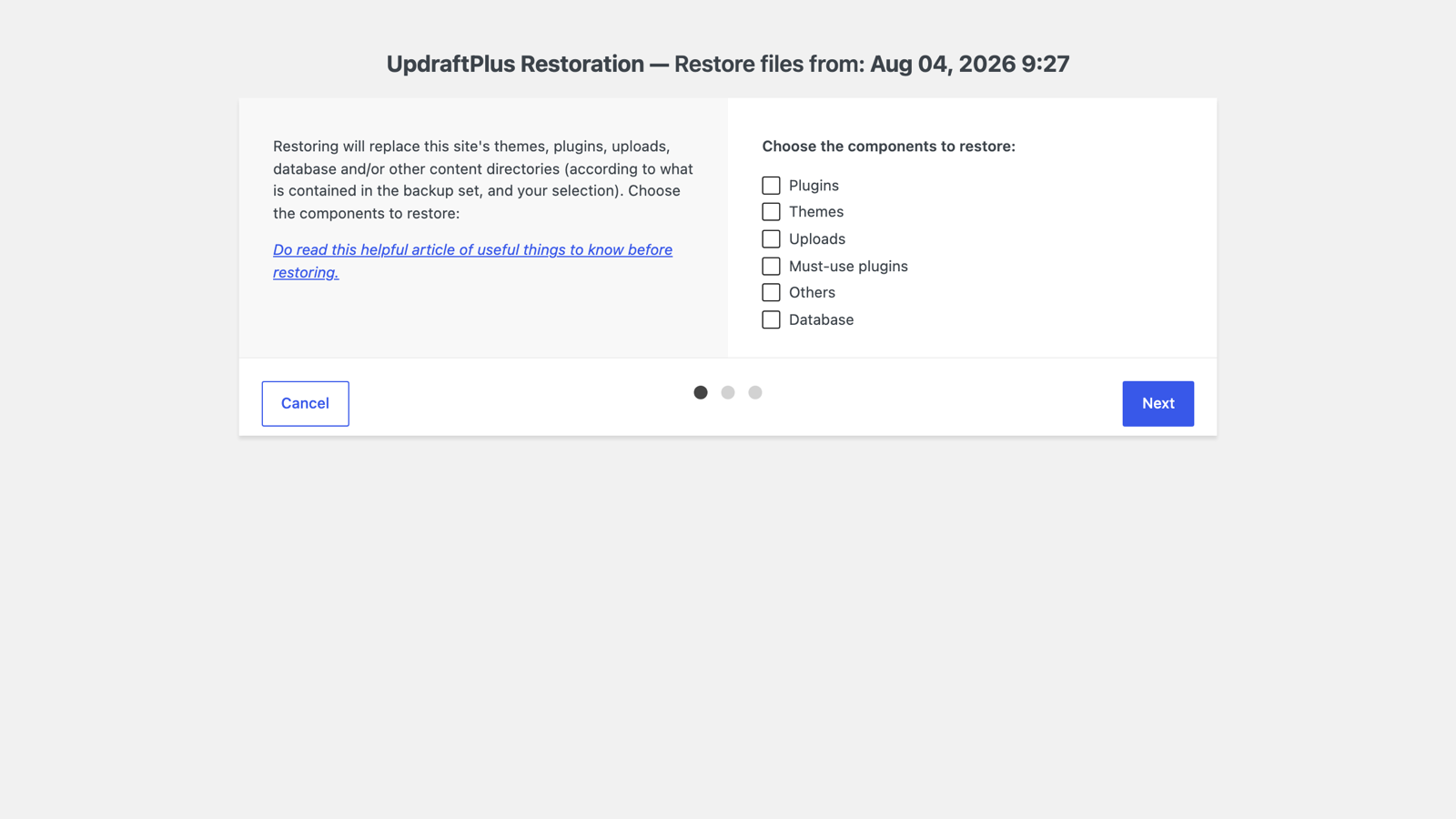
An untested backup is a hope, not a plan. On a staging or sandbox copy of the site, run one real restore (we walk through it in the companion restore tutorial). Do this once now, calmly — not for the first time during an outage.

Your host's backups are not your backups

Host backups get deleted with terminated accounts, retained briefly, and restored on the host's schedule, not yours. Treat them as a bonus layer — never the only one. More on this philosophy: why your WordPress backup might be useless.
Keep learning

Frequently asked questions

How often should WordPress backups run?
Match how often the site changes: a daily database backup plus weekly files suits most sites; a busy store wants more frequent database backups (every few hours) since orders live there; a rarely-updated brochure site is fine weekly.
Where should backups be stored?
Anywhere that isn't only the same server — a server that dies takes its local backups with it. UpdraftPlus connects to Google Drive, Dropbox, S3-compatible storage and more; pick one and let backups ship offsite automatically.
Do backups slow my site down?
Briefly, while running — schedule them for your quietest hour. UpdraftPlus splits work into chunks specifically to stay inside shared hosting limits.
WT

WP Tutoring Team

WordPress Instructors

We’ve been teaching WordPress to individuals and businesses since 2013 — through step-by-step tutorials, video courses, and 1-on-1 tutoring sessions.

Leave a comment

Comments are reviewed before they appear.

Get our free WordPress starter guide

Join thousands of site owners and get step-by-step WordPress tutorials in your inbox, plus printable cheat sheets.

Beginner-friendly, no jargon
Printable cheat sheets & checklists
Unsubscribe anytime

Request your session

We’ll reply quickly — usually the same business day.

By using this form you agree with the storage and handling of your data by this site.

Access our WordPress Training Academy videos

Step-by-step video courses covering the block editor, themes, plugins, and everything you need to build a site you’re proud of. Free lessons included — browse the full library before you sign up for anything.

Explore the Academy