NewThe WP Tutoring WordPress training platform is live — on demand video courses and interactive WordPress lessons. Free lessons included.Start free
Helping site owners learn WordPress since 2012 · (844) WP-TUTOR
Maintenance

How to Restore a WordPress Backup with UpdraftPlus

Restore WordPress from an UpdraftPlus backup: choose components, know what gets overwritten, and the crisis path when the site is down.

WT
WP Tutoring TeamWordPress Instructors
Updated Aug 12, 2026
2 min read
Table of contents

Restores happen on bad days — after the broken update, the hack, or the deleted-something-important moment. The good news: an UpdraftPlus restore is a guided, componentized process, not an all-or-nothing gamble. Shot on UpdraftPlus under WordPress 7.0, August 2026.

TL;DR The 30-second version
  • Settings → UpdraftPlus Backups, find the backup, click Restore.
  • Restore only the broken components — database for content, plugins for a bad update.
  • The database rewinds everything to the backup's timestamp — mind recent orders/posts.
  • Site fully down? Fresh WordPress + UpdraftPlus + upload the backup, then restore.
Find the backup and click Restore

On the Backup/Restore tab, "Existing backups" lists each backup with its date and component buttons:
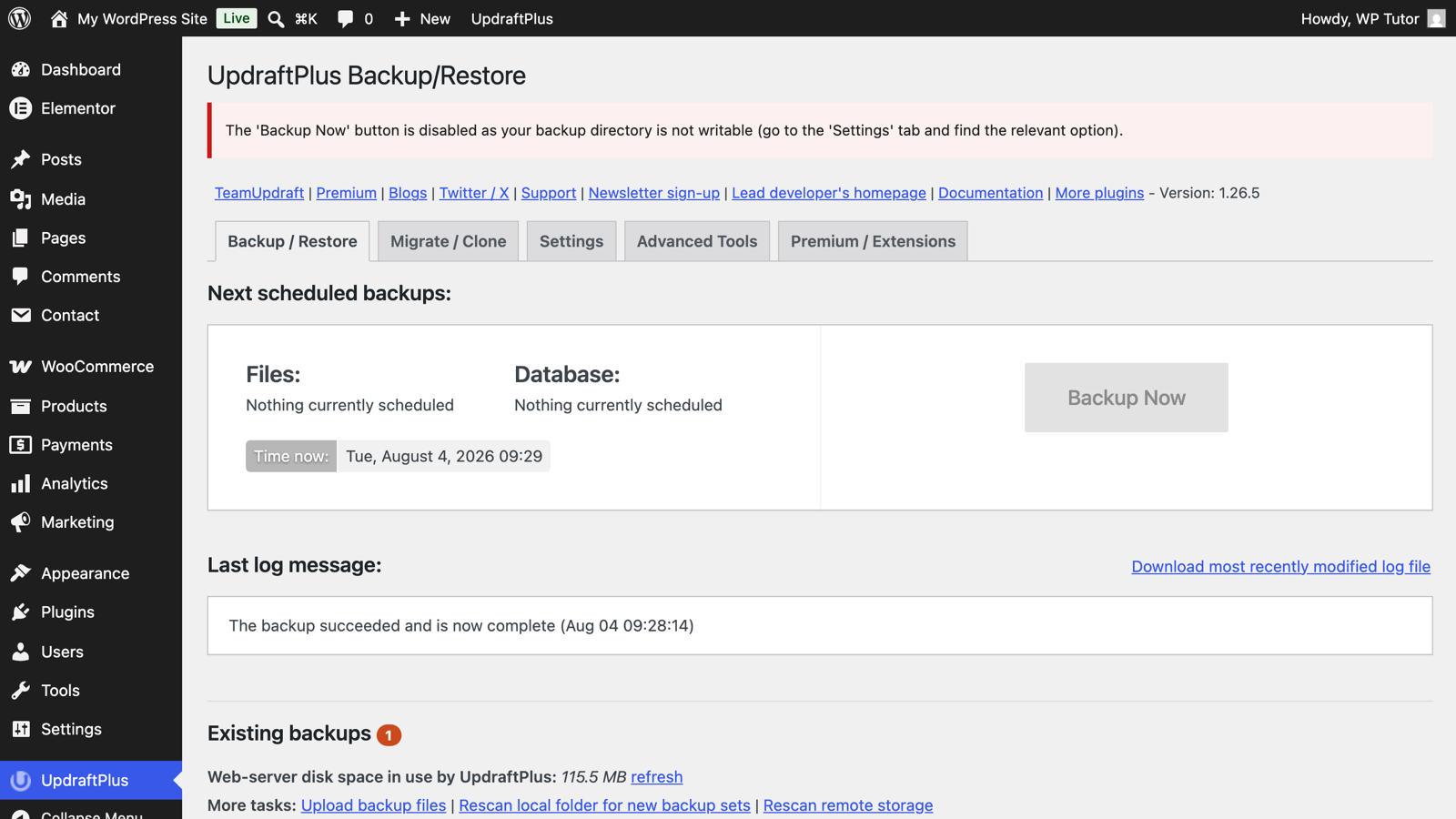
The existing backups list in UpdraftPlus

Click Restore on the backup you want (stored remotely? UpdraftPlus fetches it first).

Choose components deliberately

The restore wizard asks which parts to bring back:
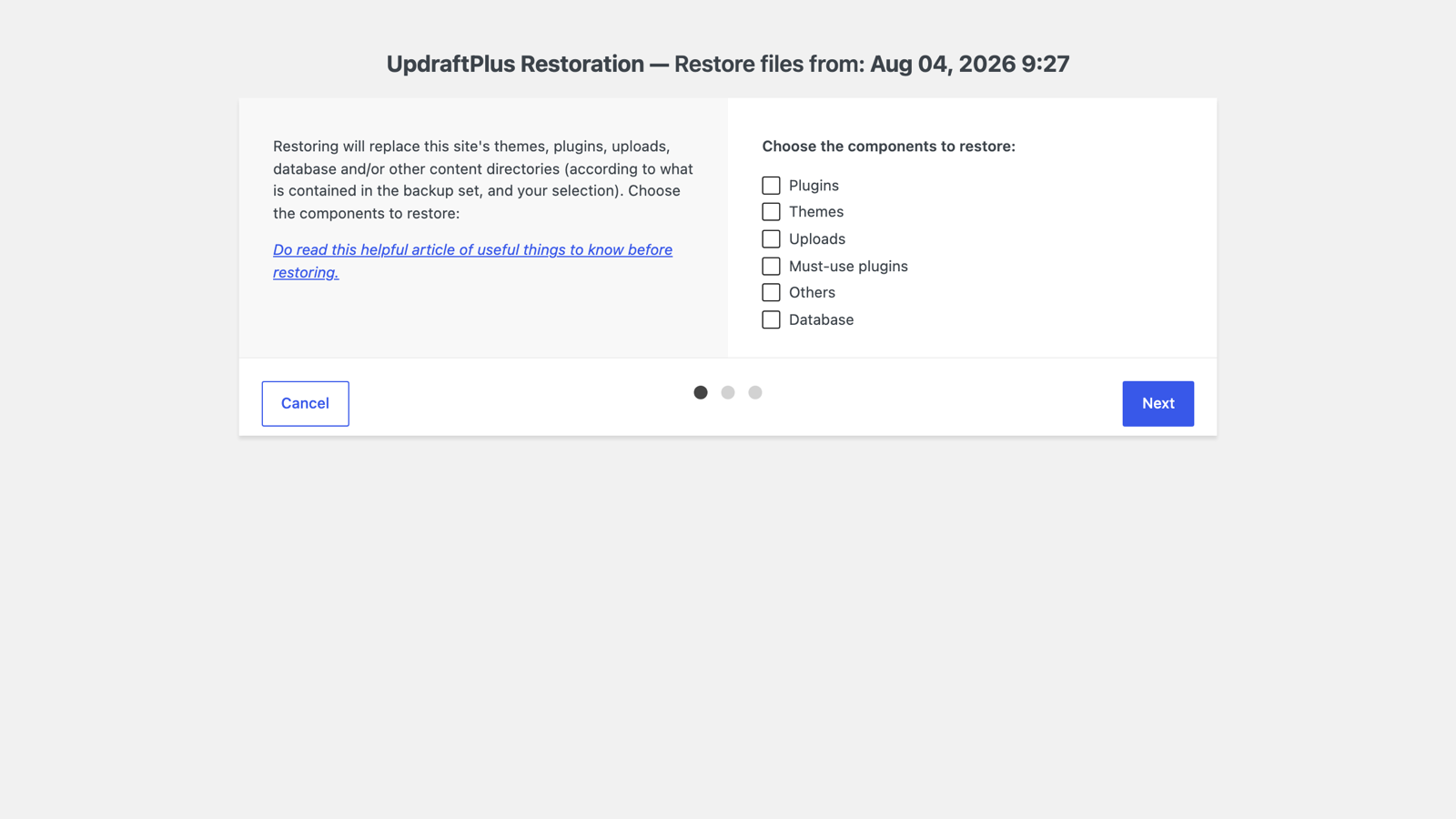
The UpdraftPlus restore dialog with component checkboxes

Match the selection to the damage:

  • A plugin update broke the site → Plugins only.
  • Content deleted or mangled → Database only.
  • Theme customization disaster → Themes only.
  • Hack or total loss → everything.
Run it and don't touch anything

Click through; UpdraftPlus unpacks and replaces the chosen components, showing a log as it goes. Don't close the tab or navigate away. On success you'll get a confirmation and a prompt to delete the old-directories leftovers — do that after you've confirmed the site works.

Verify like you mean it

Load the homepage, log in, open a recent post, and (on a store) place a test order. If you restored the database, check what's missing between backup time and now — that gap is yours to re-enter.

Practice the fire drill

The calm version of this tutorial takes ten minutes on a sandbox copy of your site. Do it once — restoring for the first time during a real outage is how mistakes compound. We rehearse exactly this with clients in one-on-one sessions.
Keep learning

Frequently asked questions

Which components should I restore?
Only what's broken. Bad plugin update → plugins only. Content disaster → database only. Full compromise or migration → everything. Restoring less means less to go wrong and less recent work lost.
Will restoring overwrite my recent posts and orders?
Restoring the database rewinds ALL content — posts, orders, comments — to the backup's moment. That's the point, and the risk: on a store, check what orders arrived since the backup before restoring, and re-enter them after.
My site is completely down — how do I restore if I can't log in?
If wp-admin loads at all, restore normally. If it doesn't, install a fresh WordPress, install UpdraftPlus, upload the backup files on the Backup/Restore tab (or reconnect remote storage), and restore into the fresh install.
WT

WP Tutoring Team

WordPress Instructors

We’ve been teaching WordPress to individuals and businesses since 2013 — through step-by-step tutorials, video courses, and 1-on-1 tutoring sessions.

Leave a comment

Comments are reviewed before they appear.

Get our free WordPress starter guide

Join thousands of site owners and get step-by-step WordPress tutorials in your inbox, plus printable cheat sheets.

Beginner-friendly, no jargon
Printable cheat sheets & checklists
Unsubscribe anytime

Request your session

We’ll reply quickly — usually the same business day.

By using this form you agree with the storage and handling of your data by this site.

Access our WordPress Training Academy videos

Step-by-step video courses covering the block editor, themes, plugins, and everything you need to build a site you’re proud of. Free lessons included — browse the full library before you sign up for anything.

Explore the Academy