NewThe WP Tutoring WordPress training platform is live — on demand video courses and interactive WordPress lessons. Free account, no card.Start free
Helping site owners learn WordPress since 2012 · (844) WP-TUTOR
Plugins

Elementor Version 4 and the Atomic Editor: What Actually Changed

Elementor V4's Atomic Elements explained: what the new performance-first editor changes, what happens to old pages, and how to work in it.

WT
WP Tutoring TeamWordPress Instructors
Updated Oct 9, 2026
2 min read

Elementor's version 4 is the biggest change in the builder's history: a performance-first rebuild the team calls the Atomic Editor. If you learned Elementor from tutorials made in the version 3 era, the editor you see today won't match those screenshots. Here's the new mental model — shot on Elementor 4.x, WordPress 7.0, August 2026.

TL;DR The 30-second version
  • Atomic Elements (Div block, Flexbox, Grid, Heading, Paragraph, SVG…) are lean primitives replacing heavy widgets.
  • Layout starts with a choice: Flexbox (rows/columns that wrap) or Grid (two-dimensional).
  • Old pages built with classic widgets keep working; V4 is additive, not destructive.
  • Less generated markup per element is the performance win.

The panel now leads with Atomic Elements

Open the editor and the Elements panel groups Atomic Elements at the top: Div block, Flexbox, Grid, Tabs, Heading, Image, Paragraph, SVG, and friends. These are intentionally small building blocks — closer to clean HTML/CSS than the old multi-purpose widgets.
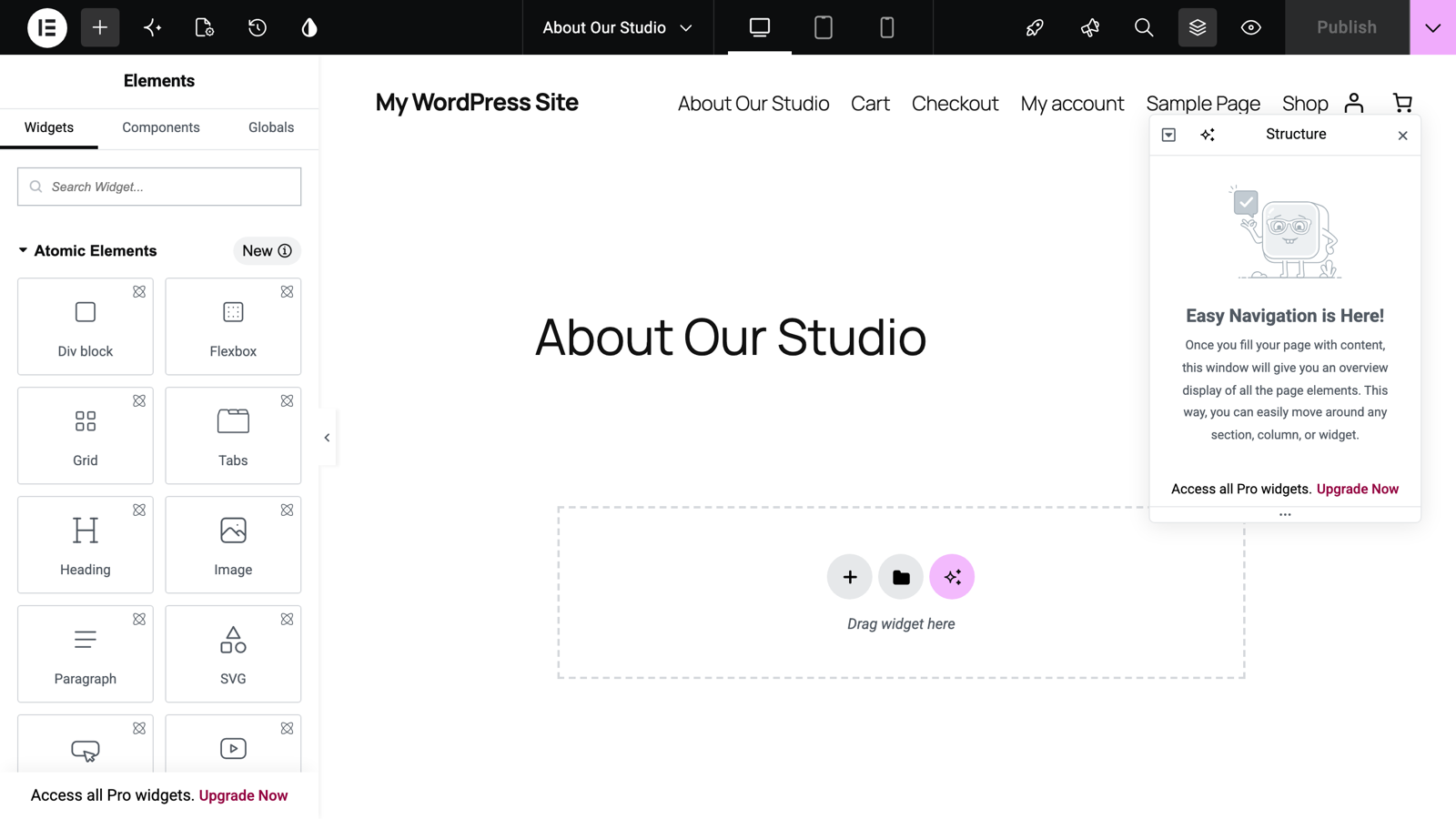
The V4 editor with the Atomic Elements panel

Layout is an explicit Flexbox-or-Grid choice

Click the + in the canvas and V4 asks which layout engine the container should use:
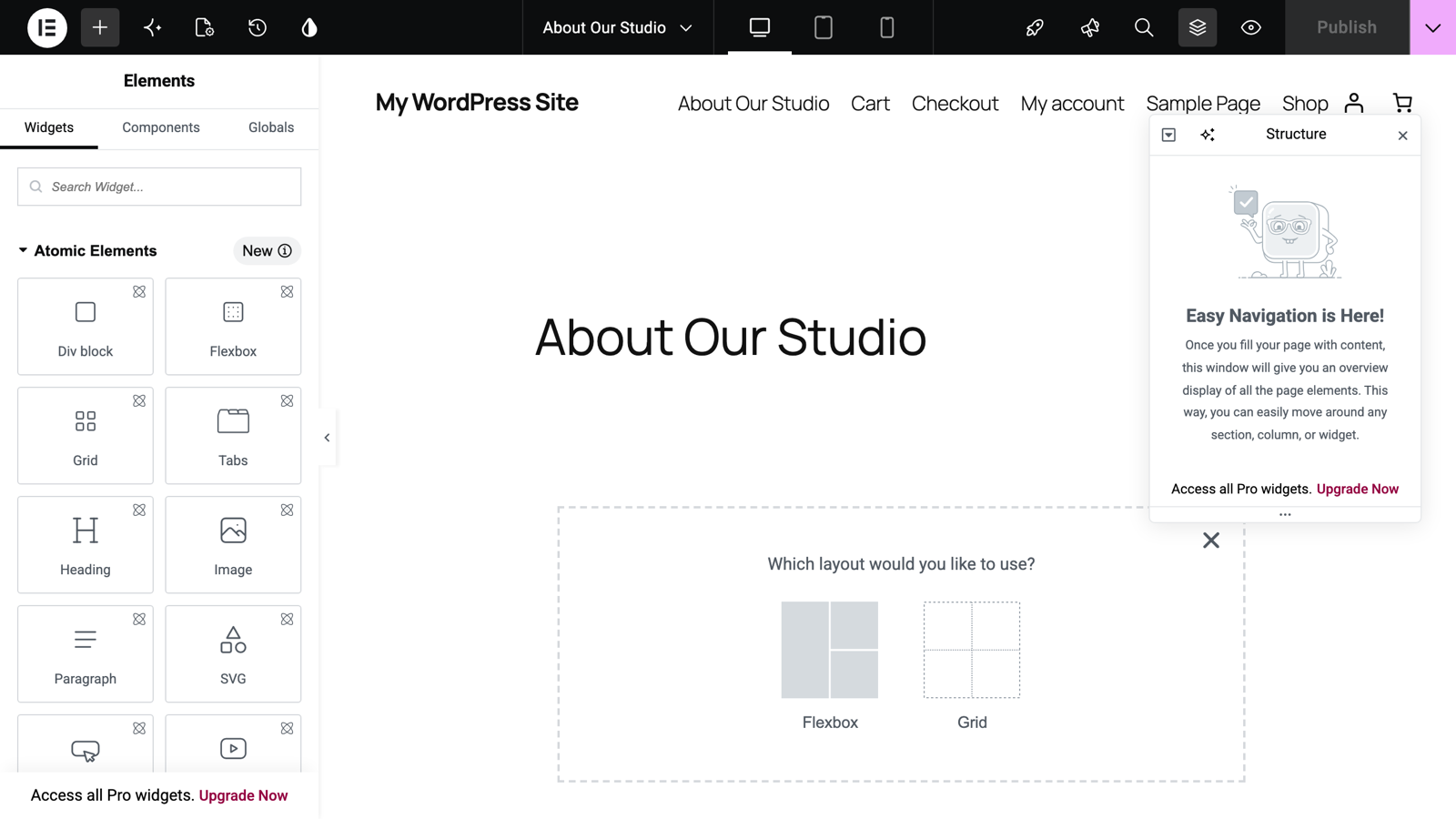
V4's layout picker: Flexbox or Grid

  • Flexbox — one-dimensional flow (a row of cards, a stacked hero). Content wraps and distributes automatically.
  • Grid — two-dimensional placement (a gallery, a dashboard layout) where rows and columns matter.

If you're unsure, start with Flexbox; it covers most sections, and it maps to the same flexbox model the WordPress block editor and modern CSS use.

What this means for your existing site

Nothing forces a rebuild. Classic-widget pages continue to render and edit. The practical adoption path we recommend:

  1. Build new pages with atomic elements to get the performance benefit.
  2. Leave stable old pages alone.
  3. When redesigning a high-traffic page anyway, rebuild it atomic.
Update on staging first

A major version like V4 is exactly what a staging or sandbox copy of your site is for. Update there, click through your key pages, then update live.
Keep learning

Frequently asked questions

Will Elementor V4 break my existing pages?
No — pages built with classic widgets keep rendering and editing as before. V4 adds the atomic system alongside; you adopt it page by page. Test major updates on a staging copy anyway, as with any big plugin release.
Why does Elementor V4 feel different to older tutorials?
Most tutorials online show version 3's widget-and-section model. V4's editor leads with Atomic Elements (Div block, Flexbox, Grid) and a restructured panel — the concepts carry over, but buttons and names have moved.
Is V4 actually faster?
That's the point of "atomic": leaner markup and CSS per element instead of heavy widget wrappers. A V4-built page generally ships less code than the same design in classic widgets — your theme and images still matter as much as ever.
WT

WP Tutoring Team

WordPress Instructors

We’ve been teaching WordPress to individuals and businesses since 2013 — through step-by-step tutorials, video courses, and 1-on-1 tutoring sessions.

Leave a comment

Comments are reviewed before they appear.

Get our free WordPress starter guide

Join thousands of site owners and get step-by-step WordPress tutorials in your inbox, plus printable cheat sheets.

Beginner-friendly, no jargon
Printable cheat sheets & checklists
Unsubscribe anytime

Request your session

We’ll reply quickly — usually the same business day.

By using this form you agree with the storage and handling of your data by this site.

Start learning WordPress free — on video, step by step

Two full modules of WordPress Fundamentals, every Quick Fix lesson and the free plugin courses, taught on a real WordPress site. A free account is an email address — no card, no trial clock.

Or browse the full course library first →