Helping site owners learn WordPress since 2012 · (844) WP-TUTOR
Plugins

Updating a WordPress Plugin

Learn how to update a WordPress plugin safely from your dashboard in three quick steps, from spotting outdated plugins to confirming the update succeeded.

WT
WP Tutoring TeamWordPress Instructors
Updated Aug 25, 2016
1 min read

Updating a WordPress Plugin

As you grow your WordPress site, you'll begin to notice that at least once weekly, you'll need to update your plugins, (actually more frequently for many sites.)  Here's how to do it.

Step 1:  Open your site's dashboard in your favorite browser and click Plugins
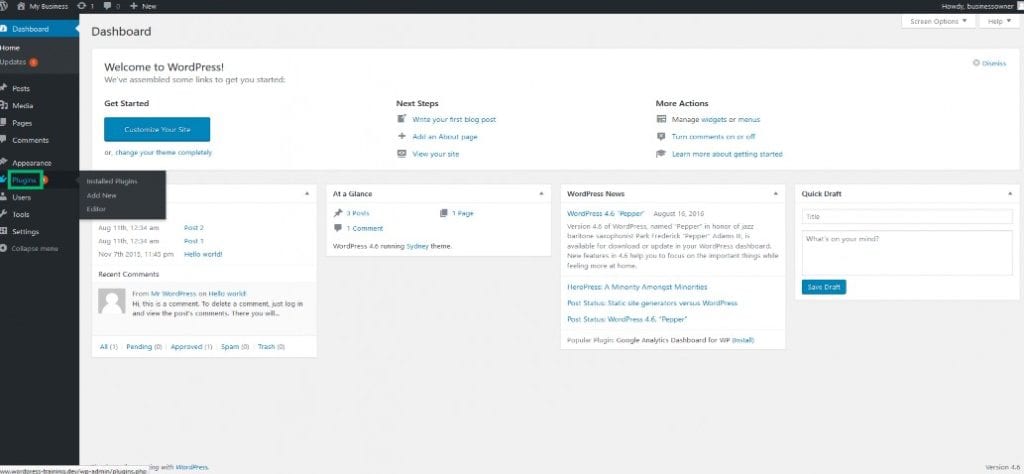
plugin_update

Step 2: Go to the outdated plugin. You'll be able to see by the yellow highlighting underneath the plugin title. Left Click update now.
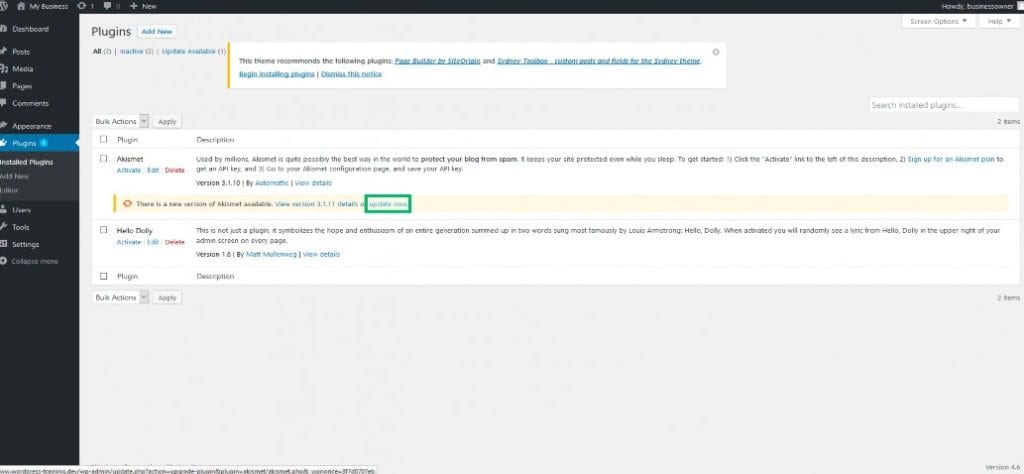
wordpress_plugin_update  

Step 3: You will see the word Updated! with a green highlighted background once the update is complete.
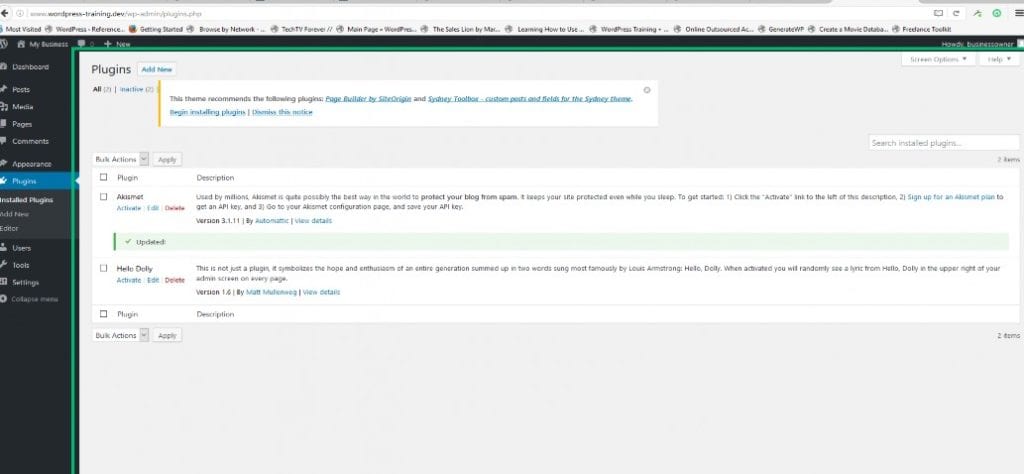
wordpress_updating_plugins

WT

WP Tutoring Team

WordPress Instructors

We’ve been teaching WordPress to individuals and businesses since 2013 — through step-by-step tutorials and 1-on-1 tutoring sessions.

Leave a comment

Comments are reviewed before they appear.

Get our free WordPress starter guide

Join thousands of site owners and get step-by-step WordPress tutorials in your inbox, plus printable cheat sheets.

Beginner-friendly, no jargon
Printable cheat sheets & checklists
Unsubscribe anytime

Request your session

We’ll reply quickly — usually the same business day.

By using this form you agree with the storage and handling of your data by this site.