Table of contents
Using post revisions is very useful feature of WordPress. It allows the author to view the revisions of the blog posts and restore to any of the version of the post. Let's see how to use it:
Using post revisions
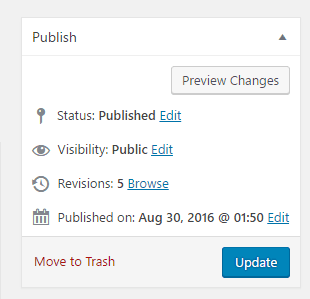
STEP 1 : Go to the post editor of your blog post. And select the blog post that you want to revise.  STEP 2 : Click Revisions from the right sidebar of the post editor.
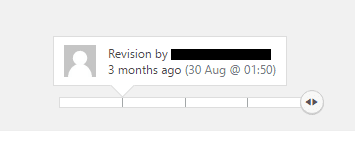
  STEP 3 : Now you can see a tab where it shows the dates of the revisions.
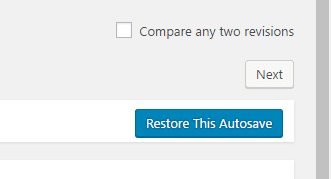
  STEP 4 : You can select the desired post date to restore and click Restore This Autosave.
  Now you will see the restored version of your blog post.

Leave a comment