Helping site owners learn WordPress since 2012 · (844) WP-TUTOR
Maintenance

Updating WordPress site tagline

Learn how to update your WordPress site tagline from Settings > General in the dashboard, a small change that strengthens site identity and helps SEO.

WT
WP Tutoring TeamWordPress Instructors
Updated May 14, 2016
1 min read

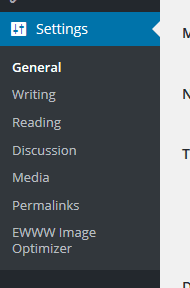
Your site tagline is an important for part of site identity and seo. Follow the instructions to update or edit the site tagline:

Updating WordPress site tagline

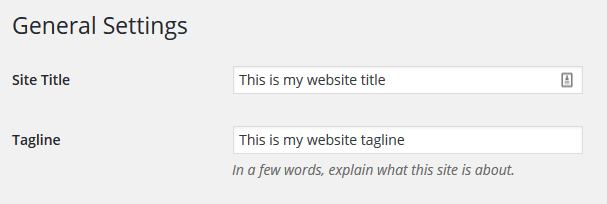
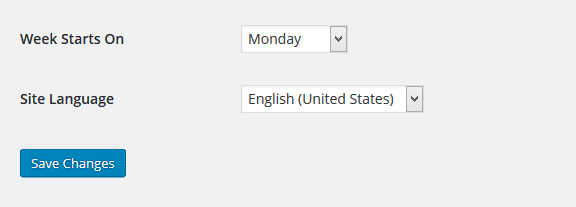
STEP 1 : To update the site title, go to Settings > General menu in the WordPress Dashboard. Updating WordPress site tagline STEP 2 : You'll see Tagline field where you need to add the desired tagline WordPress Tutorial - Updating WordPress site tagline STEP 3 : Scroll down and click Save Changes to save your updated tagline. Add new page
WT

WP Tutoring Team

WordPress Instructors

We’ve been teaching WordPress to individuals and businesses since 2013 — through step-by-step tutorials and 1-on-1 tutoring sessions.

Leave a comment

Comments are reviewed before they appear.

Get our free WordPress starter guide

Join thousands of site owners and get step-by-step WordPress tutorials in your inbox, plus printable cheat sheets.

Beginner-friendly, no jargon
Printable cheat sheets & checklists
Unsubscribe anytime

Request your session

We’ll reply quickly — usually the same business day.

By using this form you agree with the storage and handling of your data by this site.