Table of contents
People leave: a developer finishes a project, an employee moves on, or you're retiring an old "admin" login. Leaving unused administrator accounts on your site is one of the easiest security holes to close — but deleting one wrong can silently erase every post that person wrote. Here's the safe order of operations, re-shot in August 2026 on WordPress 7.0.
- Before deleting, make sure another administrator account exists (you may need to create one).
- Delete from Users → All Users → hover the account → Delete.
- On the confirmation screen, choose Attribute all content to and pick a user — don't "delete all content" unless you mean it.
- You can't delete the account you're currently logged in as.
Before you delete anything
Two checks that prevent 95% of the pain:
- Is there another administrator? If the account you're removing is the only admin, first create a new one under Users → Add User (role: Administrator), log in as it, and confirm it works.
- Does the account own content? If yes, you'll reassign it during deletion — decide now which user should inherit it.
Log in as an administrator (not the account you're deleting) and go to Users → All Users. You'll see every account, its role, and how many posts each one owns.
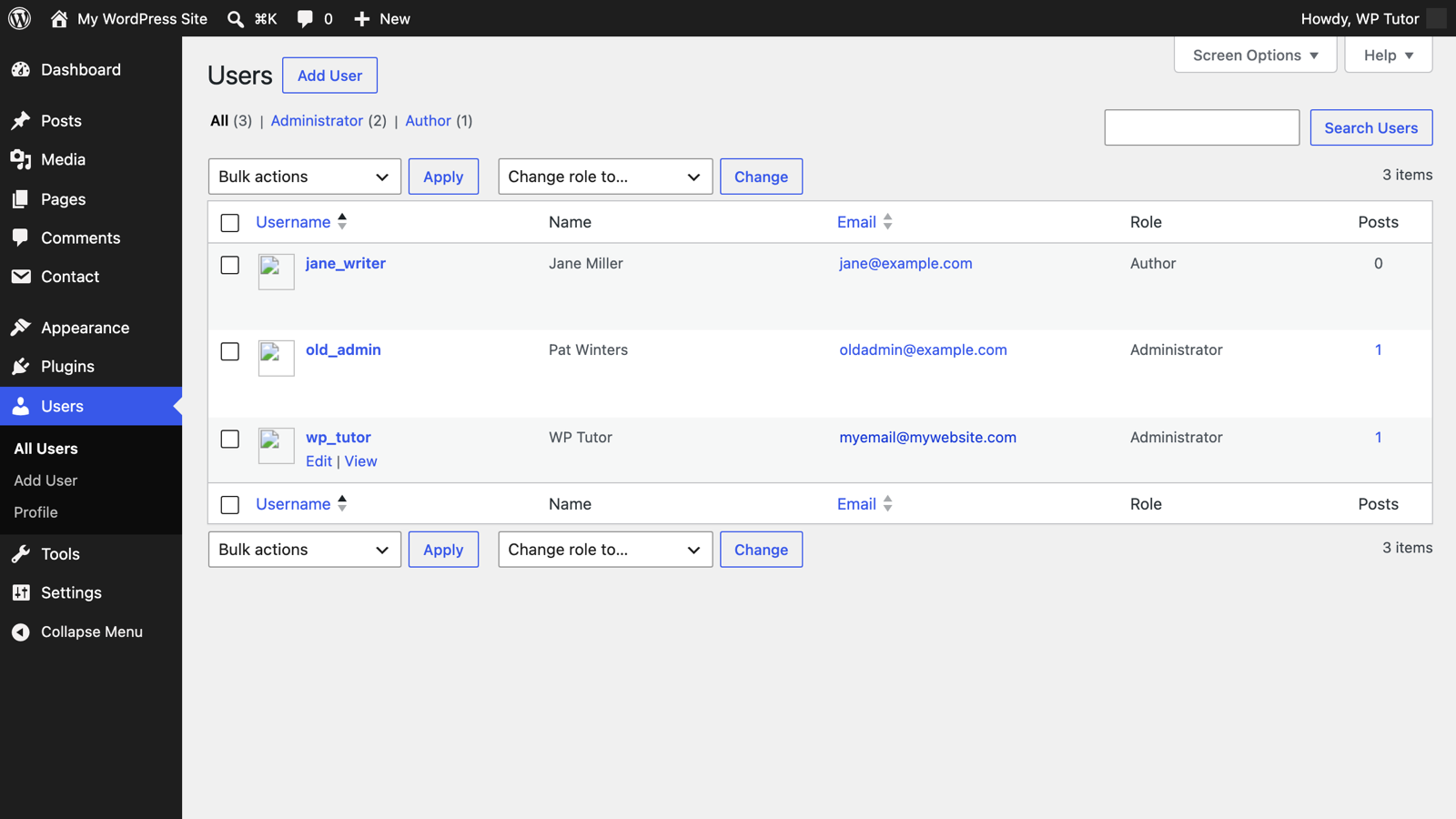
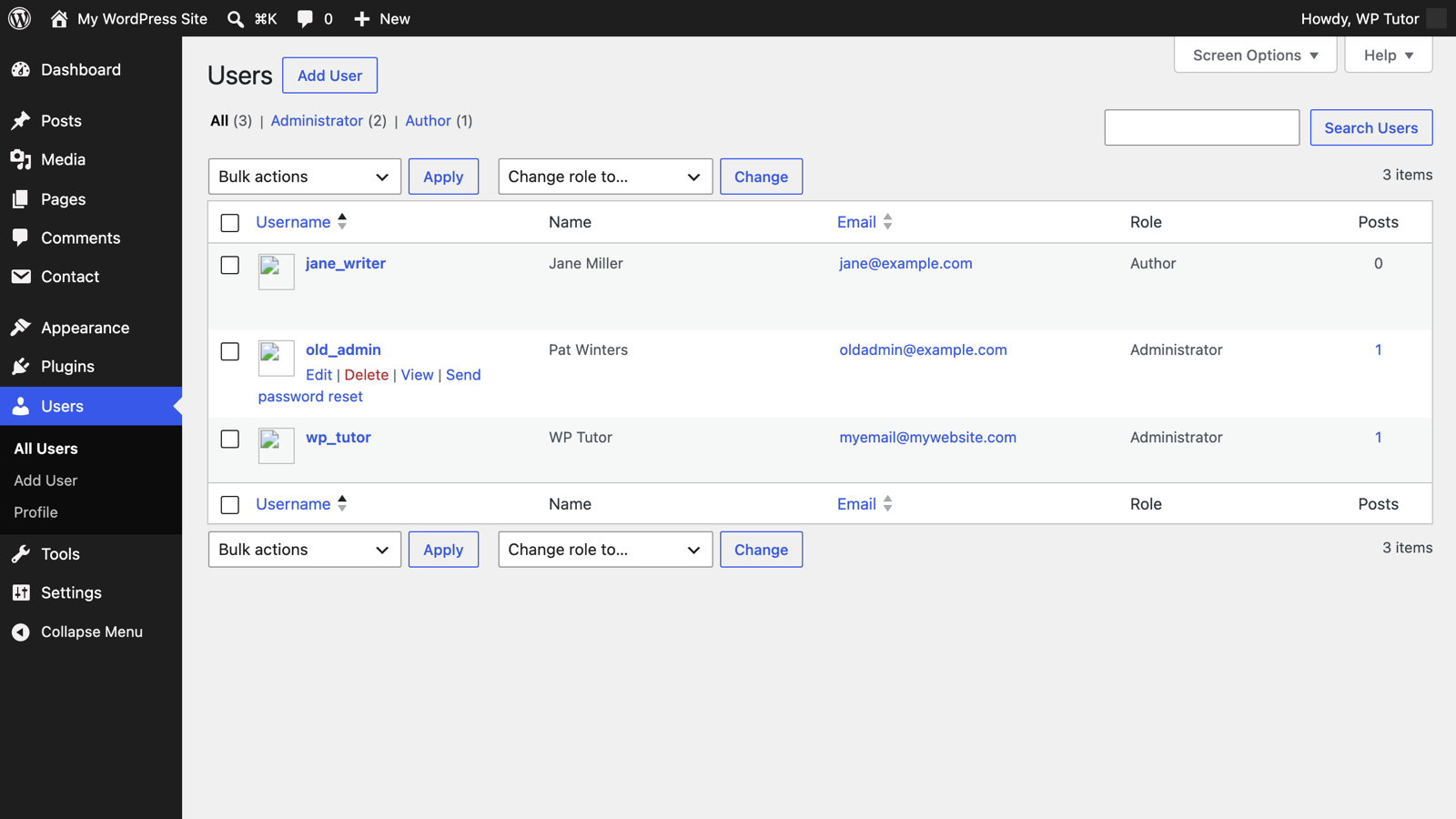
Move your mouse over the account you want to remove — action links appear under the username. Click Delete. (No Delete link? You're logged in as that user, or your own account isn't an administrator.)
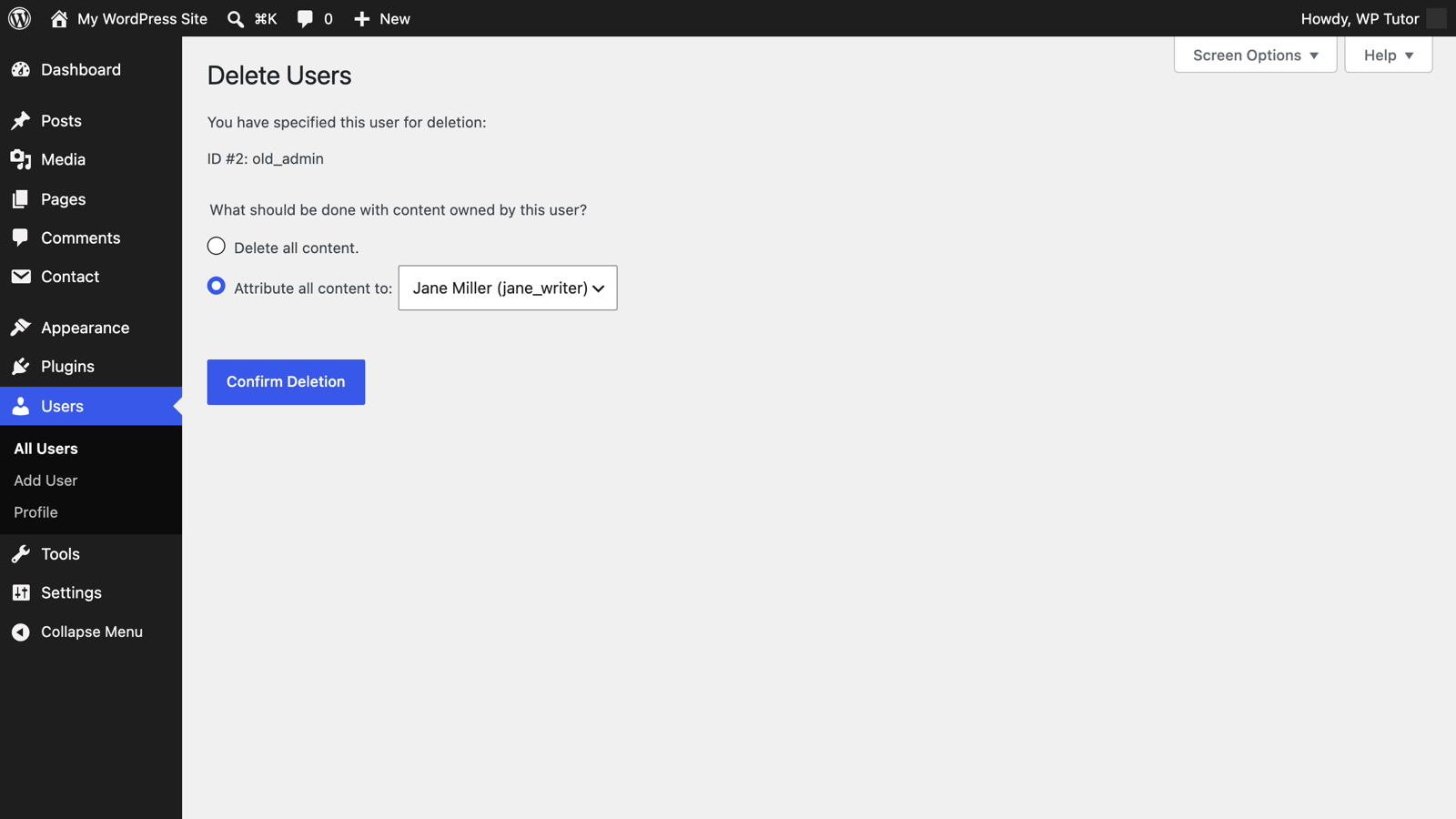
This is the screen that matters. If the user owns any posts or pages, WordPress asks what to do with them:
- Delete all content — permanently removes every post and page they authored. Rarely what you want.
- Attribute all content to — transfers everything to the user you pick. Choose this, select the new owner, and click Confirm Deletion.
The account is gone immediately; the reassigned posts stay published at the same URLs with a new author byline.
There's no trash or undo for user accounts. If you're unsure whether an account is still needed, demote it instead — edit the user and change their role to Subscriber. They keep their login but lose every admin capability.
After the deletion: a 2-minute security sweep
While you're in the Users screen, it's a good moment to check the rest of our user roles and permissions guide: every account should have the lowest role that still lets the person do their job, and any account you don't recognize deserves investigation before it deserves deletion.
Keep learning
- WordPress user roles explained
- Adding a new user to WordPress
- Managing WordPress user roles and permissions

Leave a comment