Use our FREE WordPress Website Health Check Tool at https://wp.support/tools/wordpress-health-check
Ever encountered a WordPress issue and have no idea on how to start? Wish you could pinpoint where the exact issue is without having to spend hours investigating?
A broken WordPress site can be scary and it can be even more stressful if you don’t even know where to start with troubleshooting.
Thankfully with WordPress 5.2, a tool called Site Health will help you pinpoint the issue and solve it quickly.
To access your health check report you will need to go to WordPress Dashboard > Tools > Site Health. When you access the report you will see a list of tests performed and the results of each test.
If you have any errors on your website, you will see a list of suggested improvements and detailed explanations on how to fix them. These detailed reports will help cut development time by providing detailed information to you, so you don’t have to spend time running multiple tests and audits.
Not only will this tool fix current issues, it can also allow you to be proactive in preventing any future potential errors for your Wordpress website (suggestions will be listed as recommended improvements).
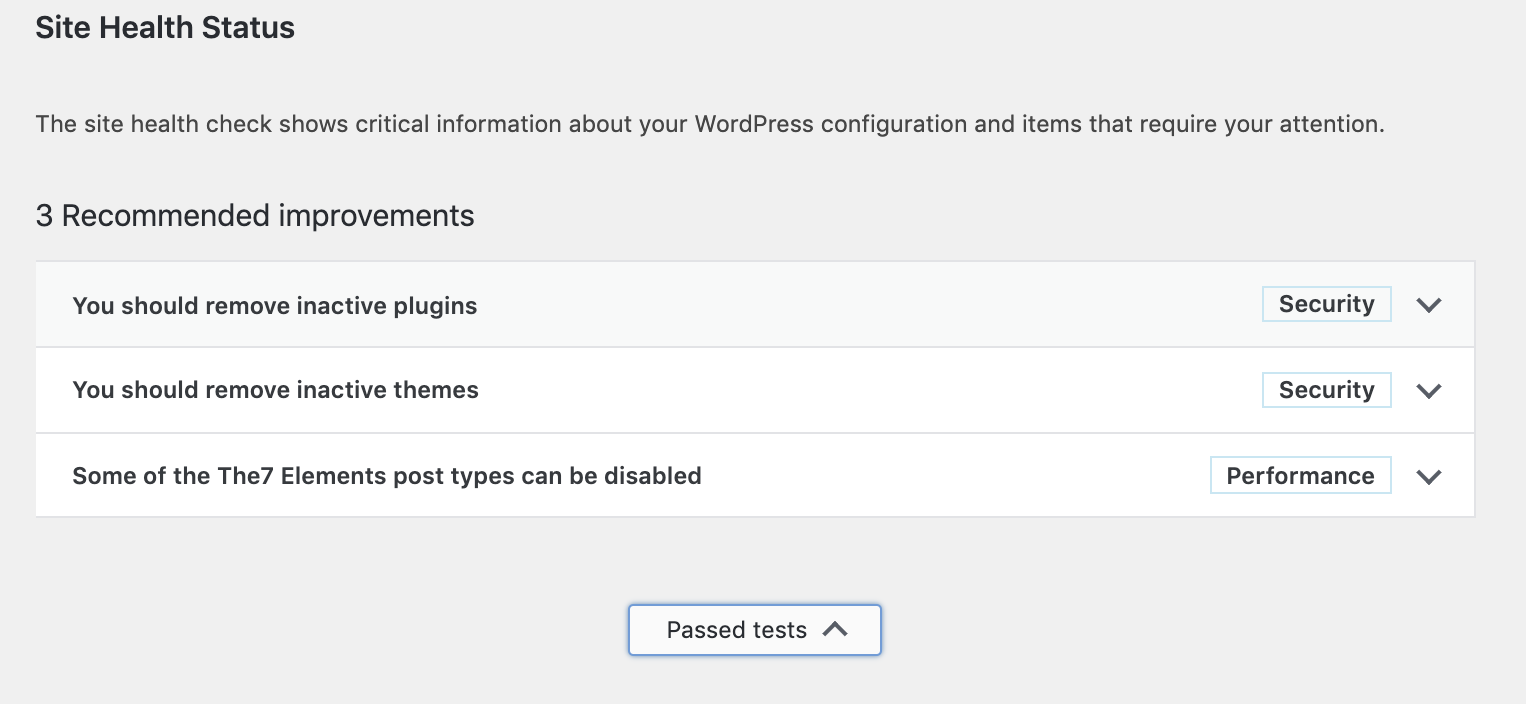
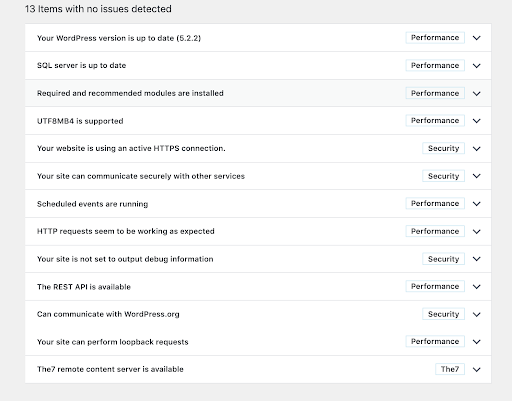
Tips to get a good site health score:
- Use good quality Wordpress Hosting
- Get a SSL certificate
- Keep your Wordpress plugins and theme updated
- Use Latest version of PHP
- Use latest version of MySQL
Recovery Mode
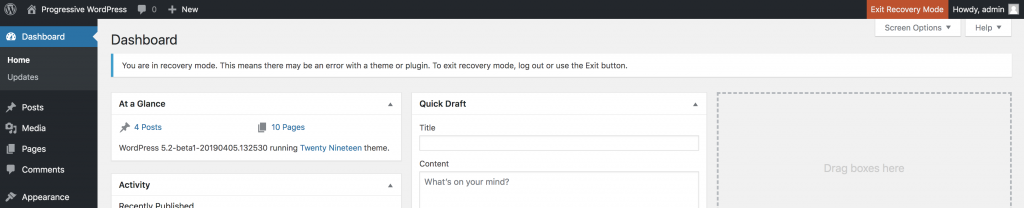
Sometimes you will face errors where you can’t access the backend normally. Wordpress 5.2 introduced a feature called Recovery Mode. When a fatal error occurs, an email will be sent to the admin email address, informing the admin of the issue and will provide a secret link that will give you backend access.
Once logged in, recovery mode will activate and you will be able to run tests to remove the fatal error. Once you believe you fixed the issue, you can exit recovery mode by clicking the orange “Exit Recovery Mode” button.

Leave a comment