Table of contents
The Video Widget is finally here
WordPress is continually improving the application with items that users are asking for. One of the improvements that arrived in WordPress 4.8 is the video widget. This widget has been highly anticipated, and we'll show you how to use it here.
Need to know how to use Widgets, you can do so here
What can you do with the Video Widget and why is it included?
Previously, you had to use a text widget in order to place a video on your sidebar, and you'd have to paste come code into the box or use a separate plugin in order to include a video in a WordPress widget. This streamlines this process and makes it more user-friendly for novices, and easier for more experienced WP users. You can add video from the following:
- Youtube
- Vimeo
- Your own media library upload
- Another provider
Let's Add Your Video
Step 1: Click On Appearance > Then Click Widgets 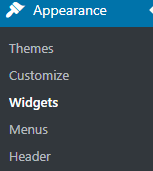 Step 2: Click on the Video widget and add it to your desired sidebar or area of choosing.
 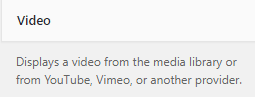 Step 3: Once the widget is added You can now upload your Video from YouTube or other sources to the widget then click save
 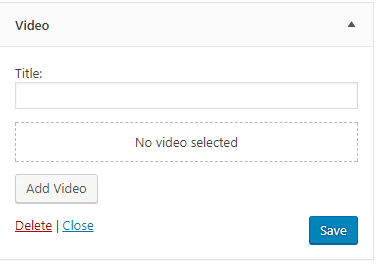 Your video should now show up in a sidebar or widget area of your choice.
Leave a comment