Table of contents
Username Changer Plugin has been what alot of you are looking for! Up until now, there has been no easy way to change your WP username. So if you are trapped with a username you don’t like, you have to keep using it. Thankfully, with this plugin, editing a username is real quick and easy. Simply install the Username Changer Plugin and you can edit your username anytime. See the step by step process on how to user the Username Changer Plugin below:
How to use the Username Changer Plugin
Step 1: First you must install the Username Changer Plugin. Click Plugins from your dashboard and then install and activate the Username Changer Plugin. 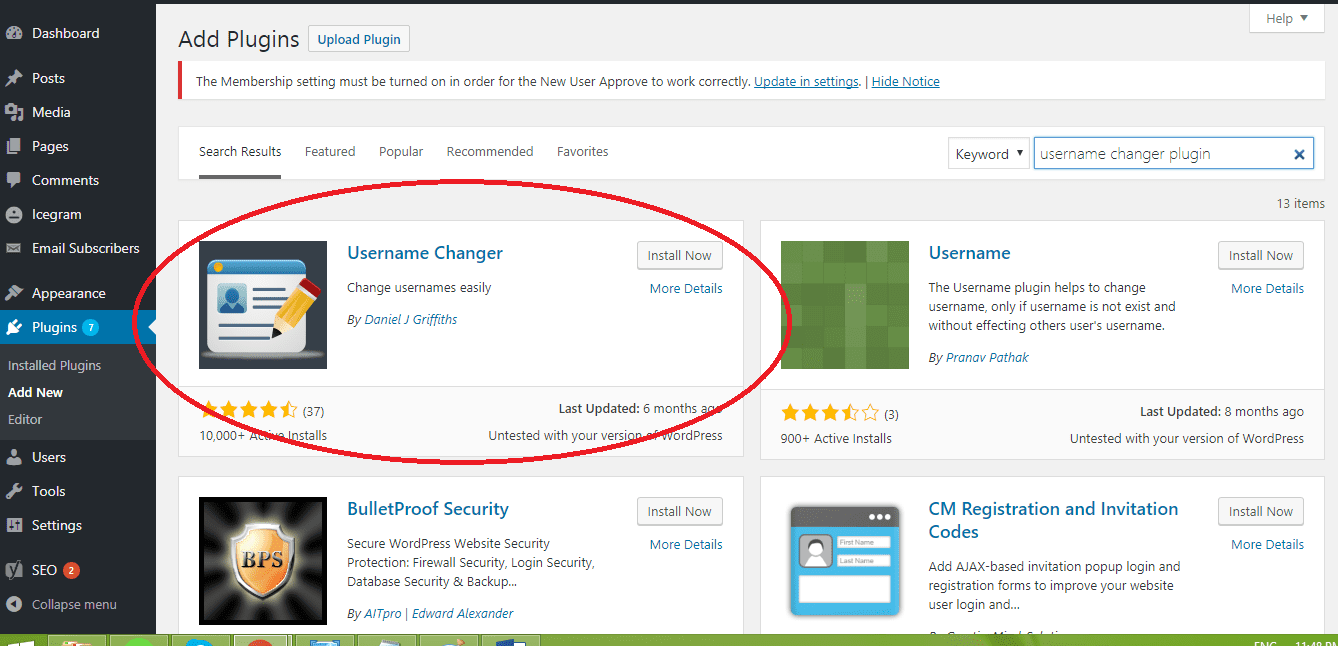 Step 2. Click Users from your Dashboard. Now you can see the list of users and their specific roles on your website.
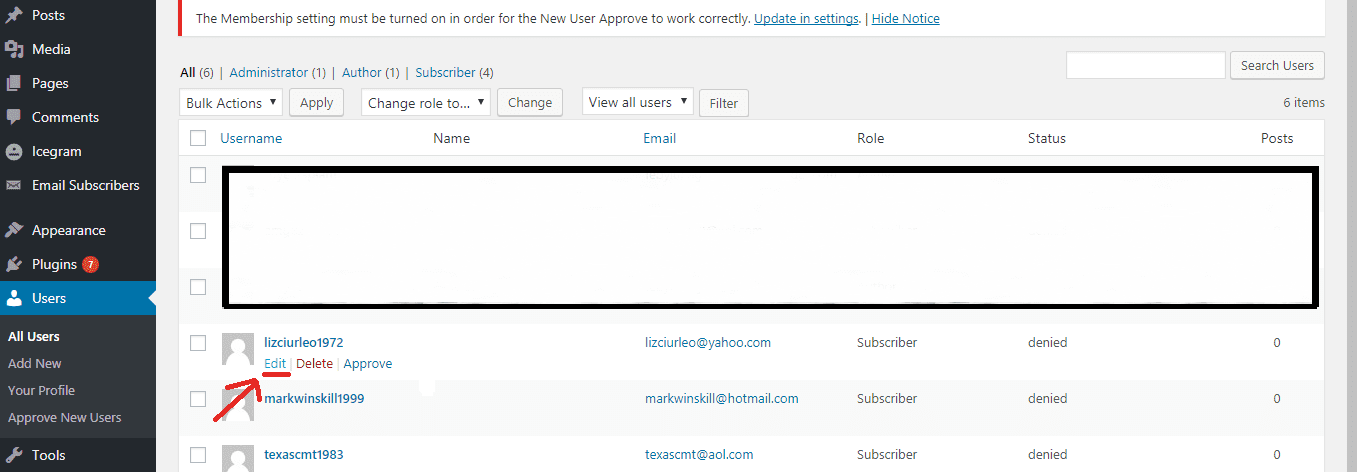
 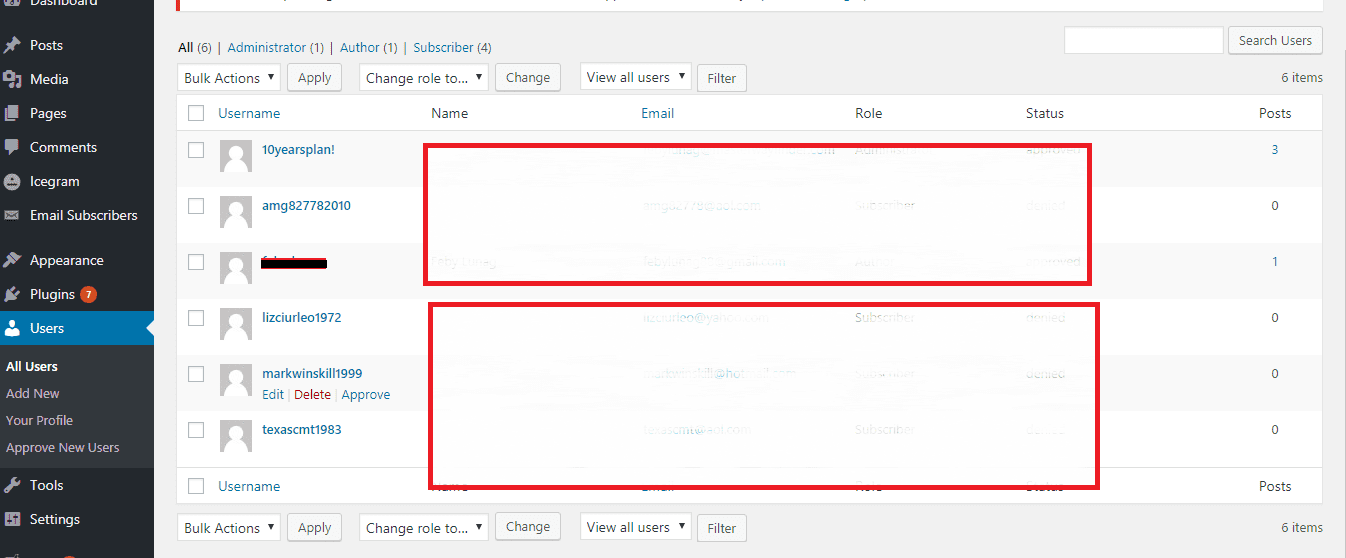 3. Select the username you wish to edit. Hover your mouse under the selected username. Click Edit.
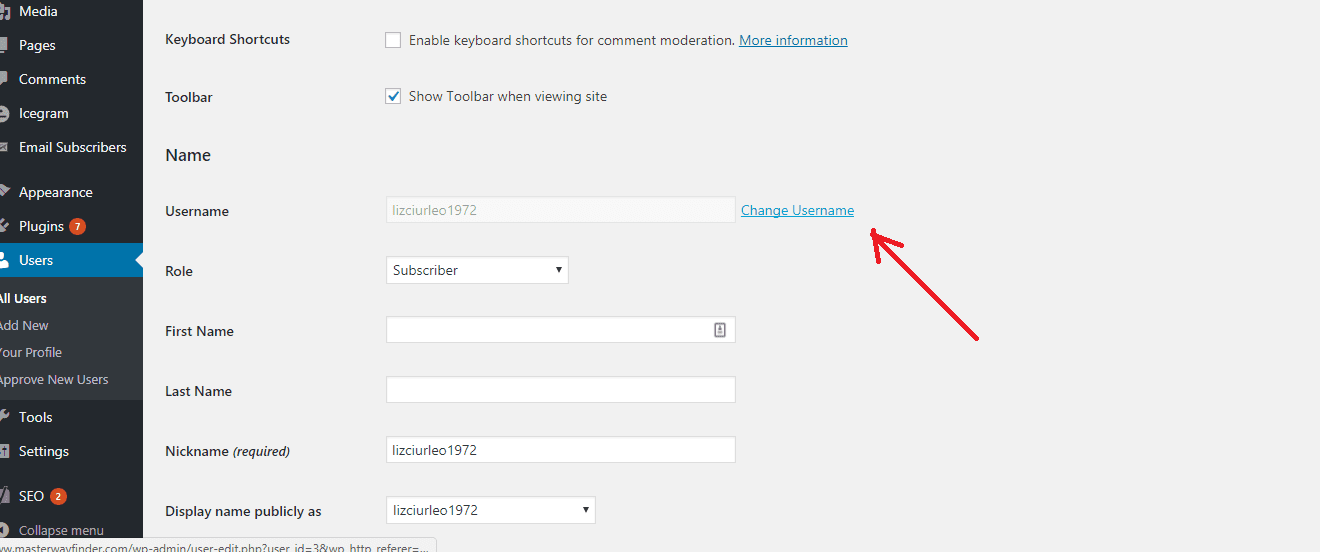
  Step 4. Click Change Username. Next, type the desired name and then click Save Username.
  Congratulations! Now you have successfully changed your username. To protect your site from hackers and spammers, here are some helpful tips to follow:
- Your username is also your author name for your blog posts. It is always good to use a name that people would love to link and share on their social media sites.
- Use a username that is unique, professional and easy to remember. Don’t use special characters as this makes it complicated.
- Some people use “Admin”” as their username. If you are using this name, please change it as soon as possible- as it is very easy for hackers to guess and scan for.
- In relation to your password, make sure that you are using upper and lowercase letter, special characters and numbers. Hackers are everywhere so you have to be smarter than them!
Leave a comment