Table of contents
WordPress is continuously updating their content management system for convenience and user friendly applications. One of the most frustrating things about viewing the post and page views in WordPress was being limited to only 20 items per page. With the newest version of WordPress, we are now able to see many more items on one scrollable view. This makes life MUCH easier for editors because we can now see everything in one view. Here's how to do it:
How to change the number of items listed in WordPress
Step 1. Click Posts on your Dashboard 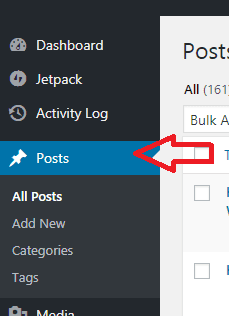 Step 2. On the top right side of your dashboard, click Screen Options.
 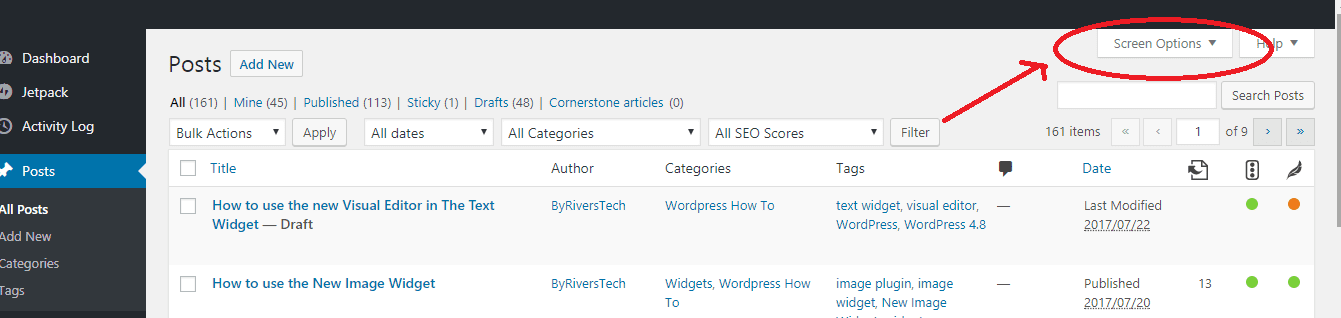 Step 3. Type the number of items per page you would like. For example, we will change the default number of views per page which is 20 to 40. Check the screenshots below for your reference:
 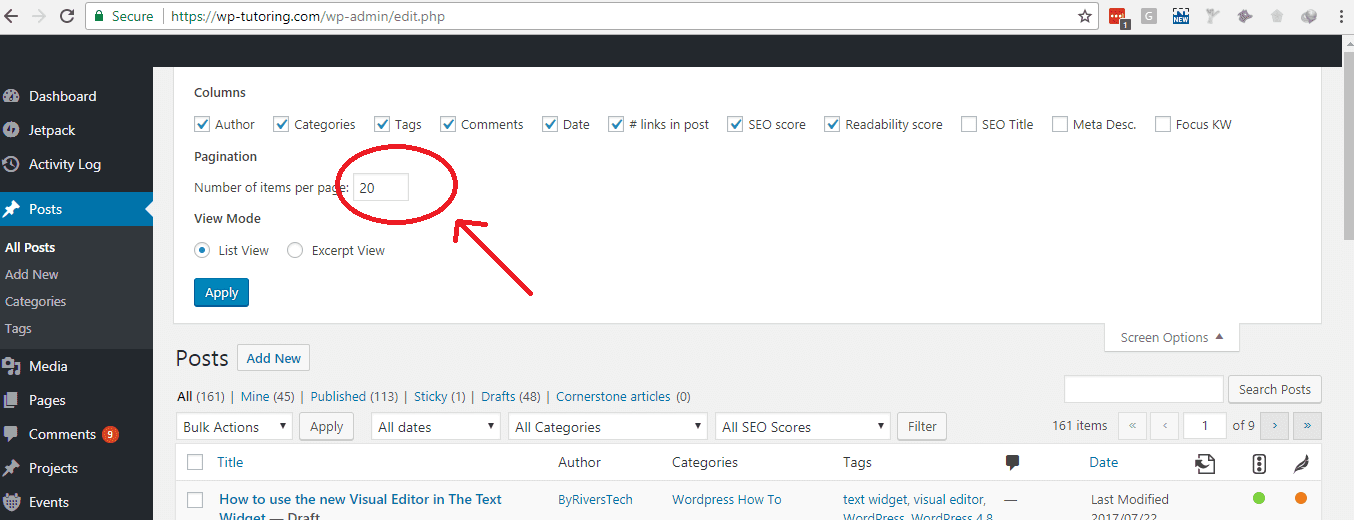 Simply type the number 40 (or any number according to your preference). Next, click Apply.
 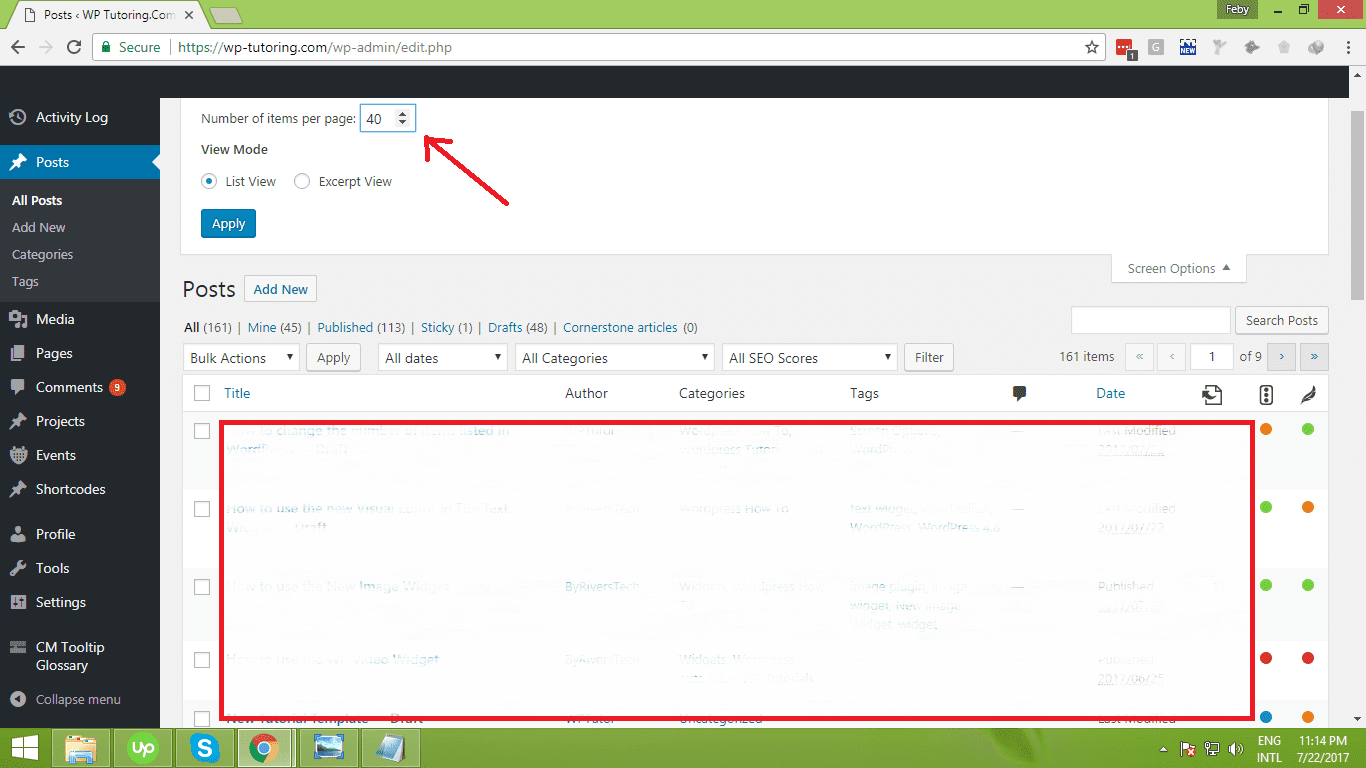 Now, you can have a better view of all your blog posts. You can easily scroll your blog posts up and down. This added function is really great because you can easily go back to your old posts quickly.
 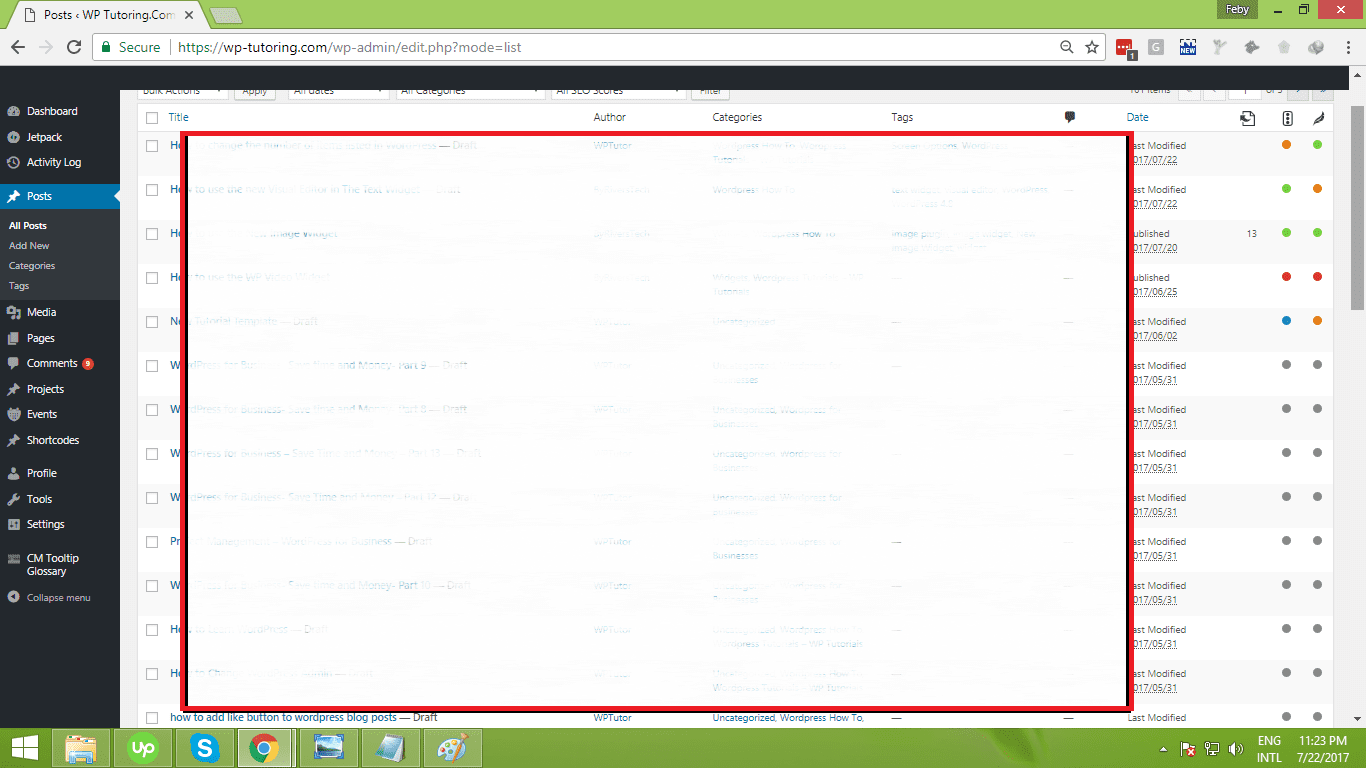 Certainly, the WordPress development team is doing a great job in enhancing the system. Recently, they released their 4.8 version which has lots of enhancements and features that are useful and user-friendly. Some of the enhanced features were the use of Image Widget, Video Widget, Audio Widget, Visual Editor in Text Widget and much more.

Leave a comment