Exporting WordPress post and pages is very good for moving all of your page and post content to a new site or even just for backing up your material in case of any accidents. After exporting, WordPress will save all your content to an xml file that can be imported to another site.
Step 1 Depending on your theme or set up you want to look for the tools section
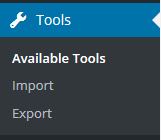
Step 2 You would want to click on export which will bring you to the export page or it will have you download the wordpress export tool before taking you to the page.
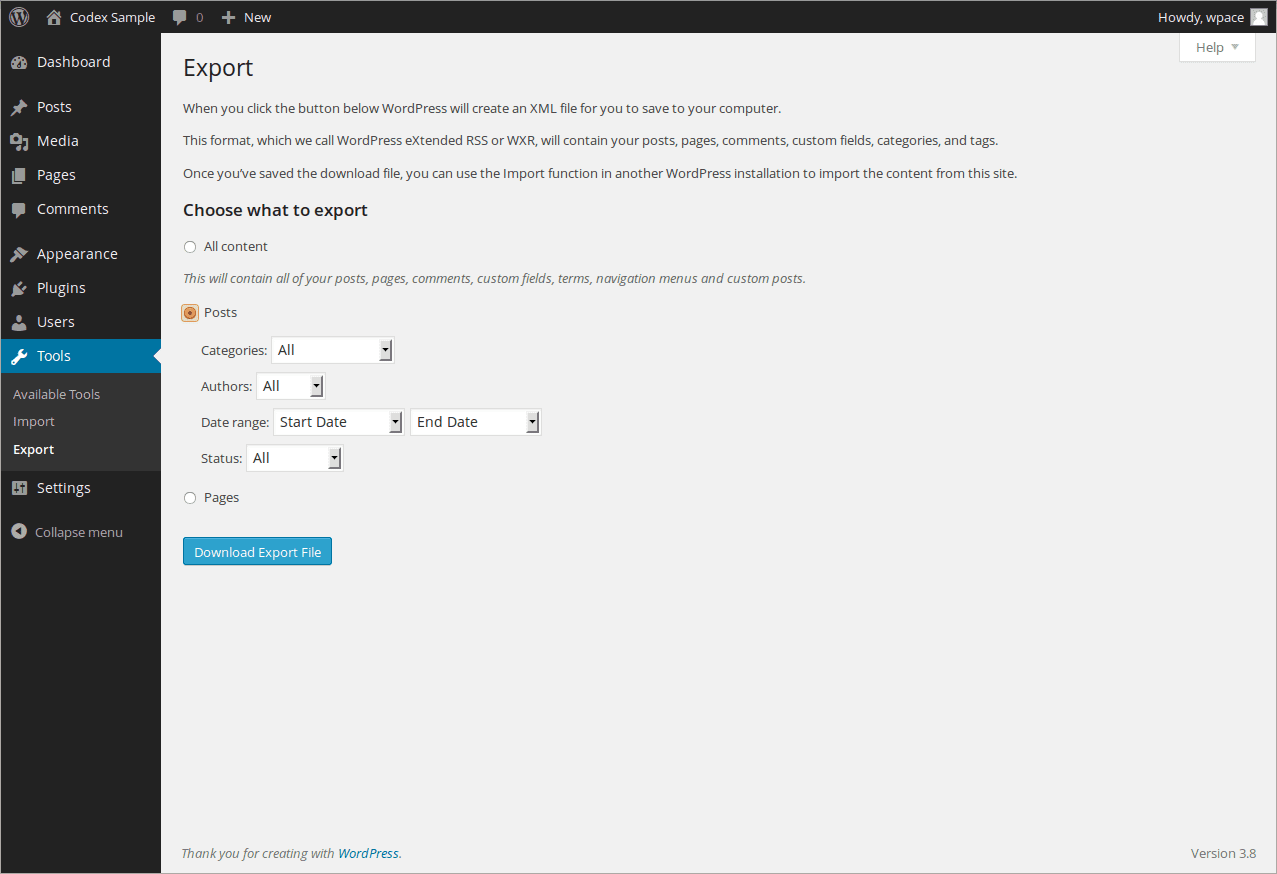 Image Taken from WordPress Codex
Step 3
When you click on export it will automatically have all content checked_(step 2)_ which will export everything on your site to the xml file. In order to just do pages and post you have to download them separately; so you will have a (post .xml file), and a (page .xml file). While Using export you can choose the dates, status, and even the author.

Leave a comment