Helping site owners learn WordPress since 2012 · (844) WP-TUTOR
Plugins

Deleting a WordPress Plugin

Sometimes you need to delete unnecessary plugins. Follow the steps below to delete a plugin from your WordPress Website:

WT
WP Tutoring TeamWordPress Instructors
Updated Oct 6, 2021
1 min read
Table of contents

Sometimes you need to delete unnecessary plugins. Follow the steps below to delete a plugin from your WordPress Website:

Deleting a plugin

STEP 1 : Go to the Plugins menu from your WordPress Dahsboard.
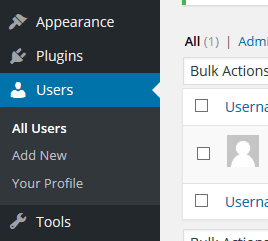
Plugin

STEP 2 : We need to deactivate the plugin first. So find the plugin that you want to delete and click Deactivate.
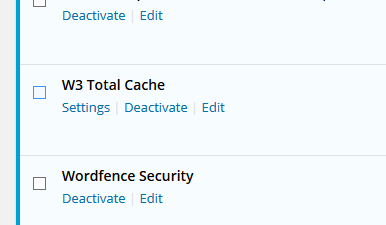
WordPress Tutorial - Deleting a WordPress Plugin

STEP 3 : Now find the plugin again and click Delete

STEP 4 : It will redirect you to the delete page and ask you if you want to delete the files and data of that plugin. Click Yes, delete these files and data.
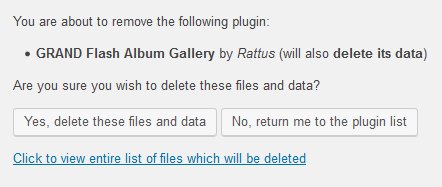
Add new post

The plugin has been deleted successfully from your WordPress Website.
WT

WP Tutoring Team

WordPress Instructors

We’ve been teaching WordPress to individuals and businesses since 2013 — through step-by-step tutorials and 1-on-1 tutoring sessions.

Leave a comment

Comments are reviewed before they appear.

Get our free WordPress starter guide

Join thousands of site owners and get step-by-step WordPress tutorials in your inbox, plus printable cheat sheets.

Beginner-friendly, no jargon
Printable cheat sheets & checklists
Unsubscribe anytime

Request your session

We’ll reply quickly — usually the same business day.

By using this form you agree with the storage and handling of your data by this site.