Helping site owners learn WordPress since 2012 · (844) WP-TUTOR
WordPress Basics

Change the Post Author in WordPress

Learn how to change the post author in WordPress using bulk edit on the All Posts screen: check posts, choose a new author, and update in four steps.

WT
WP Tutoring TeamWordPress Instructors
Updated Aug 11, 2016
1 min read

Sometimes you might have to change the author of a post because of personnel changes, or a site migration.  Here is how you can Change the Post Author in WordPress from the "All Posts" screen.

Step 1:   Go to "All Posts" in your WordPress Dashboard.
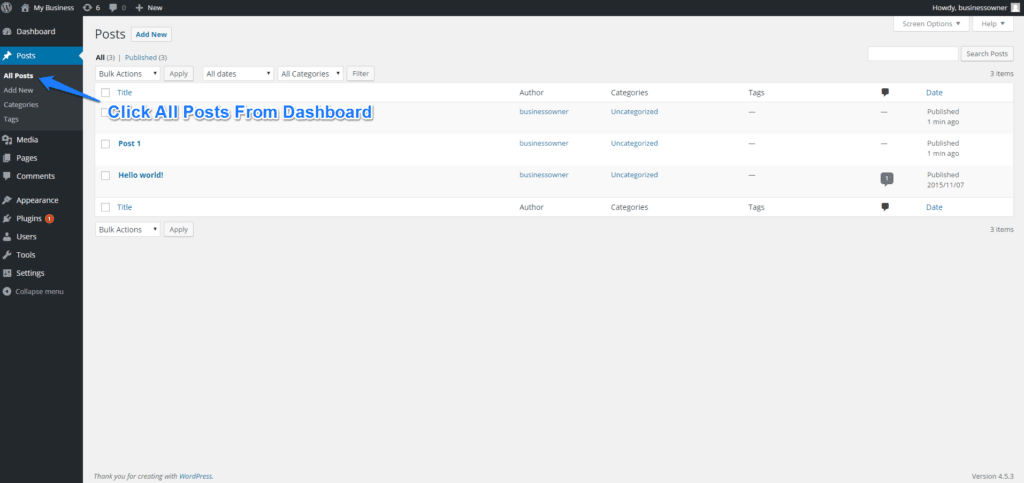
Change the Post Author in WordPress Image 1

Step 2:  Check the Posts that You want to Change the Author for-
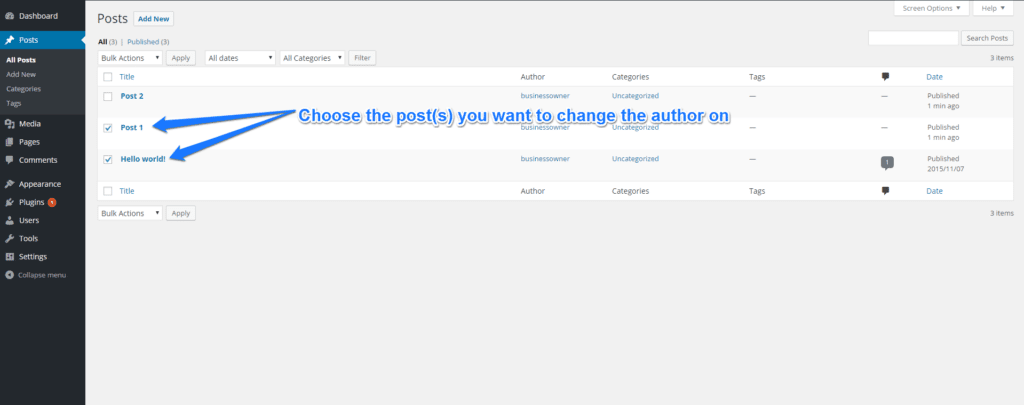
Change the Post Author in WordPress Image 2

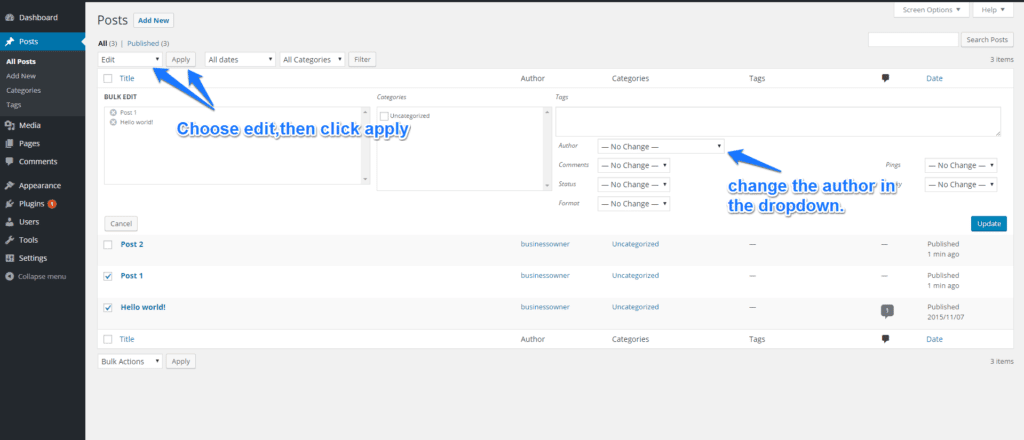
Step 3:  Click Edit and then Apply:

  Change the Post Author in WordPress Image 3

Step 4:  Change the Author in the Dropdown and click the blue Update Button.
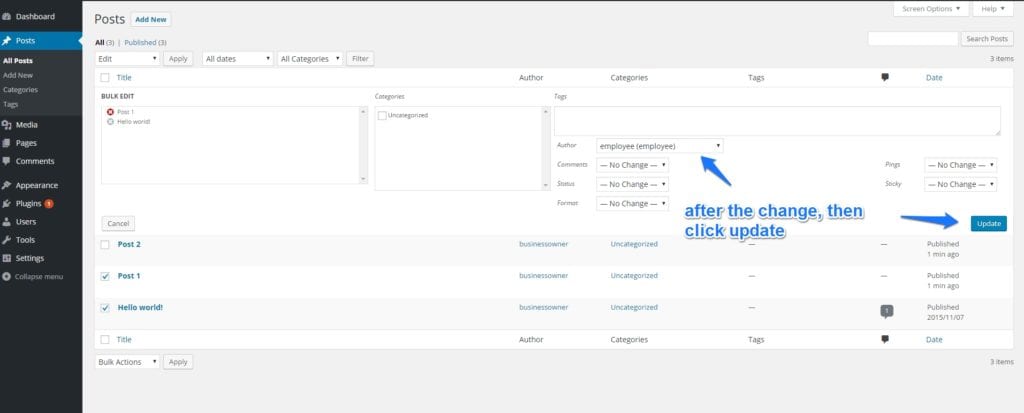
Change the Post Author in WordPress Image 4

WT

WP Tutoring Team

WordPress Instructors

We’ve been teaching WordPress to individuals and businesses since 2013 — through step-by-step tutorials and 1-on-1 tutoring sessions.

Leave a comment

Comments are reviewed before they appear.

Get our free WordPress starter guide

Join thousands of site owners and get step-by-step WordPress tutorials in your inbox, plus printable cheat sheets.

Beginner-friendly, no jargon
Printable cheat sheets & checklists
Unsubscribe anytime

Request your session

We’ll reply quickly — usually the same business day.

By using this form you agree with the storage and handling of your data by this site.