Table of contents
We can show content in the sidebar by adding widgets. Follow the steps below to add a widget to a sidebar:
Adding a Widget to a Sidebar
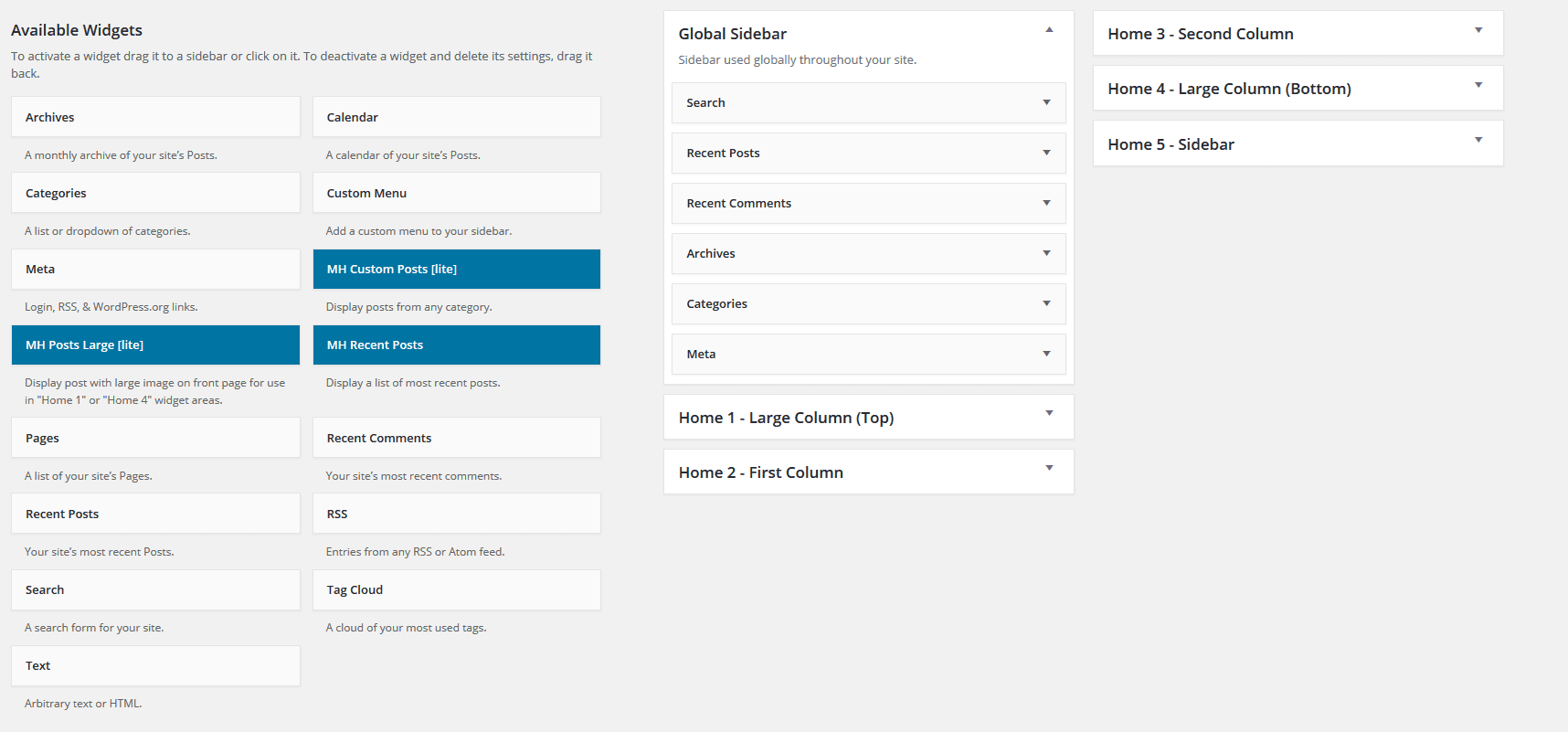
STEP 1 : Go to Appearance > Widgets page. 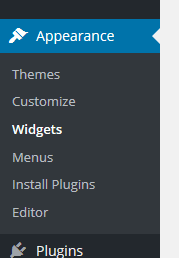 STEP 2 : Drag and drop your desired widgets to the sidebar area. You can add Search, Recent Post, Recent Comments, Categories, Calender, Text block etc. widgets in the sidebars.
  STEP 3 : Give a Title to your sidebar.
 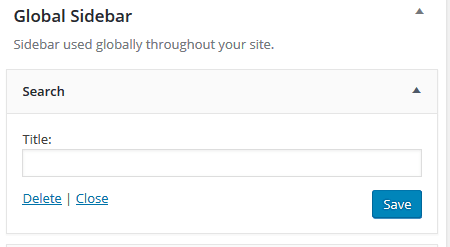 STEP 4 : Click Save to save the widget in your sidebar.

Leave a comment