Table of contents
Shortcodes are small bracketed tags — like [contact-form-7 id="4"] — that tell
WordPress to output something bigger in their place: a form, a gallery, a table.
Plugins have used them for years, and the block editor has a dedicated
Shortcode block for dropping them into any post or page.
This tutorial was fully re-shot in August 2026 on WordPress 7.0, so the screenshots match what you'll actually see.
- Add the Shortcode block (search "shortcode" in the block inserter).
- Paste or type the full shortcode, brackets included.
- The editor shows the tag, not the result — always check the published page.
- If a plugin offers its own block instead, prefer the block.
What you need first
A shortcode to add. Every shortcode comes from somewhere — a plugin, your theme, or WordPress core — and the plugin that provides it must be installed and active. In the example below we use the contact form shortcode that Contact Form 7 generates. If you're new to plugins, start with our installing a WordPress plugin tutorial.
Edit the post or page where the shortcode should appear (or create a new one).
Click the blue + button in the top-left corner to open the block inserter,
and type shortcode in the search box. The Shortcode block — its icon is
[/] — appears immediately.
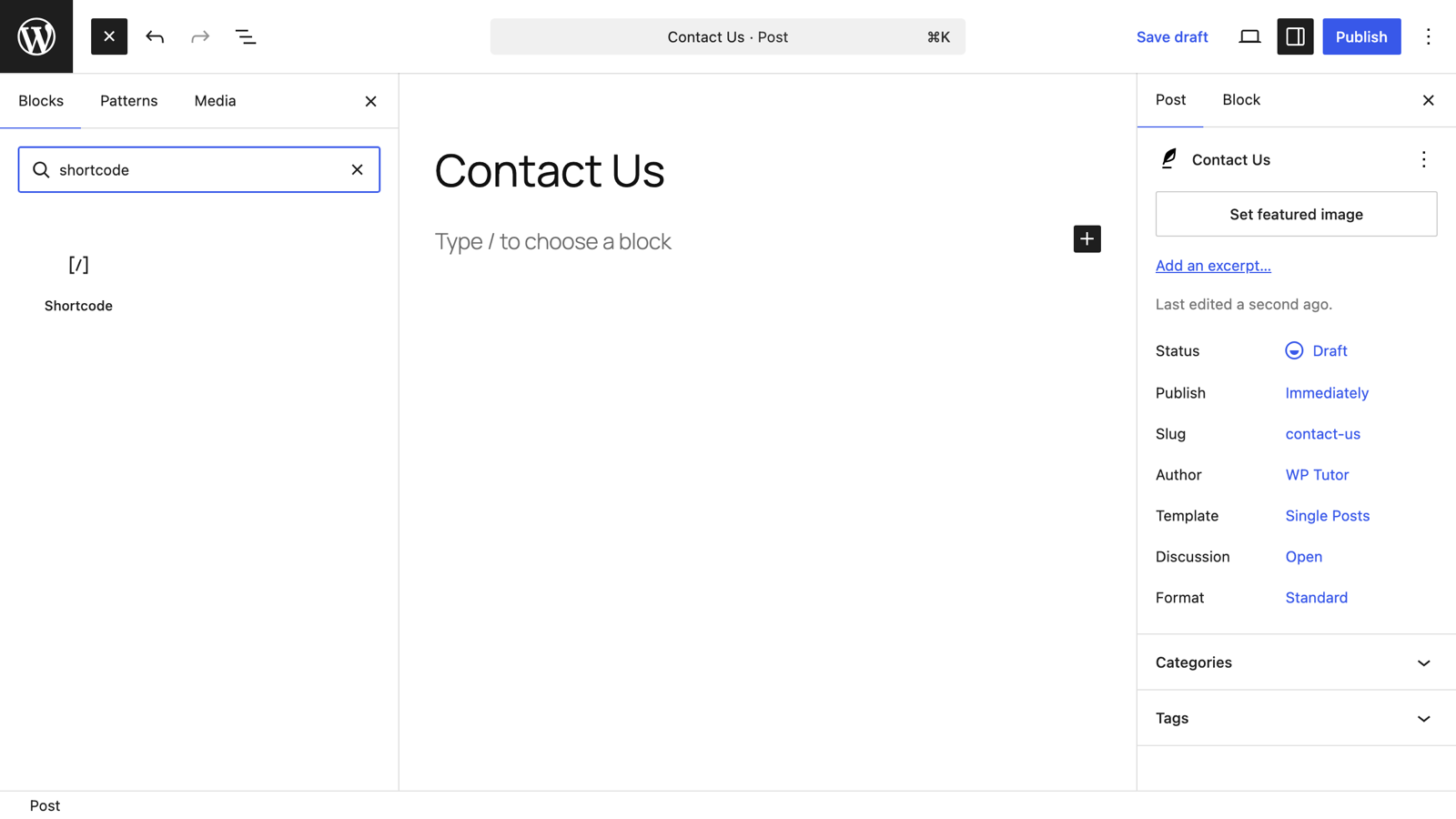
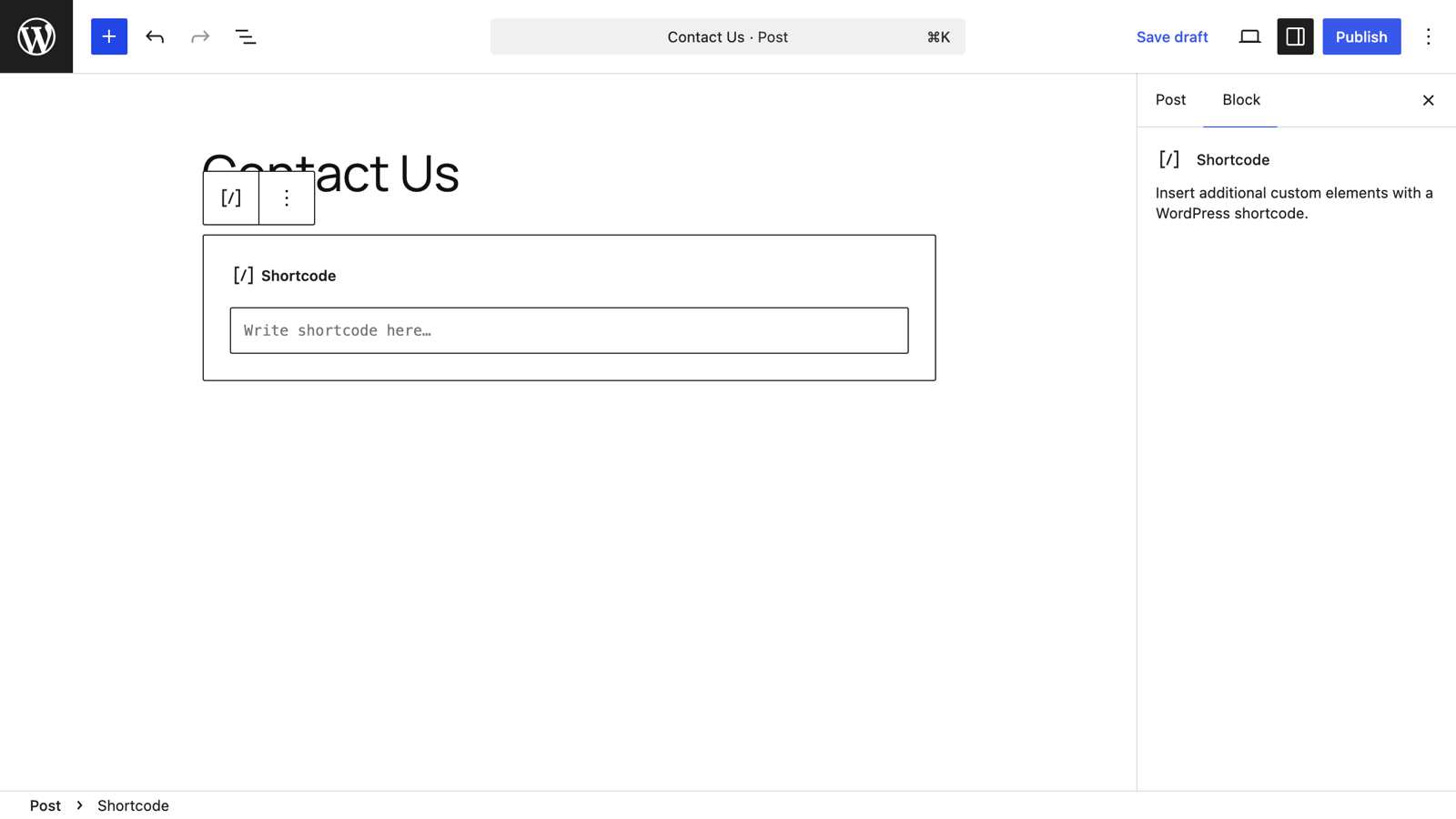
Click the Shortcode block to add it at your cursor position. You get a labeled box with an empty text field — this is where the shortcode goes. Nothing renders here yet; that's normal.
Enter the complete shortcode exactly as the plugin gave it to you, including the square brackets and any attributes. Here we're embedding a Contact Form 7 form:
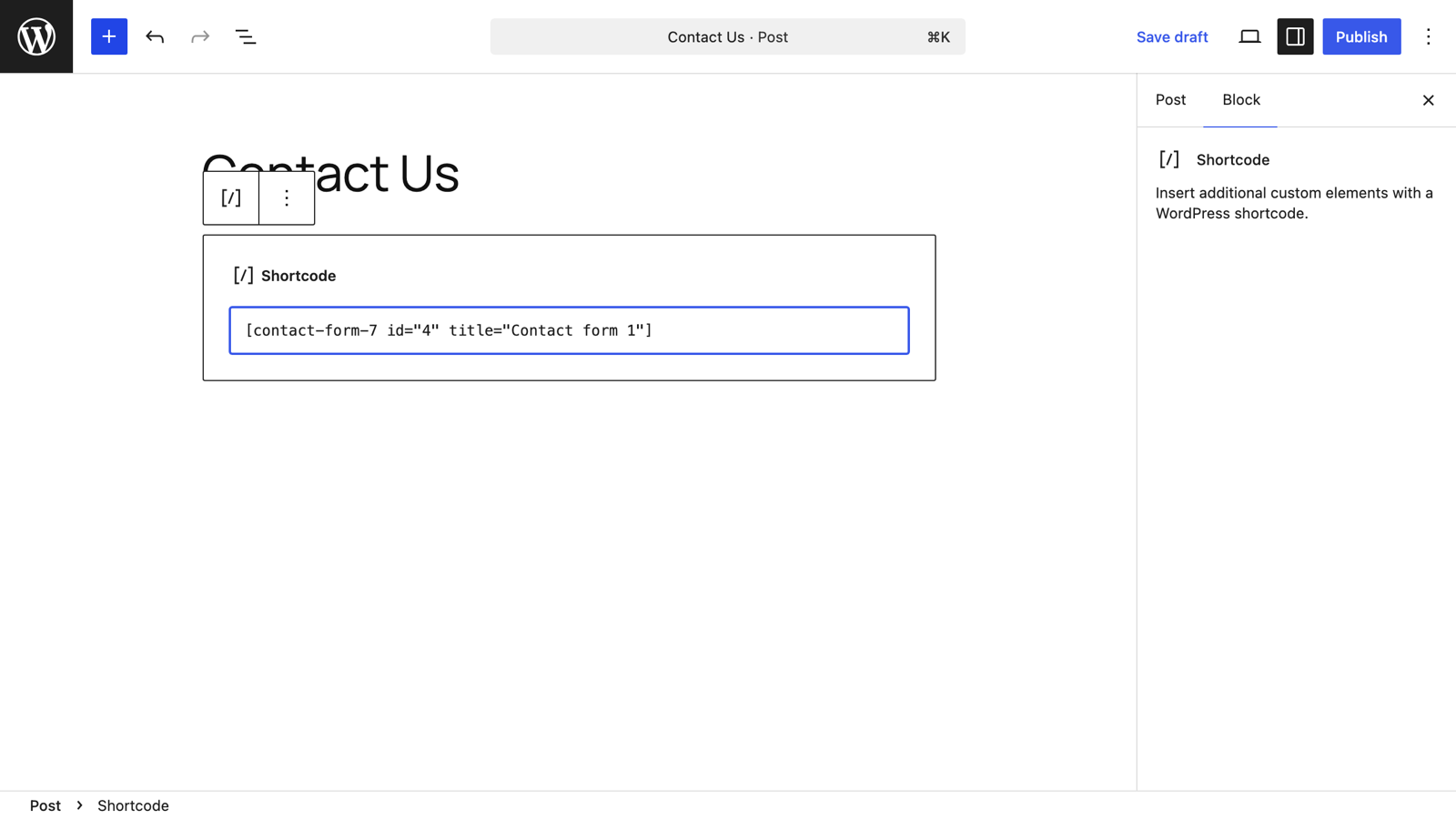
Most form, gallery, and table plugins show you the exact shortcode to copy on their own settings screen — copy it from there rather than typing it by hand.
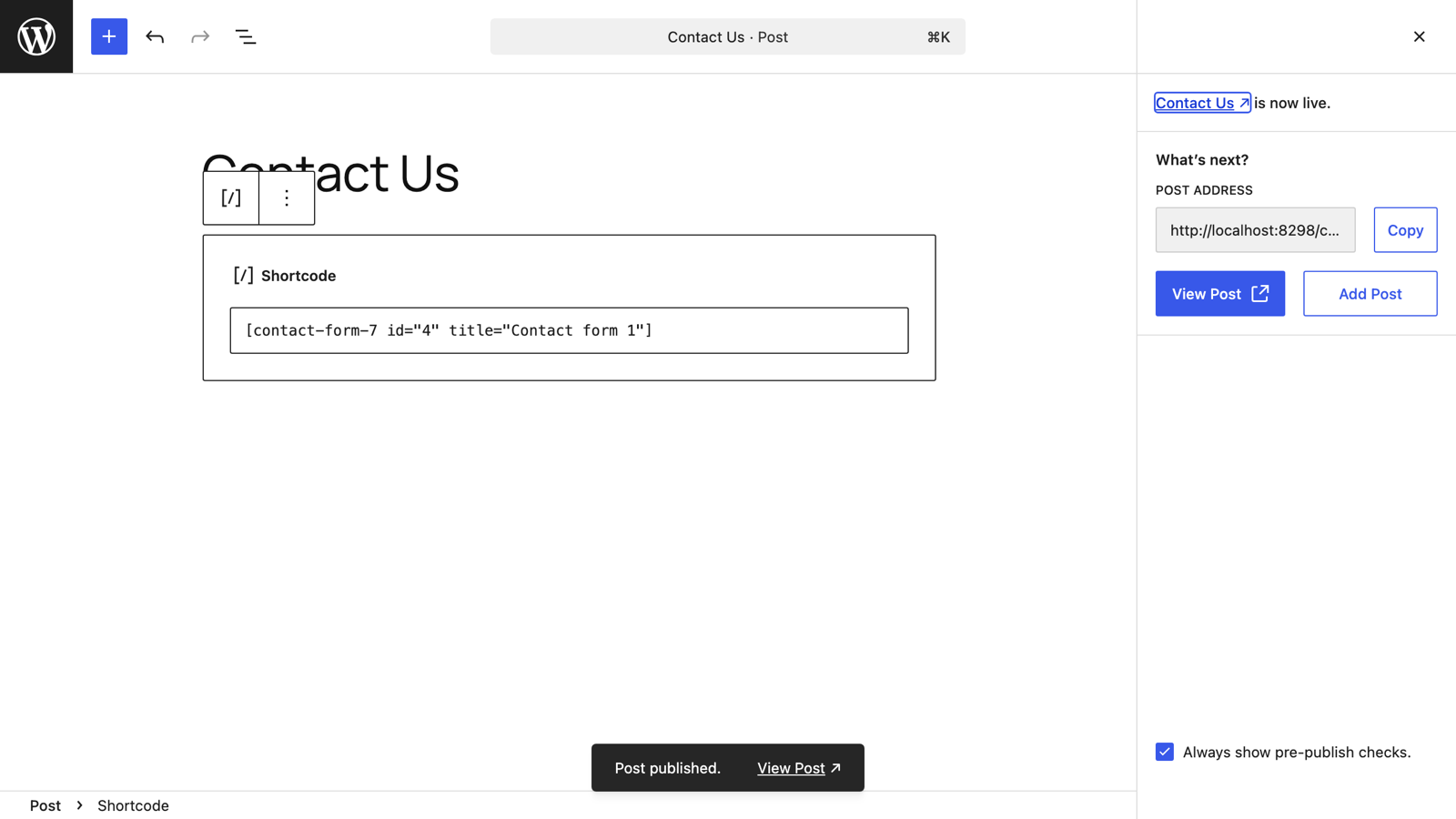
Click Publish in the top-right corner and confirm. The editor deliberately shows the shortcode as text, so don't worry that it doesn't look like a form yet.
Open the published post — the shortcode is replaced by its real output. Our example renders the full contact form:
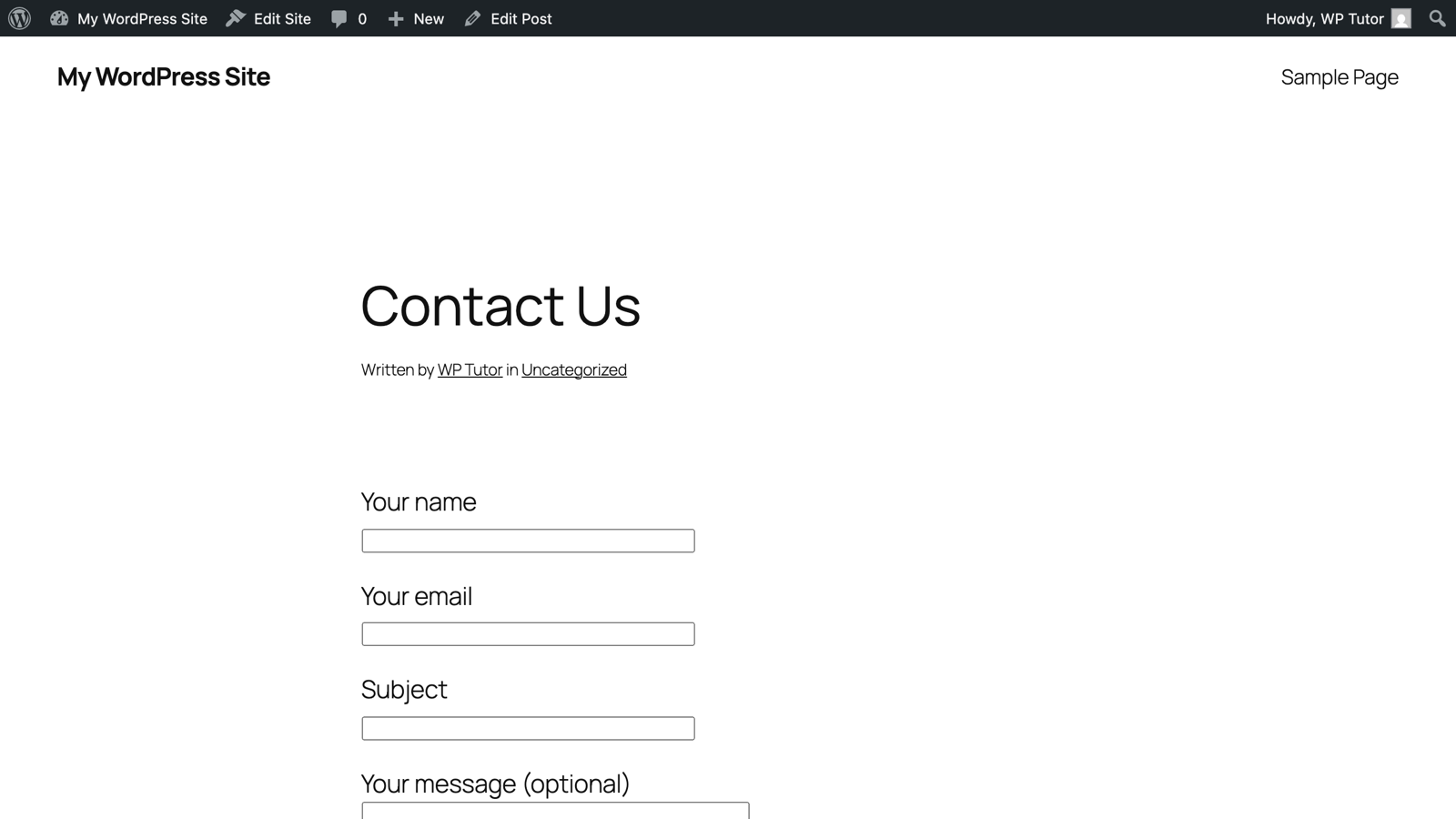
If you see the bracketed text instead of the output, the plugin providing the shortcode is inactive or the shortcode has a typo — see the FAQ below.
Shortcode or block? A 2026 reality check
Shortcodes aren't going anywhere, but they are gradually becoming the fallback rather than the front door. Most major plugins now register their own blocks — a dedicated block previews the actual content inside the editor and exposes its settings in the sidebar. So before reaching for the Shortcode block, search the inserter for the plugin's name. Use the Shortcode block when no dedicated block exists, or when documentation hands you a raw shortcode.
Misbehaving shortcodes are a classic "15-minute fix with a second pair of eyes." We sort out exactly this kind of thing live on your own site in a one-on-one tutoring session.

Leave a comment