Table of contents
Full site editing hands you the keys to every part of your site's design — which is exactly why a little discipline goes a long way. After walking hundreds of tutoring students through block themes, these are the practices that separate sites that stay maintainable from sites that turn into a pile of one-off tweaks.
New to the Site Editor itself? Start with the complete Site Editor guide and the FSE basics explainer — this article assumes you know where Templates and Styles live.
- Start from a style variation, not from dozens of manual style edits.
- Preview site-wide changes in the Style Book before saving.
- Edit the palette, not individual blocks — color by role, not by hand.
- Use synced patterns for anything that repeats; plain patterns otherwise.
- There is no Twenty Twenty-Six theme — Twenty Twenty-Five + a variation is the current answer.
- Prefer Reset over re-tweaking when a customization goes wrong.
Start from a style variation, not a blank slate
Every well-built block theme ships style variations — complete, designer-made combinations of palette, fonts, and spacing. In the Site Editor's Styles panel, click Browse styles:
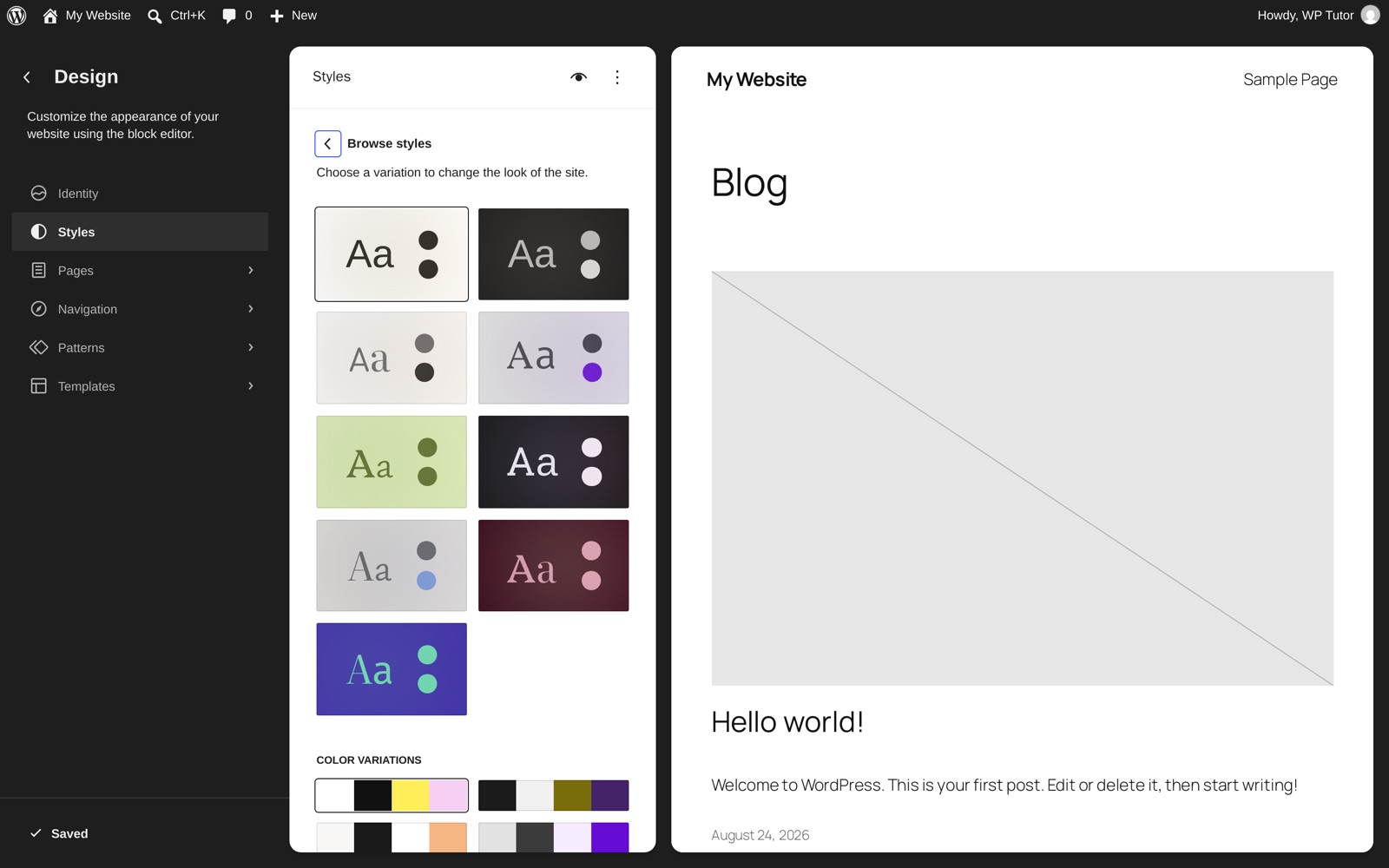
One click restyles the whole site coherently. That's the best practice in a sentence: make your big design decision by choosing a variation, then make small edits on top. Users who skip this and hand-adjust thirty settings end up with a design no one can reproduce — least of all them, six months later.
Below the full variations you'll find color variations and typography variations that mix into your current style, so you can keep a variation's fonts but try different palettes.
Where's the Twenty Twenty-Six theme? (Twenty Twenty-Five customization in 2026)
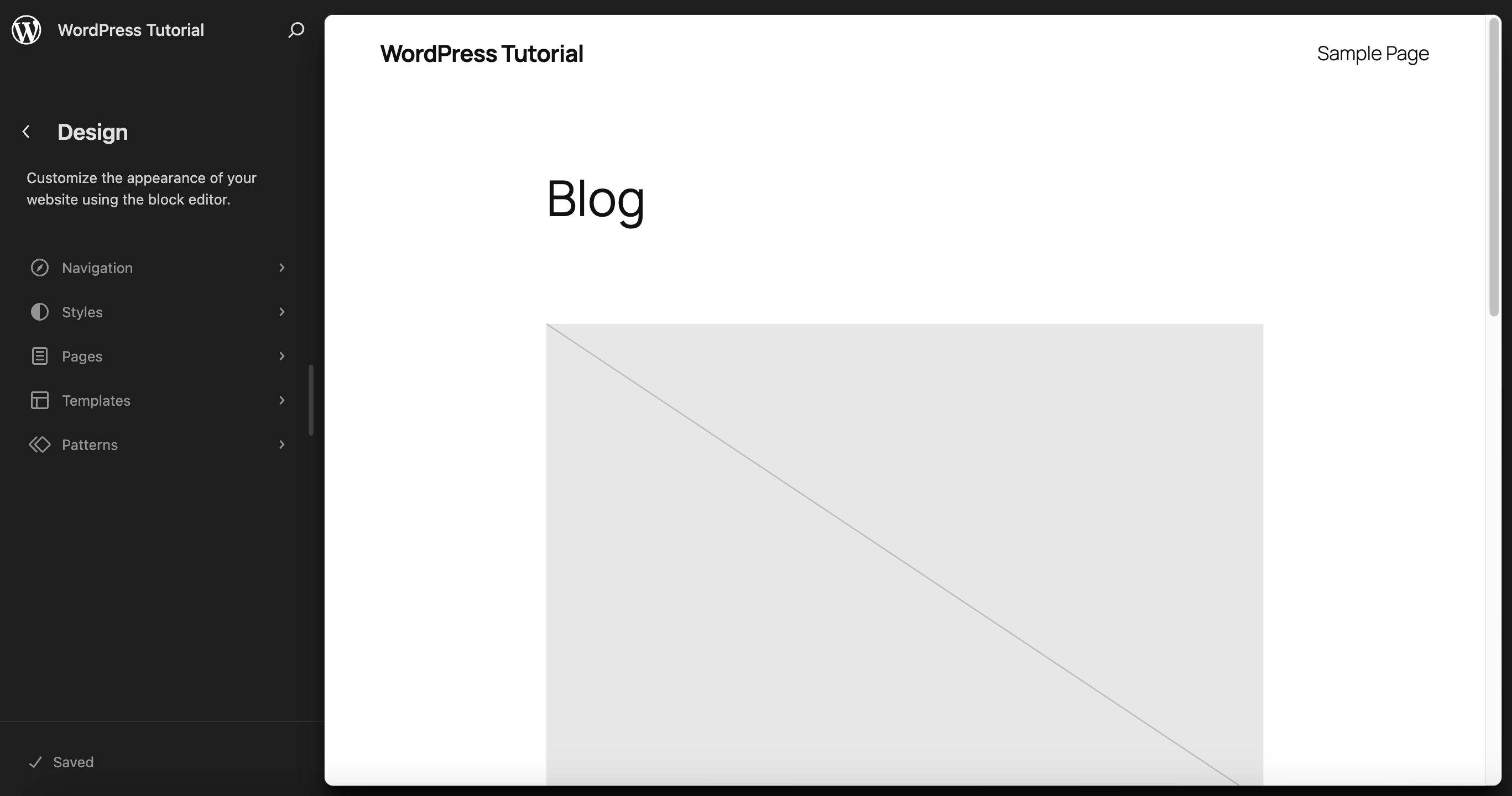
Searching for the Twenty Twenty-Six theme returns nothing on wordpress.org — because it doesn't exist. WordPress retired the yearly-default-theme tradition after Twenty Twenty-Five, which is still the bundled default on a fresh WordPress 7.1 install in 2026, alongside the older Twenty Twenty-Four and Twenty Twenty-Three:
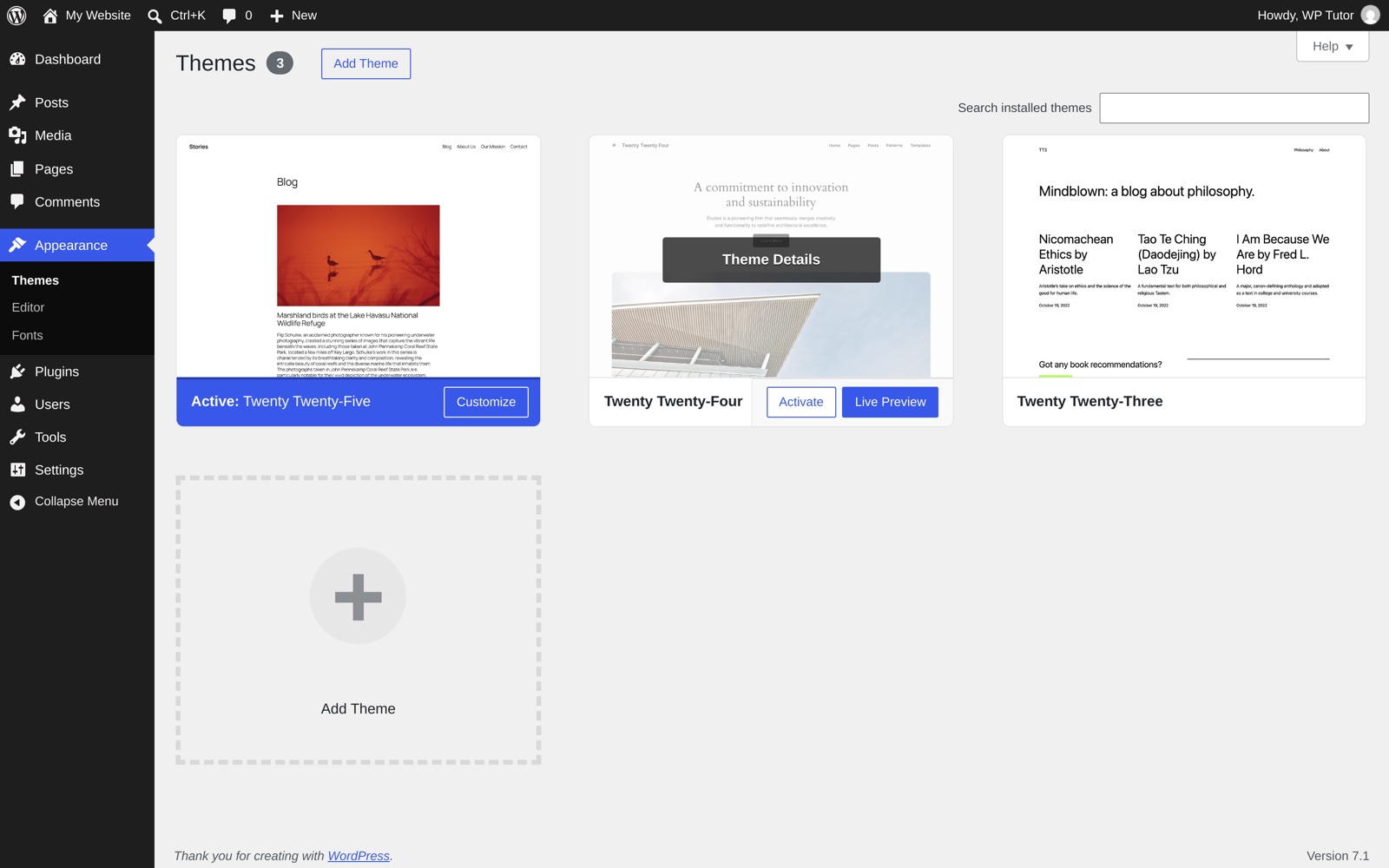
Instead of a new theme every January, the design energy now goes into the Site Editor itself — more variations, better patterns, finer style controls. So "Twenty Twenty-Six theme customization" in practice means: activate Twenty Twenty-Five, pick a style variation (previous section), then adjust the palette and typography as below. You get the fresh-year look without switching themes — and everything in this guide applies identically to any block theme from our full site editing themes round-up.
Preview in the Style Book before you save
Site-wide style changes have site-wide blast radius. The Style Book (the eye icon at the top of the Styles panel) shows every block type — headings, paragraphs, buttons, quotes, tables — rendered in your current styles on one screen:
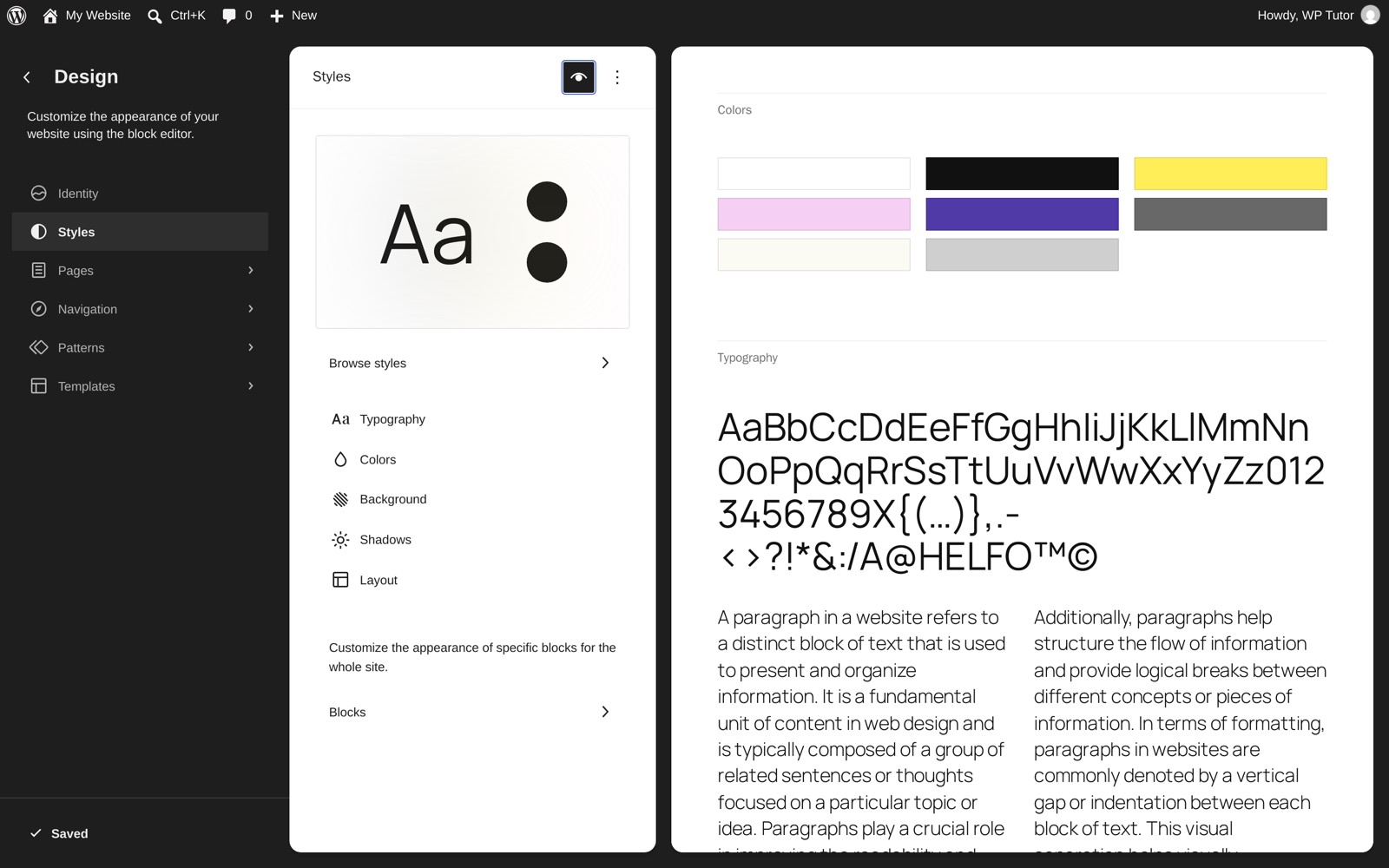
Flip through it after any typography or color change. It catches the classic mistakes — illegible link color on your background, a heading font that only looked good at one size — before your visitors do.
Color by palette, not by block
Under Styles → Colors, edit the palette and the element roles (text, background, links, buttons, headings) rather than coloring individual blocks by hand:
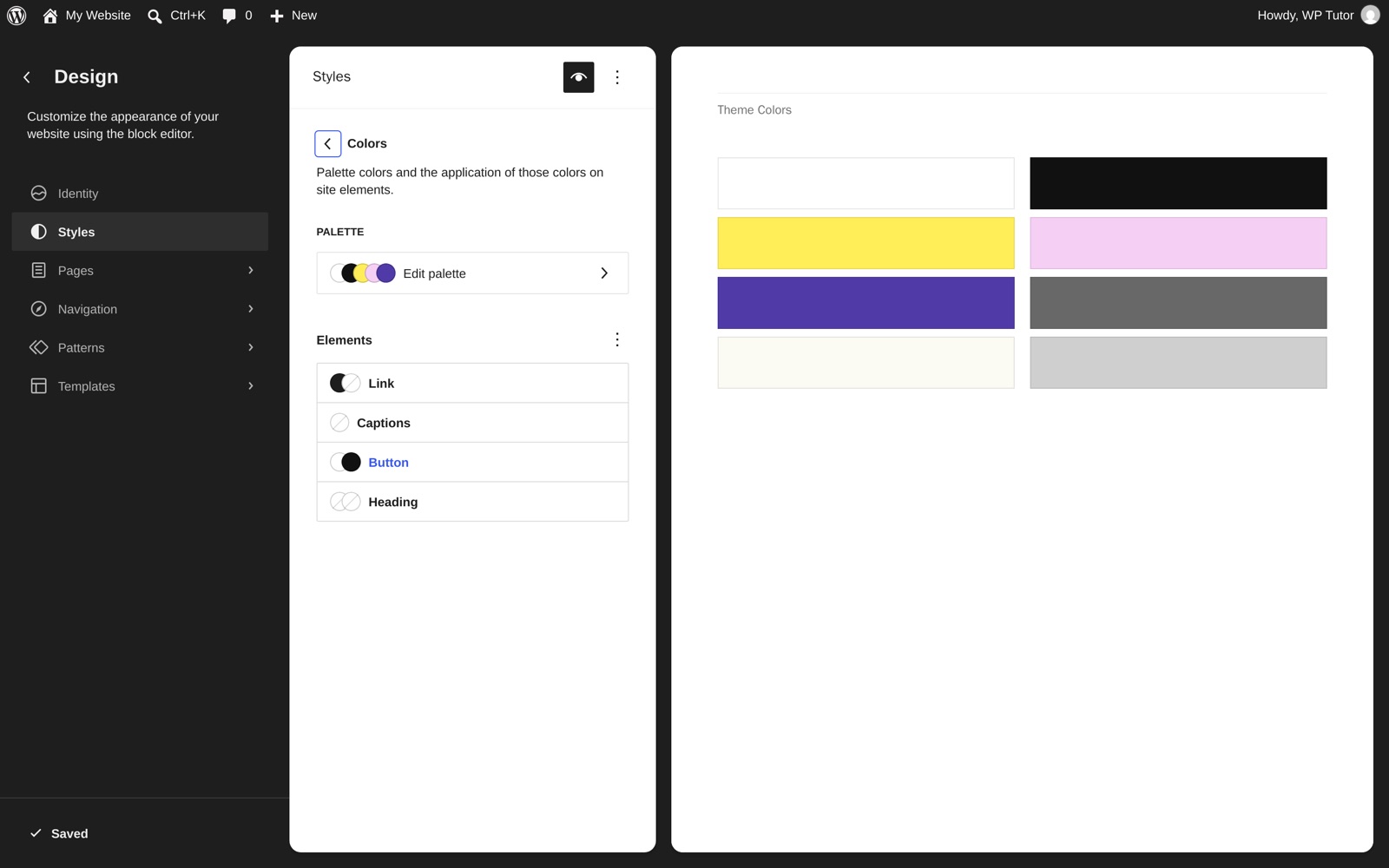
Blocks that reference a palette color update everywhere when the palette changes; blocks with hand-picked hex values don't. The test is simple: if you rebranded tomorrow, could you change your accent color in one place? With palette discipline, yes. Reserve custom per-block colors for genuine one-offs, and when you do color a block, pick from the palette swatches instead of the custom picker.
Let synced patterns do the repeating
Anything that appears on more than one page — a call-to-action box, an office-hours blurb, a signup pitch — should be a synced pattern (Patterns → Add Pattern, with the sync toggle on). Edit it once, and every copy updates: the same superpower template parts give your header and footer, applied to content. Leave patterns unsynced when they're just a starting layout you intend to customize per page.
Two habits keep a pattern library healthy:
- Name patterns by purpose ("Course signup CTA"), not appearance ("Blue box"), so future-you finds them.
- Prune: a pattern you stopped using is clutter in every insert dialog.
Keep navigation in one menu
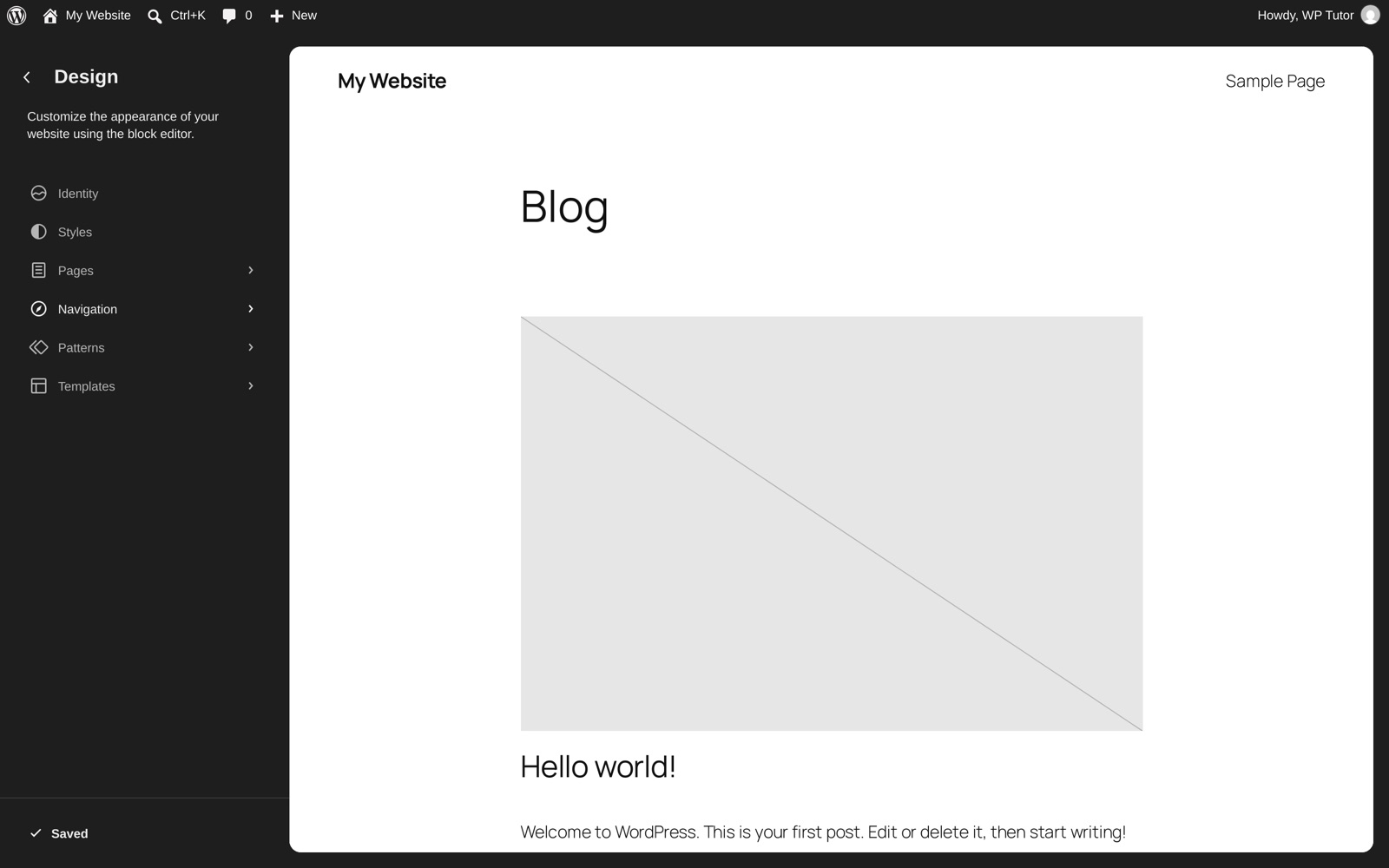
The Site Editor's Navigation screen manages the menu block your header displays:
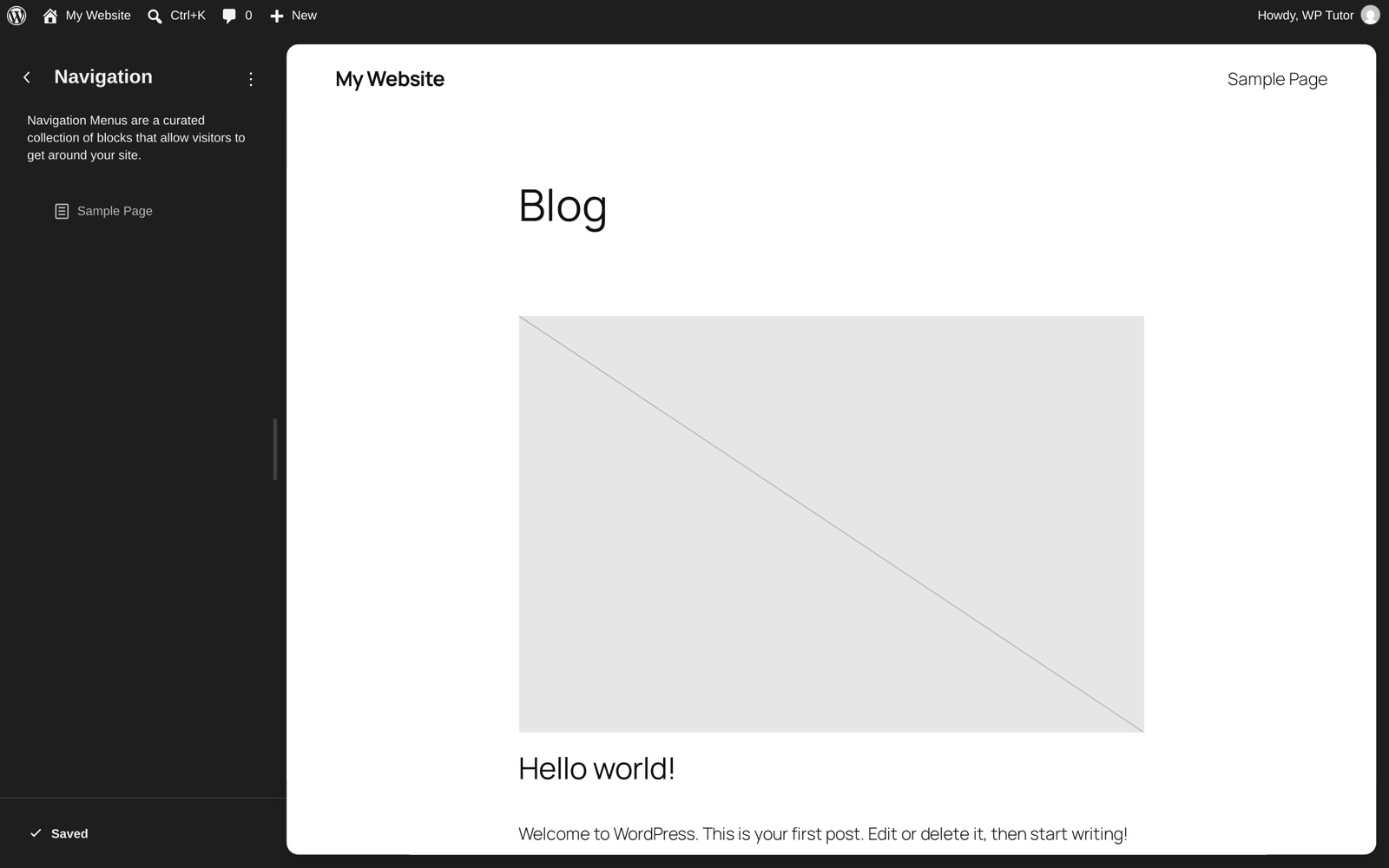
The trap: deleting a Navigation block on the canvas and re-inserting it creates a second menu in the database, and edits mysteriously stop showing up because your header displays the old one. Best practice — maintain one menu here, and if a header edit seems ignored, check this screen first for duplicates.
Reset beats re-tweak
The Site Editor's escape hatches are good — use them deliberately:
- Customized templates stop receiving the theme author's template improvements on updates. If a template edit didn't earn its keep, Reset it (⋮ menu in the Templates list) rather than leaving a stale copy.
- Global styles revisions (clock icon in the Styles panel) roll the whole design back to any earlier state — faster and cleaner than reversing edits one by one from memory.
- Experimenting on a live site? Make your changes, screenshot the Style Book, reset, and rebuild the winner cleanly.
The mindset that ties it together
Every practice above is the same idea wearing different hats: edit the system, not the instance. Choose a variation instead of thirty tweaks; edit the palette instead of a block's hex value; sync the pattern instead of pasting the box again; keep one menu instead of three half-menus. Block themes reward that discipline with a site that's fast, consistent, and easy to hand to someone else — including a tutor, if you'd like a second pair of eyes. For deeper block-by-block technique, the block editor tutorials hub has you covered.

Leave a comment