Helping site owners learn WordPress since 2012 · (844) WP-TUTOR
WordPress Basics

Adding Latest WordPress Posts in the Gutenberg Editor

With the new Block Editor actually looking to replace WordPress default widget capabilities, you can now list your latest WordPress posts with excerpts on…

WT
WP Tutoring TeamWordPress Instructors
Updated Jul 22, 2019
1 min read

With the new Block Editor actually looking to replace WordPress default widget capabilities, you can now list your latest WordPress posts with excerpts on your pages and posts without using a plugin, or having to only place them in a widget area.

Step 1: Select any post or page. Click on the plus icon in the top left corner. Scroll to the Widgets section and select the Latest Posts block.
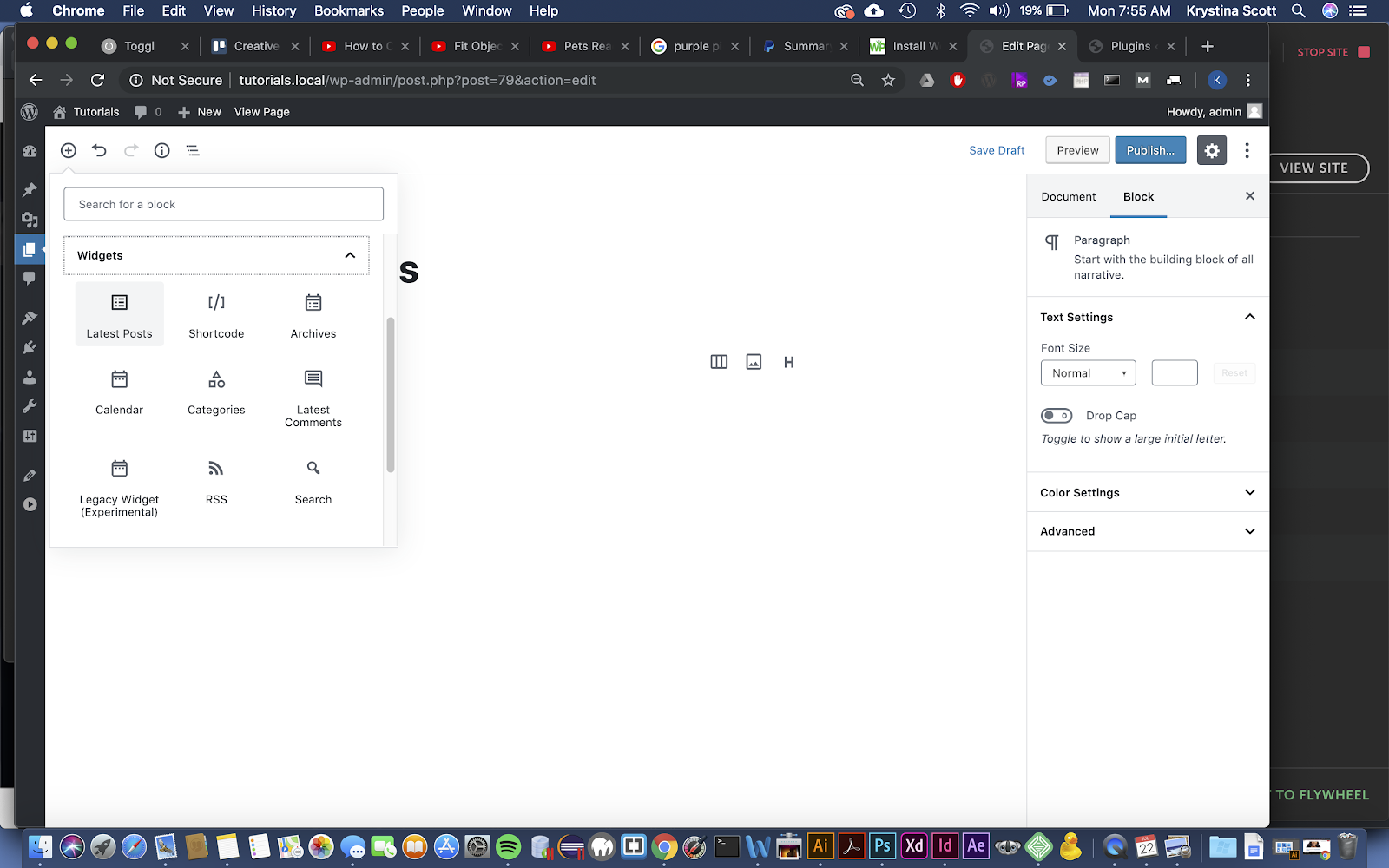
Latest WordPress Posts in Gutenberg Block Editor

Step 2: The Latest Posts block will appear and you will be able to select the number of posts you can display. You can have it either display in a list or a grid.

Step 3: With submenu on the right, you can customize the layout. You can change the number of posts to display, how it’s sorted and filtered, and the number of columns.

Step 4: To have the excerpt display, toggle the Post Content radio button on. Now your posts’ excerpts will display. You can also select the number of characters that will display in the excerpt under the Max number of words in excerpt section.
WT

WP Tutoring Team

WordPress Instructors

We’ve been teaching WordPress to individuals and businesses since 2013 — through step-by-step tutorials and 1-on-1 tutoring sessions.

Leave a comment

Comments are reviewed before they appear.

Get our free WordPress starter guide

Join thousands of site owners and get step-by-step WordPress tutorials in your inbox, plus printable cheat sheets.

Beginner-friendly, no jargon
Printable cheat sheets & checklists
Unsubscribe anytime

Request your session

We’ll reply quickly — usually the same business day.

By using this form you agree with the storage and handling of your data by this site.