Table of contents
WordPress 7.1 is released today, and it changes the screens you look at most: the block editor's top bar, the Site Editor, the Media Library, and the Posts list all look and behave a little differently than they did last week. If you've been meaning to properly learn WordPress instead of clicking around and hoping, this is a good day to start — the WordPress Fundamentals course has been re-recorded on 7.1, so what you see in the lessons is exactly what you'll see on your own site.
- WordPress 7.1 is out. New Playlist and Tabs blocks, a persistent editor toolbar (the admin bar now stays visible in the editor), collaboration Notes, a redesigned image-crop tool and infinite-scroll Media Library, excerpts on the Posts list, per-device styling controls, and nearly 90 accessibility fixes.
- The WordPress Fundamentals course is already on 7.1. Every lesson that shows a screen 7.1 changed was re-recorded on the new version — 40 lessons.
- 52 lessons · ~3½ hours · 10 modules, from your first login to building a real page layout. No experience needed. Free preview →
- Running 7.0 still? Each updated lesson keeps its 7.0 recording one click away.
What's new in WordPress 7.1 (and why it matters if you're learning)
Major releases usually add a feature or two. 7.1 is more of a re-skin of the everyday editing experience — the kind of change that makes an older tutorial confusing, because the buttons have moved.
- The editor top bar is now persistent. The WordPress admin bar stays visible while you edit (except in fullscreen and distraction-free modes), and the Site Editor's top-left corner has a Back button instead of your site icon. Small, but it's the first thing you notice.
- Two new blocks: Playlist and Tabs. Playlist collects audio files into one player; Tabs gives you clickable tabbed panels without a plugin.
- Notes. You can now leave comments on blocks — with formatting, @mentions and multiple threads — for anyone else who edits the site.
- Media got a rework. Image cropping opens in its own dedicated modal, the Media Library scrolls endlessly instead of "Load more", and images have a new Mark as decorative switch for accessibility.
- The Posts list shows an excerpt under each title, so you can tell posts apart at a glance.
- Responsive and interactive styling. Style a block differently per screen size, and set hover/focus states, straight from the block sidebar.
- A big accessibility pass. 7.1 ships nearly 90 accessibility fixes across the admin and the editor: clearer labels in the Media Library and on the login screen, post titles that act as row headers in list tables, stronger focus indicators everywhere, and keyboard shortcuts shown right in the block toolbar tooltips. If you rely on a keyboard or a screen reader, this is the most usable WordPress yet.
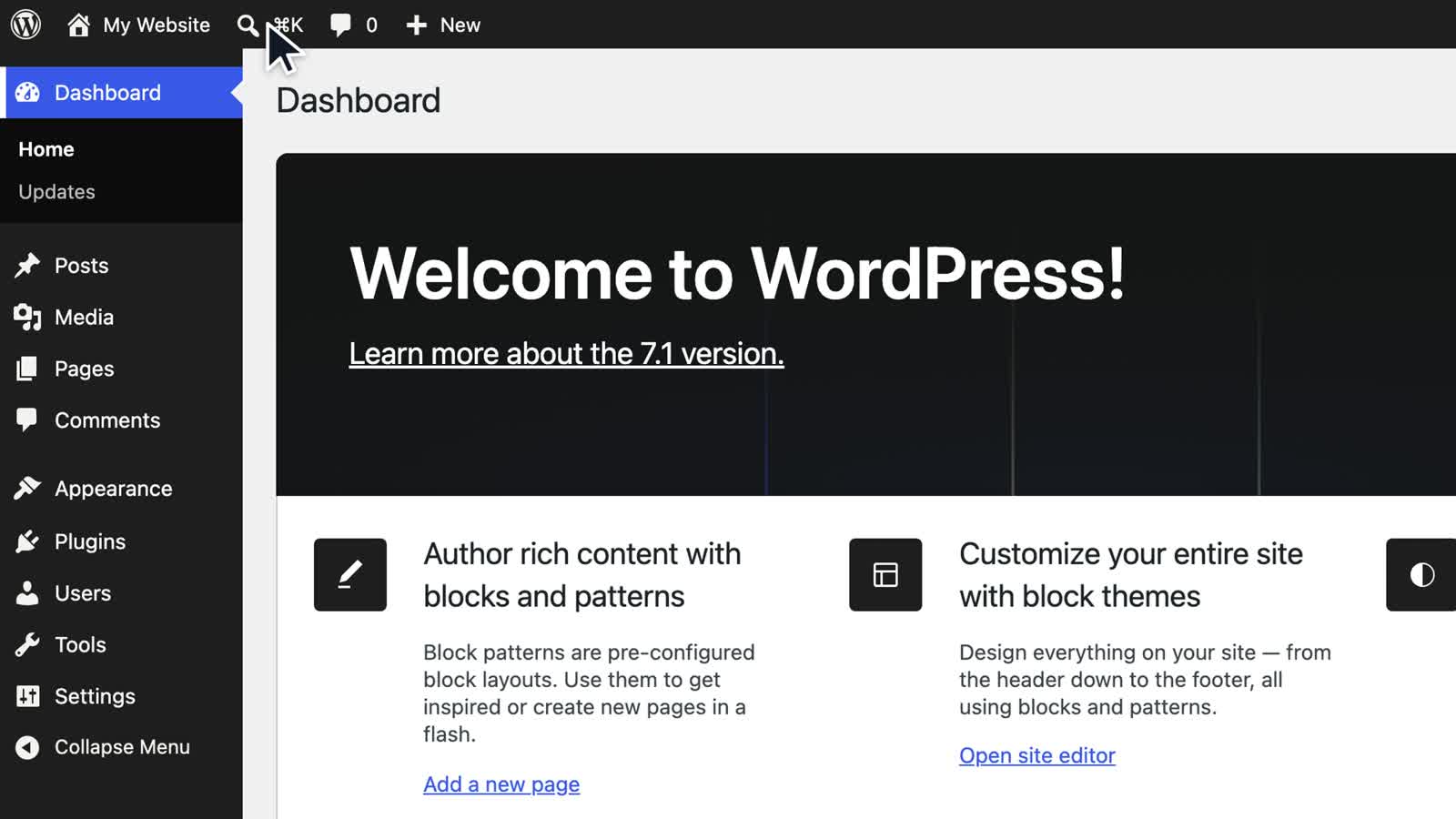
- Smaller touches: a reorganized command palette (⌘/Ctrl + K), a dedicated Site Identity section in the Site Editor, and an "On This Day" dashboard widget.
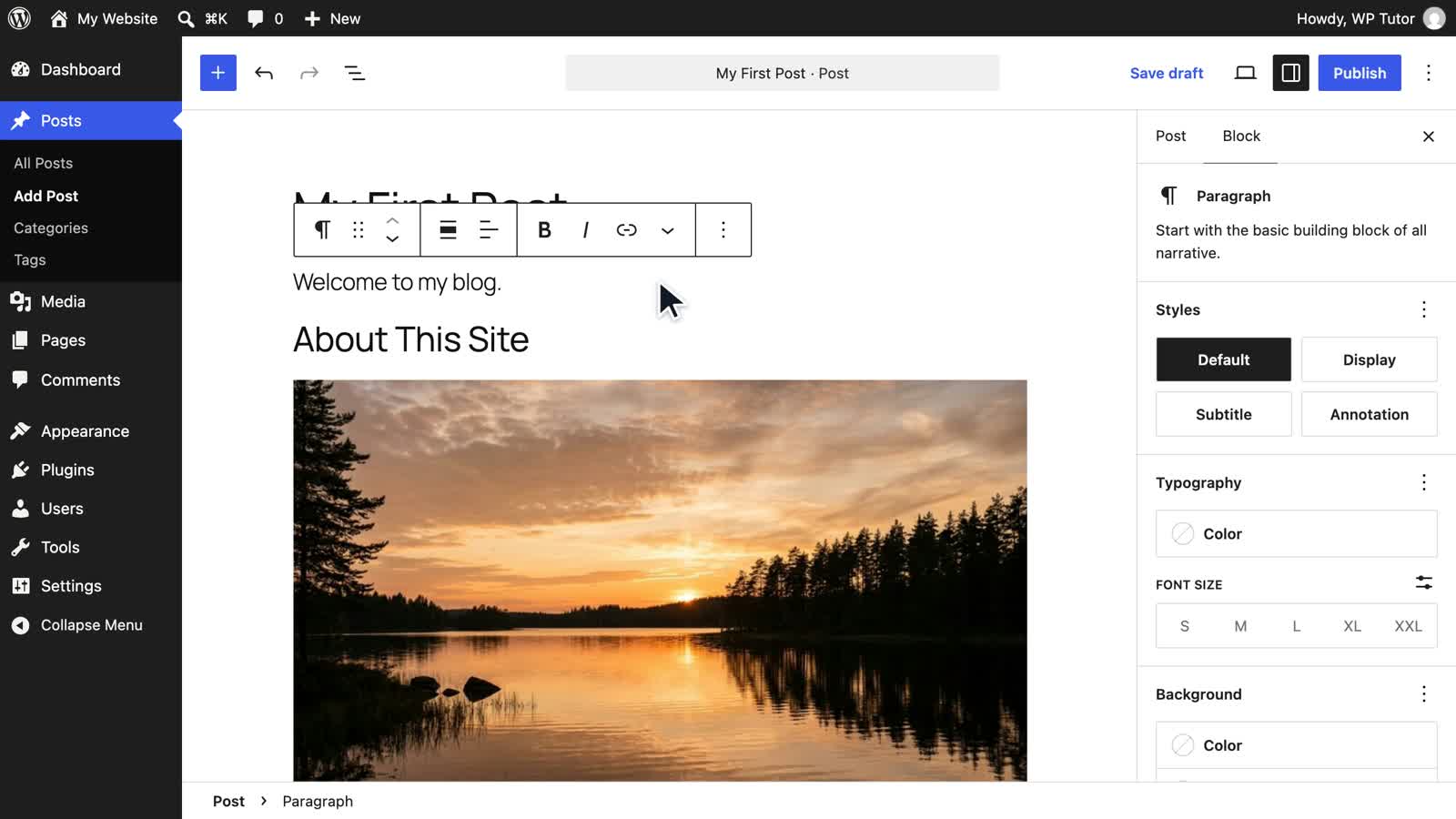
None of this is hard once someone shows you where things went. That's the whole idea of the course.
What the WordPress Fundamentals course covers
WordPress Fundamentals is a beginner video course that takes you from your first login to a working site you actually understand. It's ten modules of short, guided lessons — most three to six minutes — that build up in order:
- Getting Started — What WordPress is, logging in, the Dashboard, the admin menu, your profile, and the command palette.
- Configuring Your Site — General, Writing, Reading, Discussion, Media, Permalink and Privacy settings, plus Site Health. What each setting does and which ones to leave alone.
- Content & the Block Editor — Posts vs pages, thinking in blocks, your first post, every block family (text, media, design, widget, theme, embeds), categories and tags, pages, revisions, trash, patterns, and the new blocks in WordPress 7.
- Media — The Media Library, uploading, image editing and best practices.
- Comments, Themes & the Site Editor — Managing comments; installing and managing themes; site identity and global styles; navigation menus; templates and template parts; building a full page with a block theme.
- Plugins, Users & Roles — Installing and managing plugins, learning any new plugin, user roles explained, adding and managing users.
- Maintenance & Going Further — Import/export, updates and backups, security essentials, performance basics, editor power techniques, content operations at scale, and building a real page layout.
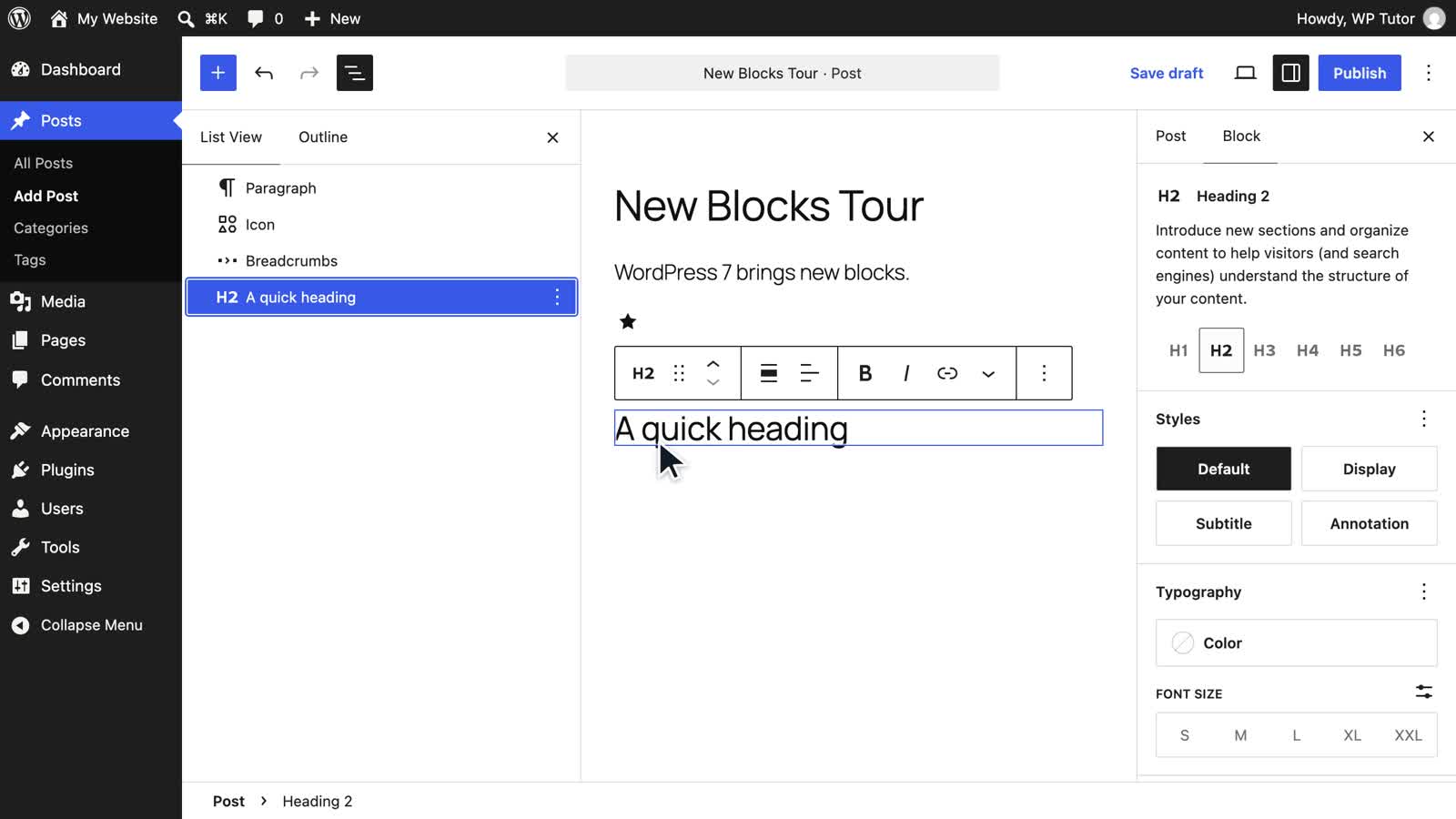
Every hands-on lesson is recorded on a real WordPress site, one action at a time, with the cursor and zoom following what the narrator is describing — so you can pause, do the same thing on your own site, and continue.
Recorded on WordPress 7.1 — with the 7.0 version still there
When 7.1 shipped we re-recorded the 40 lessons that show a screen it changed — the block editor, the Site Editor, media, settings and users — on WordPress 7.1. Concept lessons that never show the admin (like What is WordPress? or Posts vs Pages) didn't need it.
Plenty of hosts roll major updates out over a few weeks. Every updated lesson keeps its WordPress 7.0 recording available under "Also available" on the lesson page, so you can learn on whichever version your site is running today and switch when it updates.
Who it's for
- You're brand new to WordPress and want to learn it properly, not by trial and error.
- You've used WordPress a little — maybe someone built your site — and you want to stop being afraid of the admin.
- You maintain a site for a small business, club or nonprofit and need to be self-sufficient.
- You already knew WordPress 6 and 7.0 and want a fast tour of what moved.
No coding, no prior experience. If you'd rather read first, our free written tutorials cover much of the same ground, and live 1-on-1 WordPress training is there when you want personal help.
Start today
- Watch the free preview lessons — no account needed.
- The full course is $49 on its own, or included in the all-access membership at $29/month with every other course in the library — themes, plugins, WooCommerce, SEO and more.
And if you're updating your own site to 7.1 today: back up first, then follow our WordPress updates guide — plugins and themes first, core last.
Leave a comment