Table of contents
There are two different jobs people mean by "adding a video," and WordPress has a different block for each: the Video block plays a file from your own media library, and embed blocks (YouTube, Vimeo, and friends) pull in a video hosted elsewhere. This tutorial covers both — re-shot in August 2026 on WordPress 7.0.
- Own file: Video block → Upload or Media Library.
- YouTube/Vimeo: paste the URL into a YouTube Embed block — or just paste the URL on a blank line and WordPress converts it.
- Embedding is usually the right call: your pages stay fast and your bandwidth stays yours.
- Playback options (autoplay, loop, muted, poster image) live in the Video block's sidebar.
Option 1: upload a video with the Video block
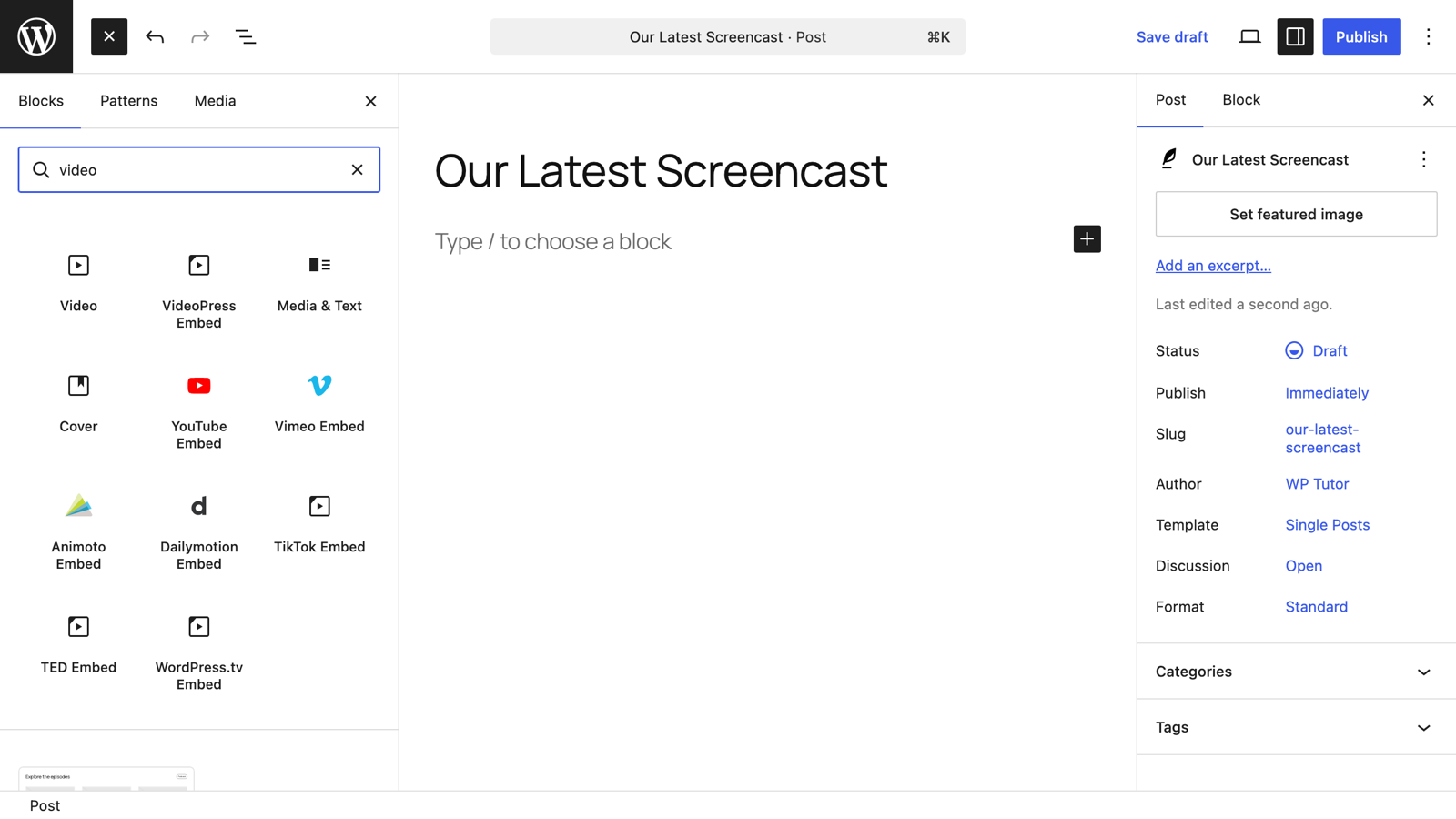
Click the blue + in the top-left corner, search for video, and click the Video block.
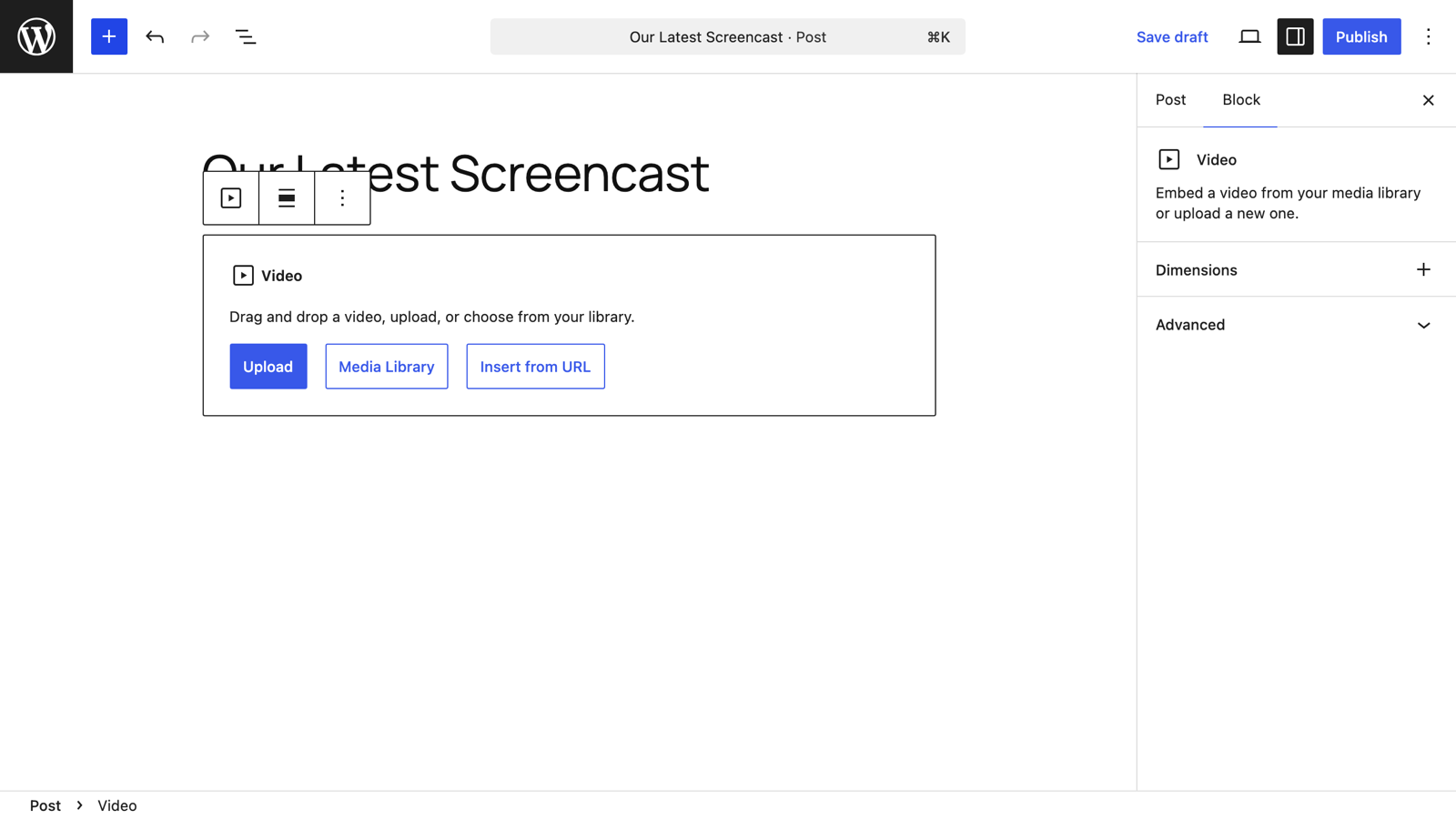
The block offers three sources: Upload a new file, pick one from the Media Library, or Insert from URL.
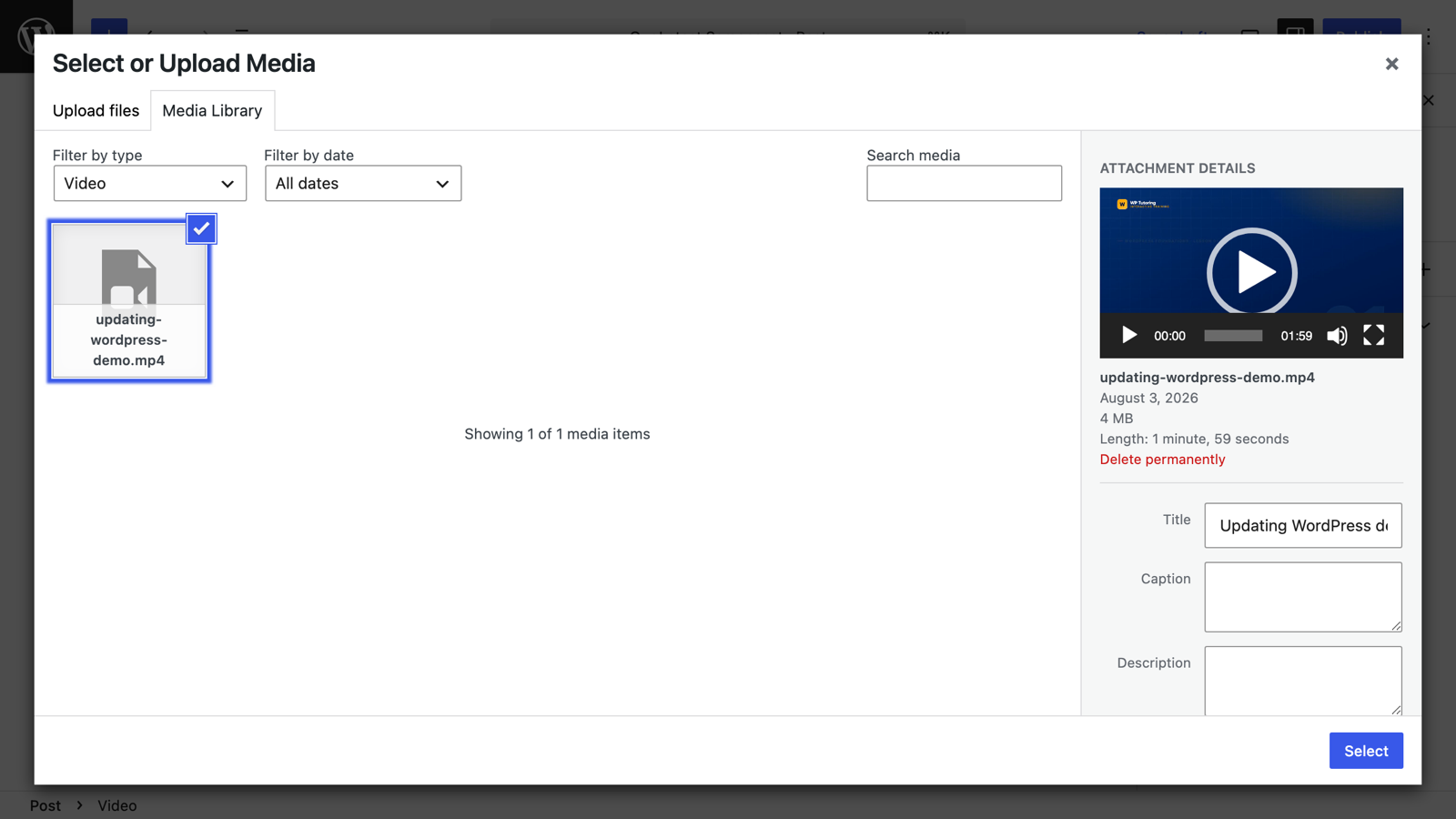
Click Media Library if the video is already on your site, or Upload for a new file. Select the video and confirm.
With the video placed, open the settings sidebar. The Video block gives you Autoplay, Loop, Muted, Playback controls, a Preload choice, and — worth the extra minute — a poster image, the still frame shown before the visitor presses play.
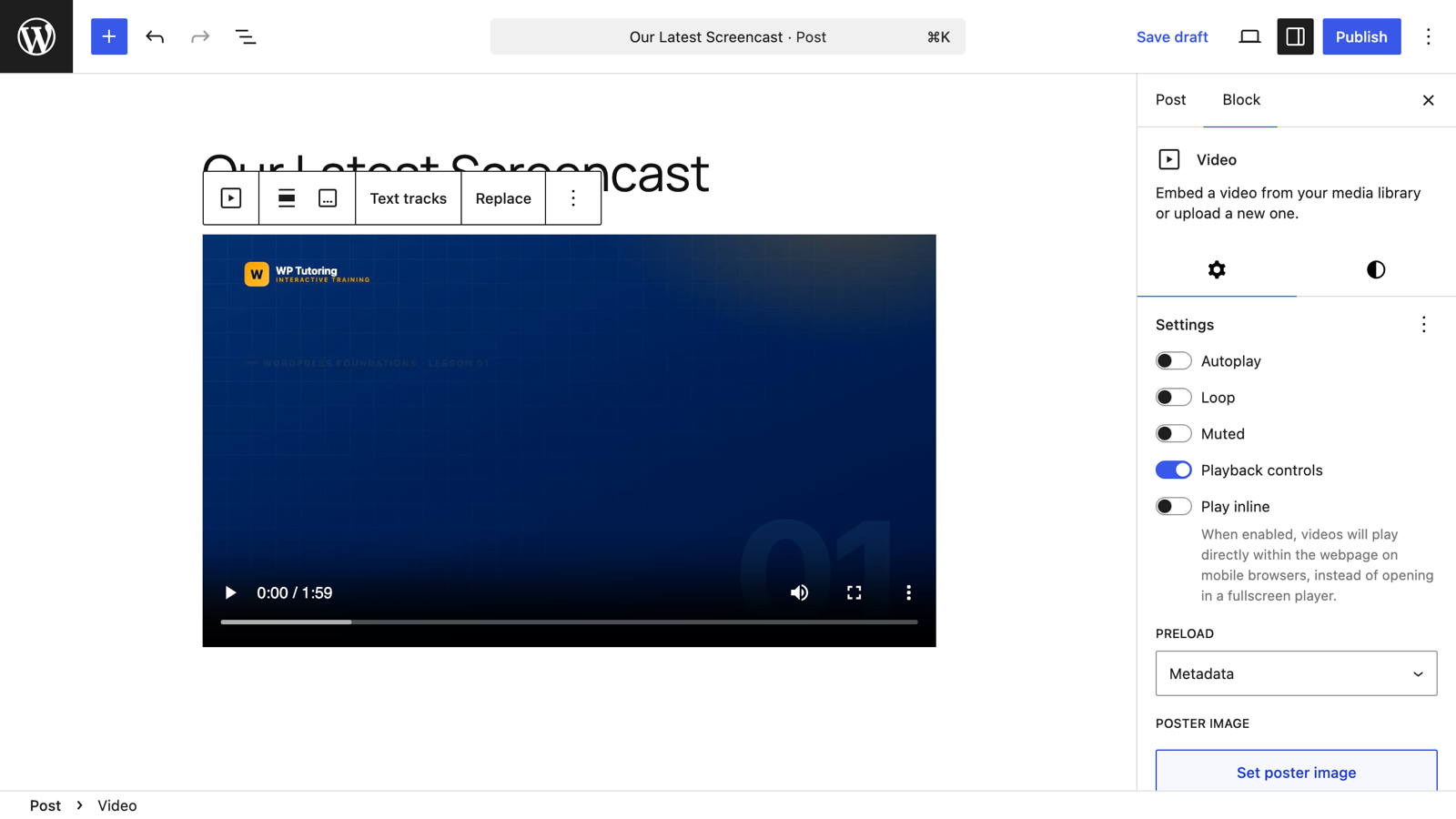
Browsers block autoplay with sound, so if you enable Autoplay, enable Muted too — that combination is the only one that reliably autoplays.
Option 2: embed from YouTube or Vimeo
For a hosted video you don't need the Video block at all. Either:
- Paste the URL on an empty line. WordPress recognizes YouTube and Vimeo links and converts them into an embed automatically. This is the fastest way.
- Or insert the embed block explicitly: search the inserter for youtube (or vimeo), insert the block, paste the URL, and click Embed.
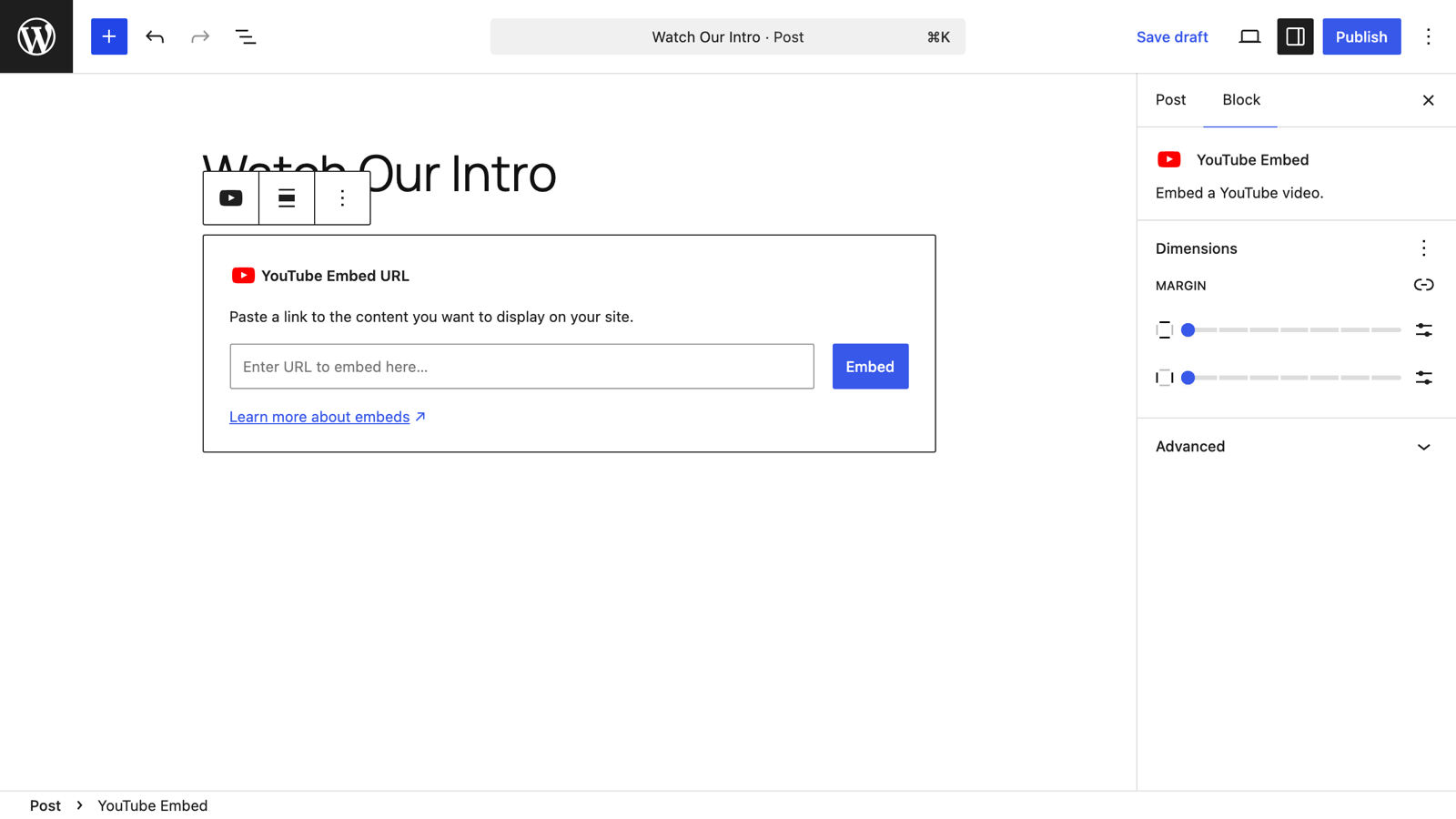
The embed shows a live preview right in the editor, and the video streams from YouTube's servers instead of yours.
Bandwidth is the deciding factor. A 3-minute HD video can be 100+ MB; a page that serves it to every visitor gets slow and expensive fast. Embed from a video host for anything long or popular, and reserve direct uploads for short clips like a 10-second product demo.
Keep learning
- Adding an image in Gutenberg
- Multiple columns in Gutenberg — pair a video with text beside it
- Embedding YouTube and Vimeo videos

Leave a comment