Table of contents
Full site editing is the biggest change to WordPress since the block editor itself — and the Site Editor is where it all happens. If you've only ever edited posts and pages, this guide is the missing piece: it walks you through editing your whole site — header, footer, templates, colors, fonts — with the same blocks you already know.
All screenshots below were taken in August 2026 on a fresh WordPress 7.1 site running the Twenty Twenty-Five block theme, so what you see here is what you'll see on screen.
- The Site Editor lives under Appearance → Editor (block themes only).
- Templates control page layouts; template parts are reusable pieces like the header and footer.
- Patterns are pre-designed block arrangements you can drop in anywhere.
- Styles changes colors and typography for the whole site at once.
- Everything is blocks — the skills from the post editor carry straight over.
What the Site Editor is (and when you have it)
The Site Editor is WordPress's built-in tool for editing every part of your site visually. It's the heart of full site editing (FSE) — instead of hunting through theme options or hiring someone to edit PHP files, you point, click, and edit with blocks.
The one requirement: a block theme. Recent default themes (Twenty Twenty-Three through Twenty Twenty-Five) are all block themes, and our round-up of full site editing themes covers popular third-party options too. If your theme is classic (Astra, Divi, GeneratePress and friends without their block-theme modes), you'll see the old Customizer instead.
The Site Editor changes your live site the moment you hit Save. If you're experimenting, do it on a staging copy or a fresh test install first — or at least know that Reset (covered at the end) can bail you out.
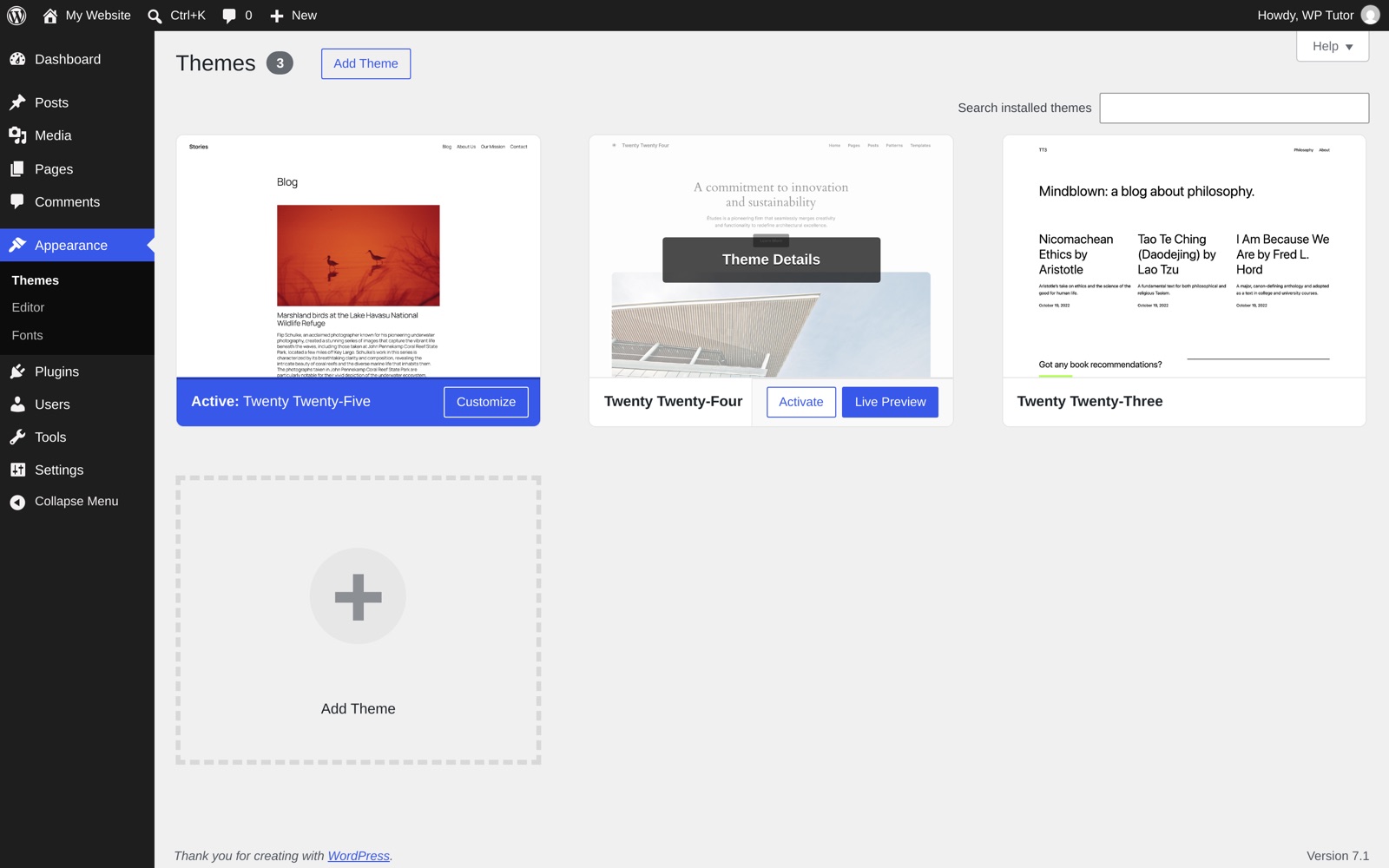
In your dashboard, go to Appearance → Editor. With a block theme active, the Appearance menu is short — Themes, Editor, and (on newer versions) Fonts.
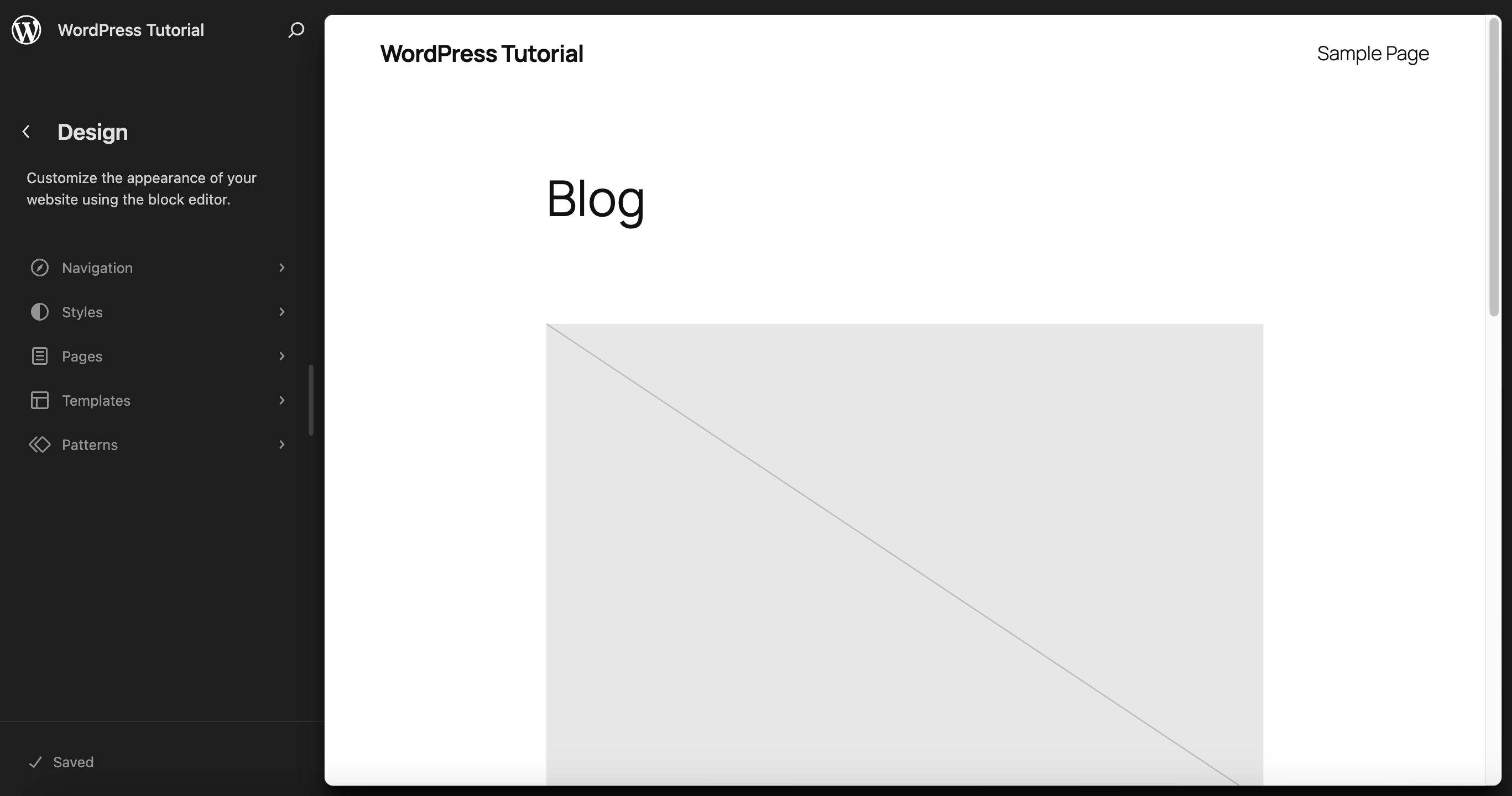
WordPress opens a preview of your homepage with a dark Design sidebar on the left. Nothing is editable yet — this first screen is navigation, not the editor itself.
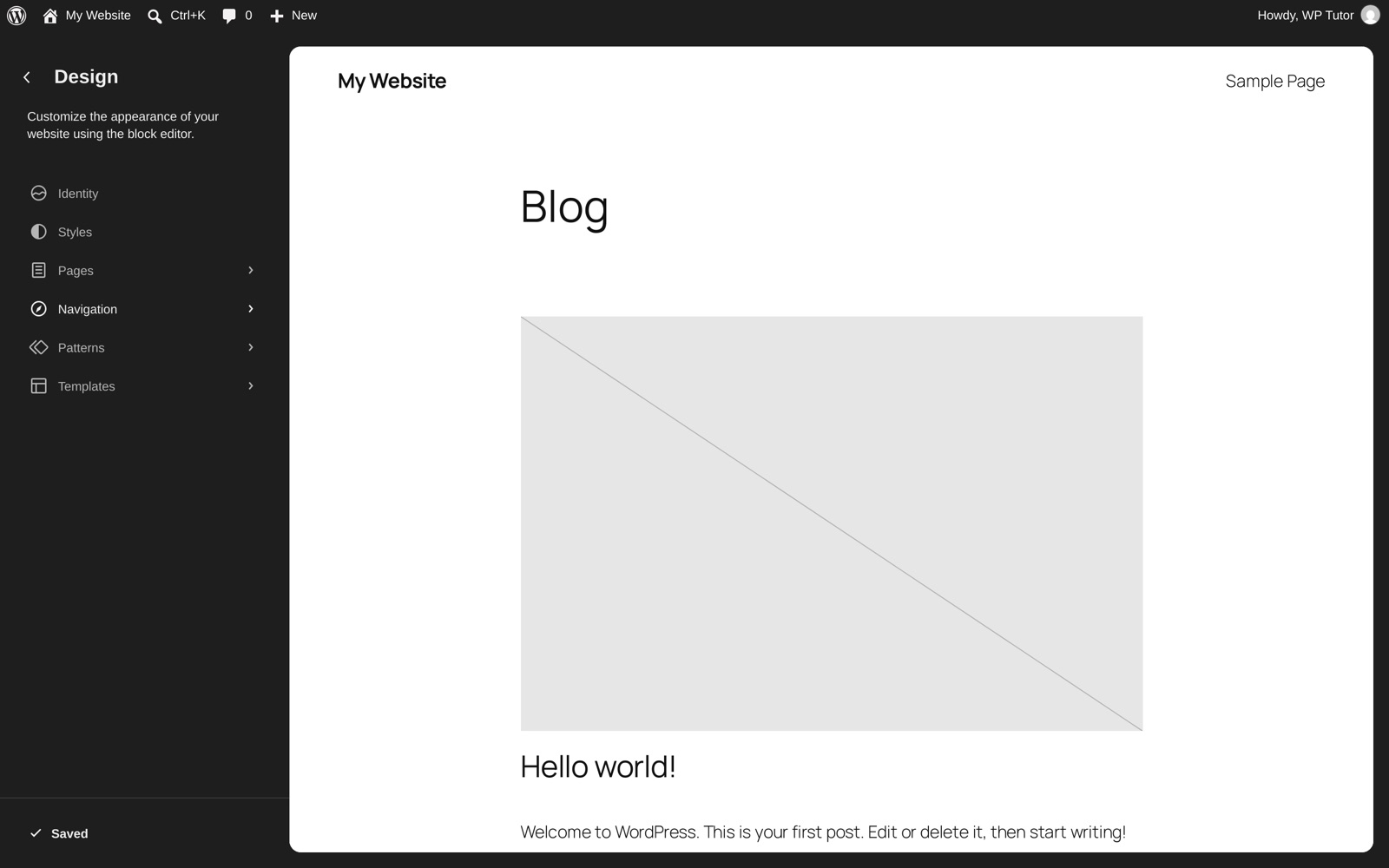
The sidebar gives you six doors: Identity (site title and icon), Styles, Pages, Navigation, Patterns, and Templates. The rest of this guide walks through the ones that matter most.
Click Templates to see every layout your theme provides. A template is the frame around your content: the Blog Home template controls your post list, Single Posts controls individual articles, Page No Title controls pages, and so on.
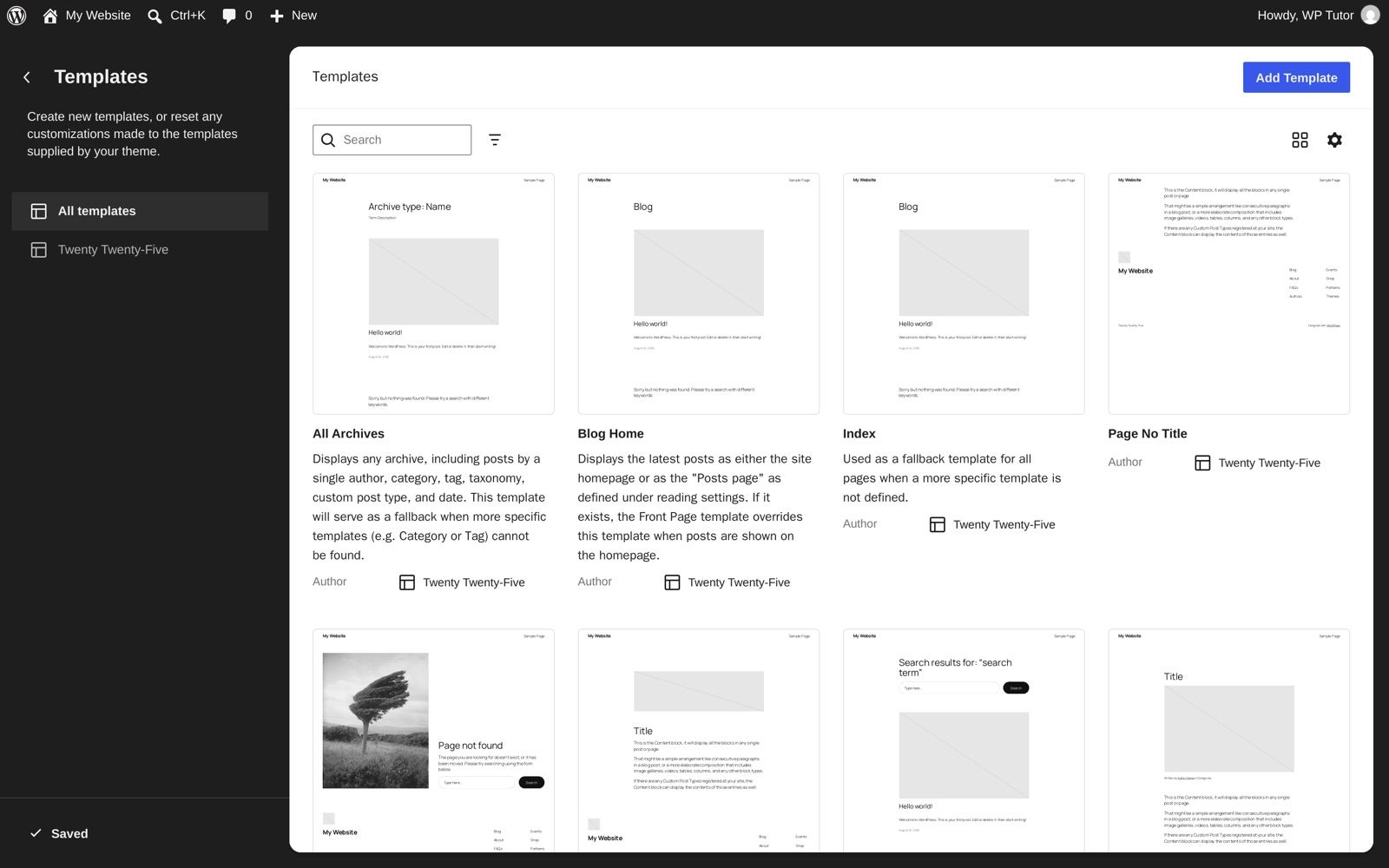
The key mental shift from the post editor: content and template are separate. When you edit a post, you're editing that one post's content. When you edit the Single Posts template, you're changing the frame around every post at once.
Click any template — say Blog Home — and WordPress opens it in the familiar block editor, with your real site content shown in place.
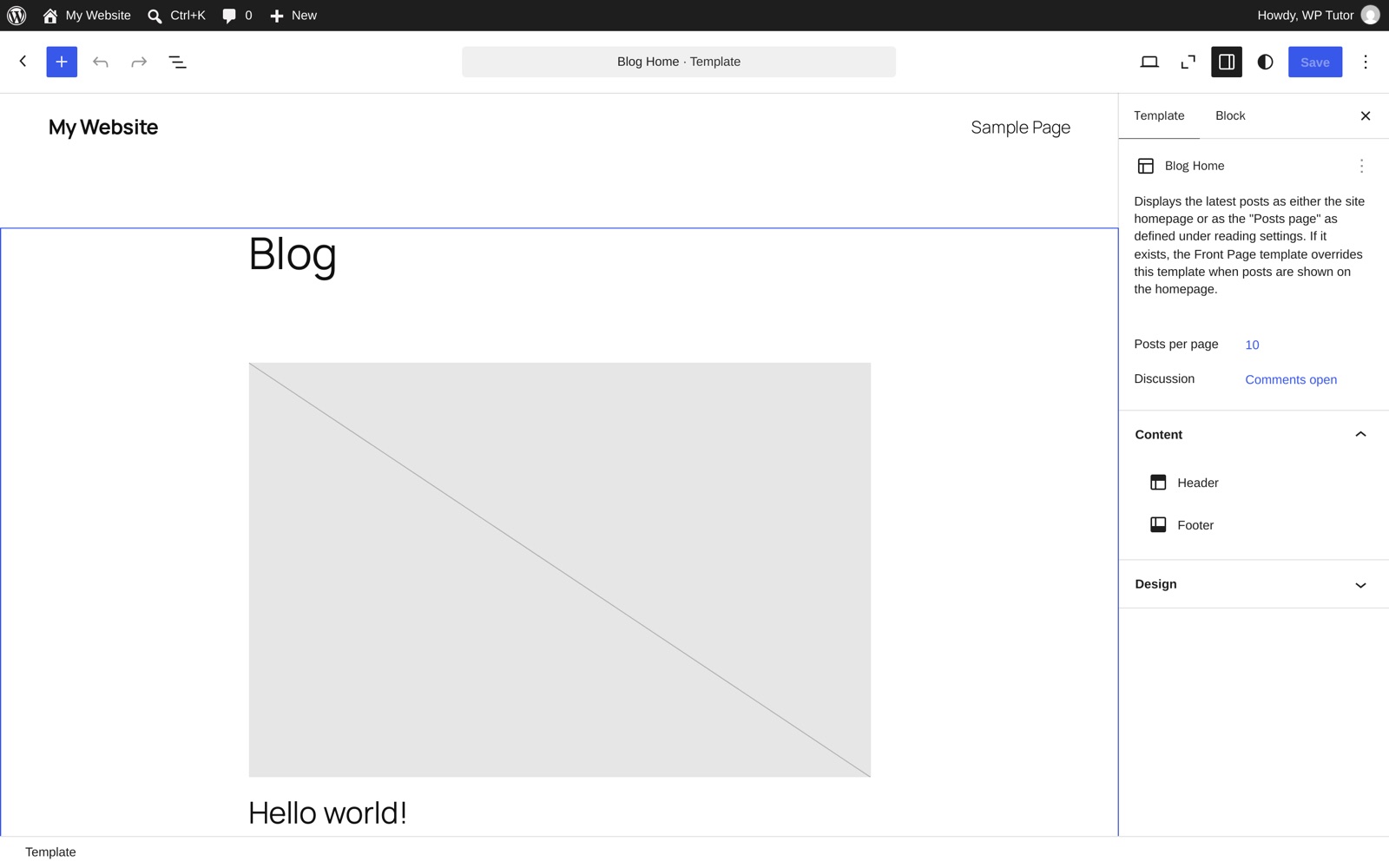
Everything works exactly like the post editor: click a block to select it, use the toolbar to move or style it, press the blue + to insert new blocks. The sidebar's Template tab shows what this template does and which pieces — header, footer — it includes.
Templates nest blocks deeply, and clicking the right one on the canvas can be fiddly. Open List View (the stacked-lines icon in the top-left toolbar) to see the template's structure as an outline: Header, the content Group, Footer.
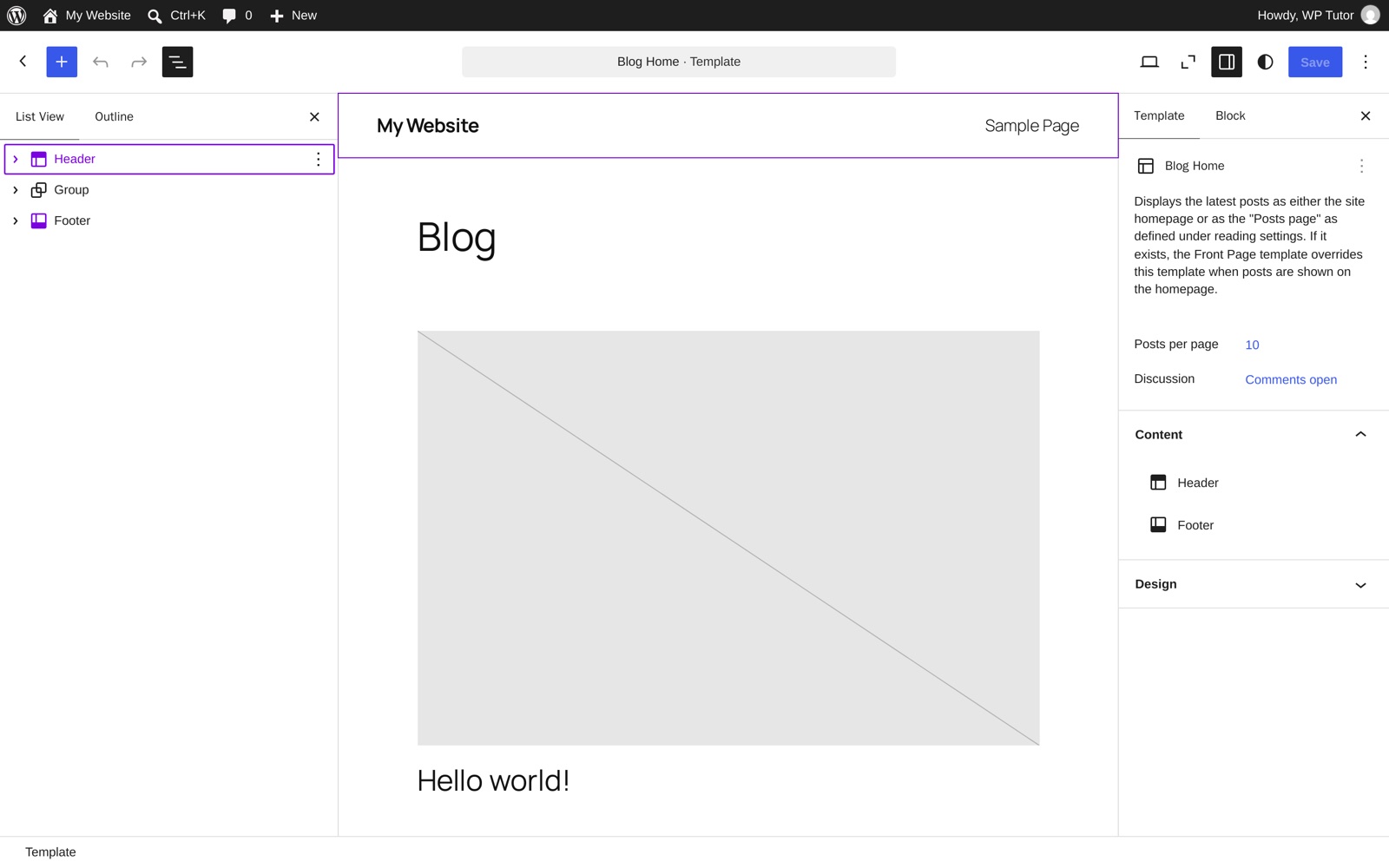
Click any item in the list to select it precisely on the canvas. For template work, List View isn't optional — it's how you stay oriented. Selecting Header here is also the doorway to the single most-wanted edit in WordPress: changing your site's header.
The Header and Footer aren't ordinary blocks — they're template parts: reusable pieces shared by every template. Edit the header once and every page of your site updates.
You can edit a template part in place (double-click it inside any template) or manage them all under Patterns, where they're listed alongside your theme's patterns:
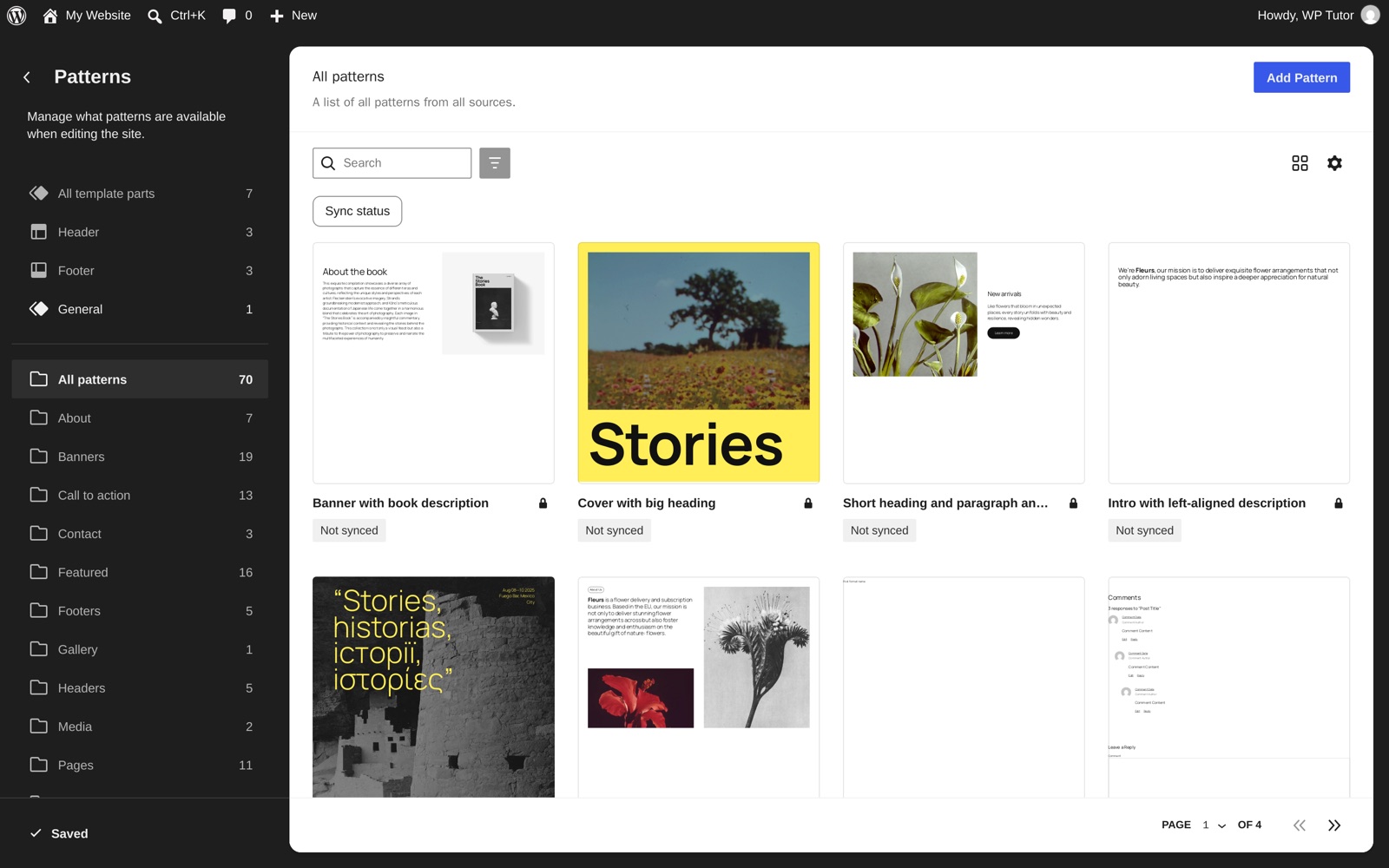
Patterns — the rest of that screen — are pre-designed arrangements of blocks: banners, calls to action, pricing tables, galleries. Twenty Twenty-Five ships with about 70. Insert one, then edit the placeholder text and images; it's the fastest way to build a page that looks designed. If you're new to blocks themselves, our block editor tutorials cover them from scratch.
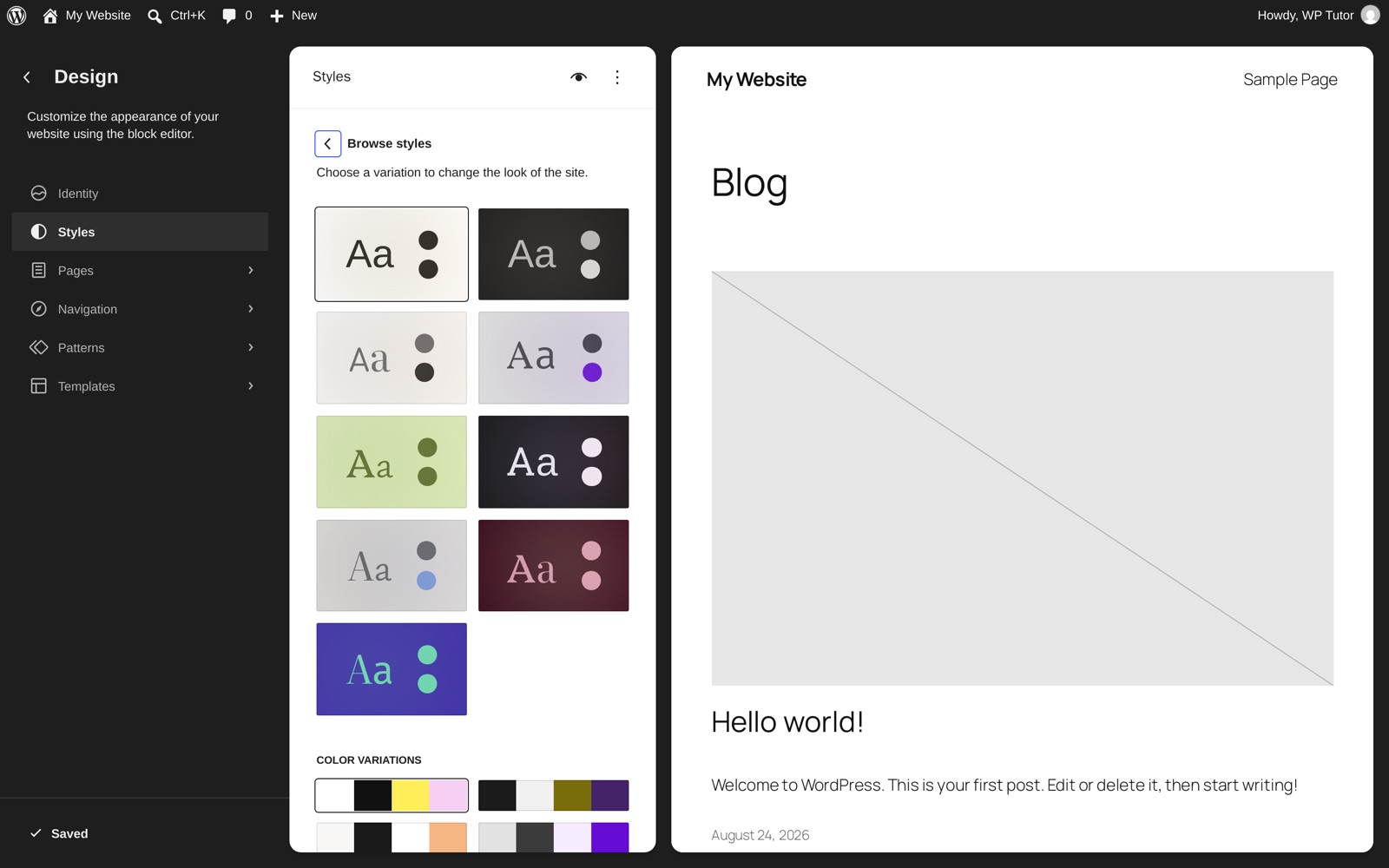
Back in the Design sidebar, click Styles. This is your site-wide design control: typography, colors, backgrounds, shadows, and layout — applied everywhere at once.
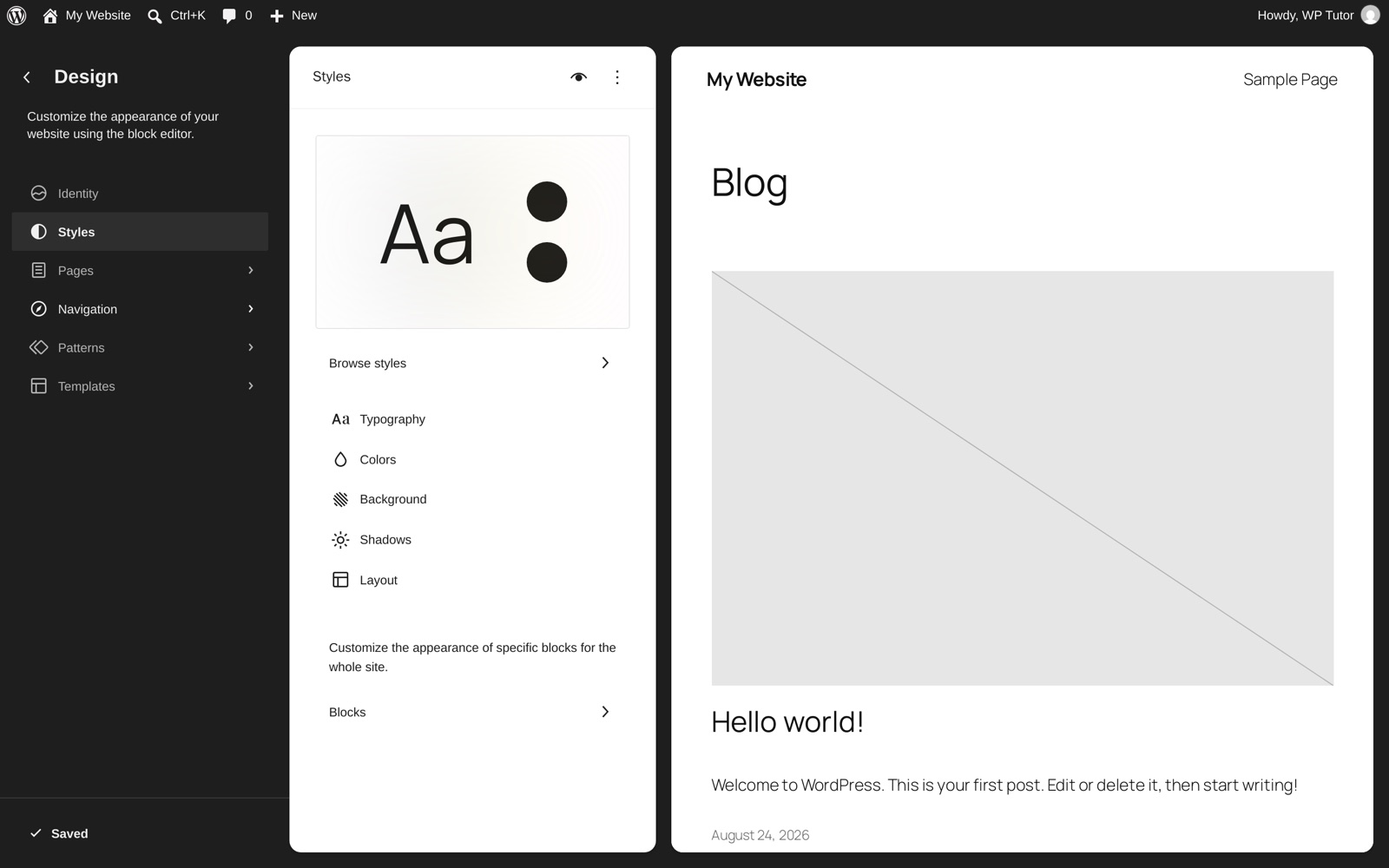
Change the body font here and every page changes. Change the link color and every link follows. You can also restyle specific block types site-wide via Blocks at the bottom of the panel — for example, make every Button block pill-shaped in one edit. For the habits that keep these powers from making a mess, see our companion guide on WordPress FSE best practices.
The Save button sits top-right, and it's smarter than the one in the post editor: because a template edit can touch several things at once (the template, a template part, global styles), WordPress shows you a checklist of what's about to be saved so you can approve each piece.
Made a mess? Three escape hatches, in order of severity:
- Undo (Ctrl/Cmd+Z or the toolbar arrow) while you're still editing.
- Revisions — the Styles panel keeps a history you can roll back.
- Reset — in the Templates or Patterns list, the ⋮ menu next to any customized item restores the theme's original version.
Where to go from here
You now know your way around every door in the Site Editor: templates, template parts, patterns, and global styles. Two good next steps:
- Read the companion guide, WordPress FSE best practices, before you customize a real site — it covers style variations, the Style Book, and the habits that keep block-theme sites maintainable (plus where the "Twenty Twenty-Six" theme actually is).
- If you're still choosing a theme, start with the top full site editing themes.
And if you'd rather learn this hands-on, on your own website with someone guiding you — that's exactly what we do.

Leave a comment