Helping site owners learn WordPress since 2012 · (844) WP-TUTOR
Block Editor

Using the Classic Block in Gutenberg

Learn how to use the Classic block in Gutenberg to edit with the familiar classic WordPress editor toolbar and keep mixed content in a single block.

WT
WP Tutoring TeamWordPress Instructors
Updated Oct 8, 2021
1 min read

The classic block allows you to use the familiar classic WordPress editor within a Gutenberg block.  If you convert a post from the Classic Editor,( pre WordPress 5.0), to Gutenberg, your whole post will show up in one Classic Block.  This block allows multiple content types to be placed in one block and not have them separated among multiple blocks.

Step 1 -  Hover your mouse over the Add Block icon (the plus sign in the upper left-hand corner within the Gutenberg editor). Scroll to Formatting. Select Classic block.
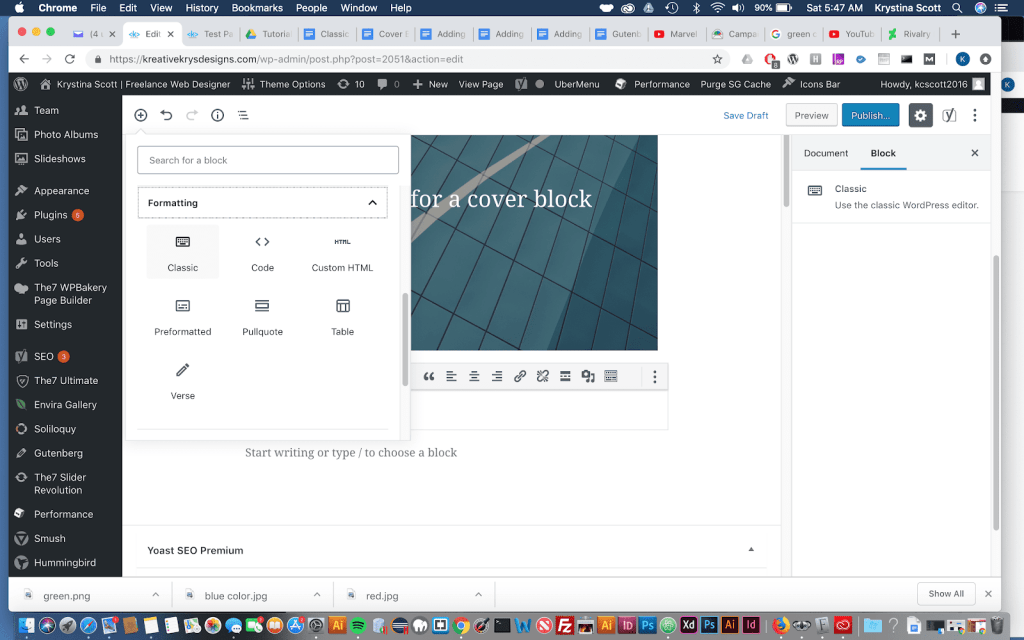
classic block

Choosing the Classic Block in Gutenberg

Step 2- The classic block will appear. You’ll see the original toolbar with all the basic functions and formatting options.
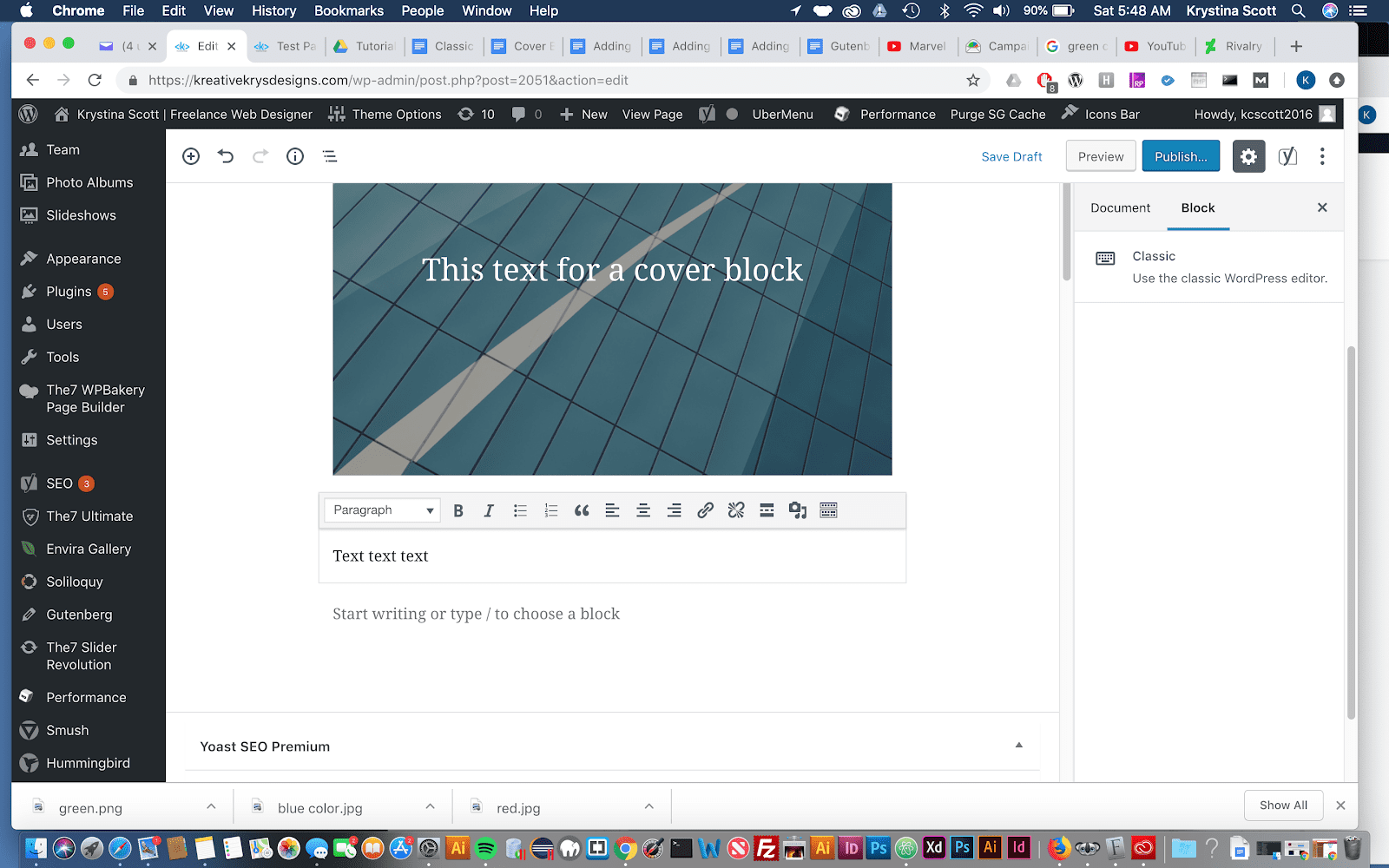

classic block

WT

WP Tutoring Team

WordPress Instructors

We’ve been teaching WordPress to individuals and businesses since 2013 — through step-by-step tutorials and 1-on-1 tutoring sessions.

Leave a comment

Comments are reviewed before they appear.

Get our free WordPress starter guide

Join thousands of site owners and get step-by-step WordPress tutorials in your inbox, plus printable cheat sheets.

Beginner-friendly, no jargon
Printable cheat sheets & checklists
Unsubscribe anytime

Request your session

We’ll reply quickly — usually the same business day.

By using this form you agree with the storage and handling of your data by this site.