Table of contents
The process to password protect WordPress pages or posts is relatively easy. When you typically publish a WordPress page or post it is automatically visible to the public. However, here are a couple of scenarios where it may come in handy:
- A client or customer needs quick access to data that may be too sensitive for email
- A small subset of your group or organization needs to upload or download information
- You want to create a value add to your website without creating a full blown membership site
How to Password Protect WordPress Pages and Posts Video Tutorial
You Try - Interactive Tutorial to Password Protect WordPress Pages and Posts - (Sound Enabled)
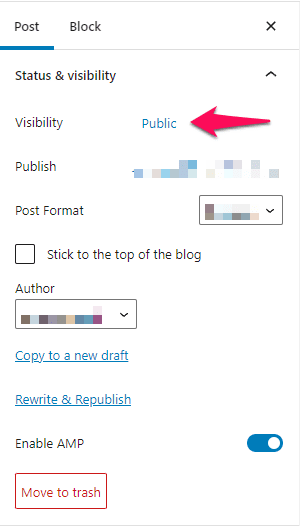
1. There may be times when you want to publish a post, but not make it visible to site visitors. In the post menu, click Public, next to Visibility.
2. You now have the opportunity to make the post Private, which means only editors and Administrators may view the post, or Password Protected.
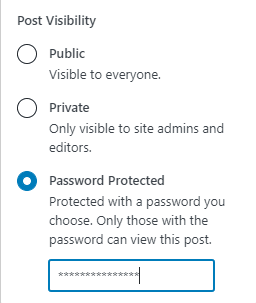
3. If you want to Password Protect your Post, then select Password Protected and type in a secure password.
4. Type in a password
5. Click Publish to publish the post or page.
Here's an interactive tutorial
https://www.iorad.com/player/1844812/Make-a-Post-or-Page-Private-or-Password-Protected
To Password Protect a WordPress page or post follow these steps below
STEP 1 : Underneath the Publish section by the visibility icon which says public click Edit
STEP 2 : You Have two options Password Protect or private
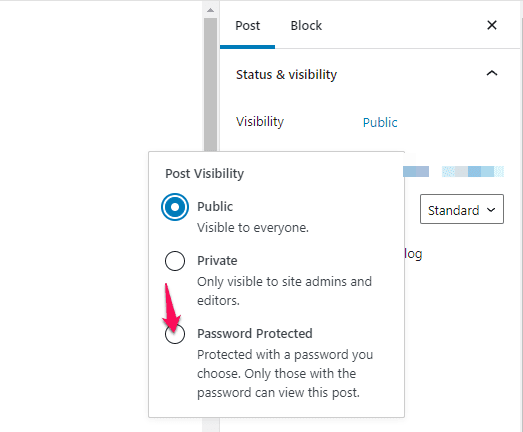
- When Checking Password protected it will reveal a text field for entering a password, that will be required to view that page or post.
- The password is limited to 20 characters.
- Checking Private makes your page or post visible only to your site's Users with the role of Administrator or Editor
STEP 3: When you're done editing the page or post's visibility, click the "OK" button.
You should now see your new setting, Visibility: Password Protected.
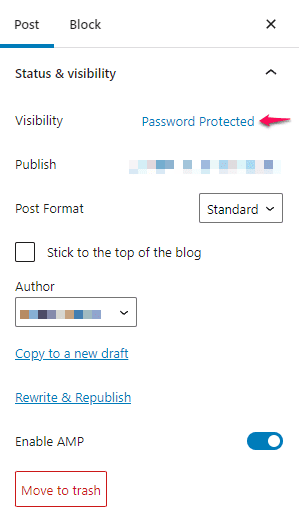
(HINT) The change does not take effect until you click the Publish button
or Update if the post is already published.
Once the password has been entered - non administrators and editors will see the following when they visit that page:
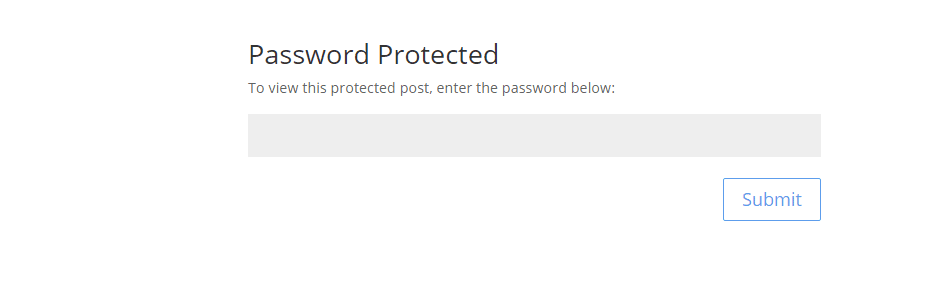
Have You Lost Your password or need to change it? Only an Administrator, Editor, or the post's Author can change a page or post's password or visibility setting. To do so, use the Visibility: Edit link again following the steps listed above.

Leave a comment