Helping site owners learn WordPress since 2012 · (844) WP-TUTOR
Block Editor

Adding a Code Block to Gutenberg- WordPress 5.0

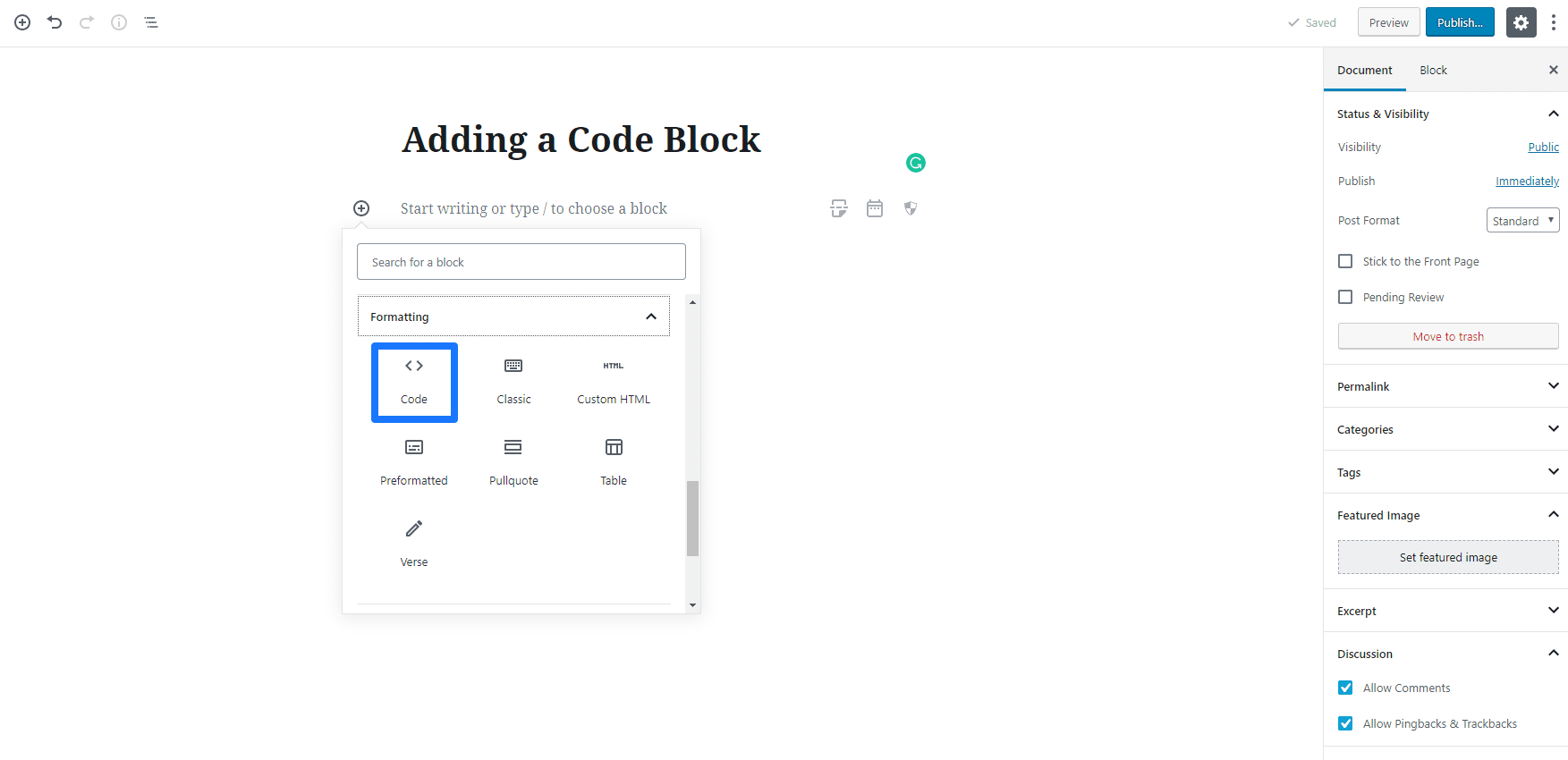
Step 1 - Choose the Code block from the block selector by searching or going to the formatting category.
WT
WP Tutoring TeamWordPress Instructors
Updated Oct 11, 2021
1 min read

There may be some times when you want to show some computer code to your readers.  In the past that may have been hit or miss because the code may have executable instructions in it that would make the formatting inconsistent. 

The Code Block in Gutenberg allows you to add code to your content without worrying about weird formatting or execution issues.

Step 1 - Choose the Code block from the block selector by searching or going to the formatting category.

code block

Step 2- You can now add the necessary code to your block.
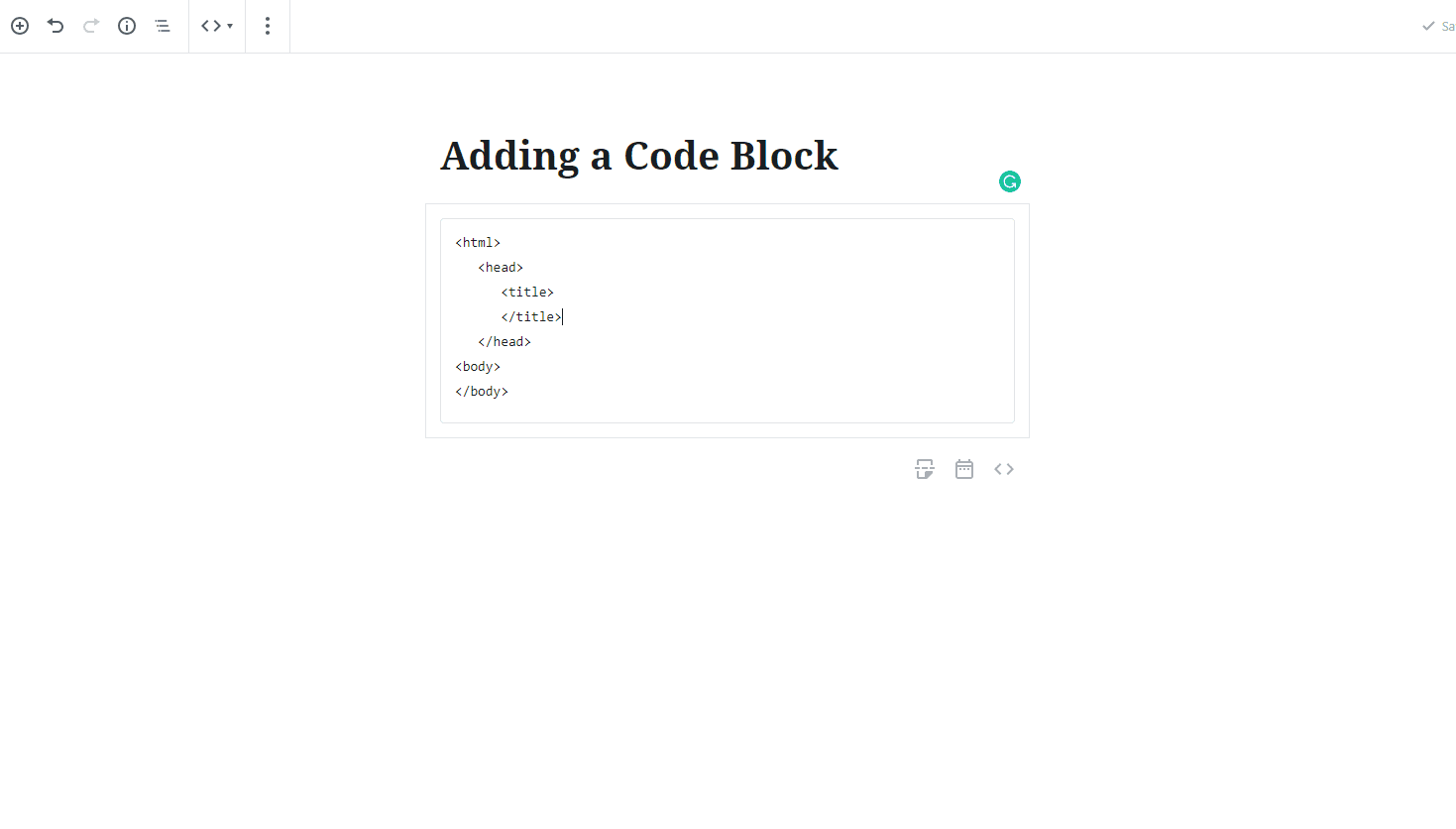
Code

WT

WP Tutoring Team

WordPress Instructors

We’ve been teaching WordPress to individuals and businesses since 2013 — through step-by-step tutorials and 1-on-1 tutoring sessions.

Leave a comment

Comments are reviewed before they appear.

Get our free WordPress starter guide

Join thousands of site owners and get step-by-step WordPress tutorials in your inbox, plus printable cheat sheets.

Beginner-friendly, no jargon
Printable cheat sheets & checklists
Unsubscribe anytime

Request your session

We’ll reply quickly — usually the same business day.

By using this form you agree with the storage and handling of your data by this site.