NewThe WP Tutoring WordPress training platform is live — on demand video courses and interactive WordPress lessons. Free lessons included.Start free
Helping site owners learn WordPress since 2012 · (844) WP-TUTOR
Block Editor

Adding the Archive Widget to Gutenberg- WordPress 5.0

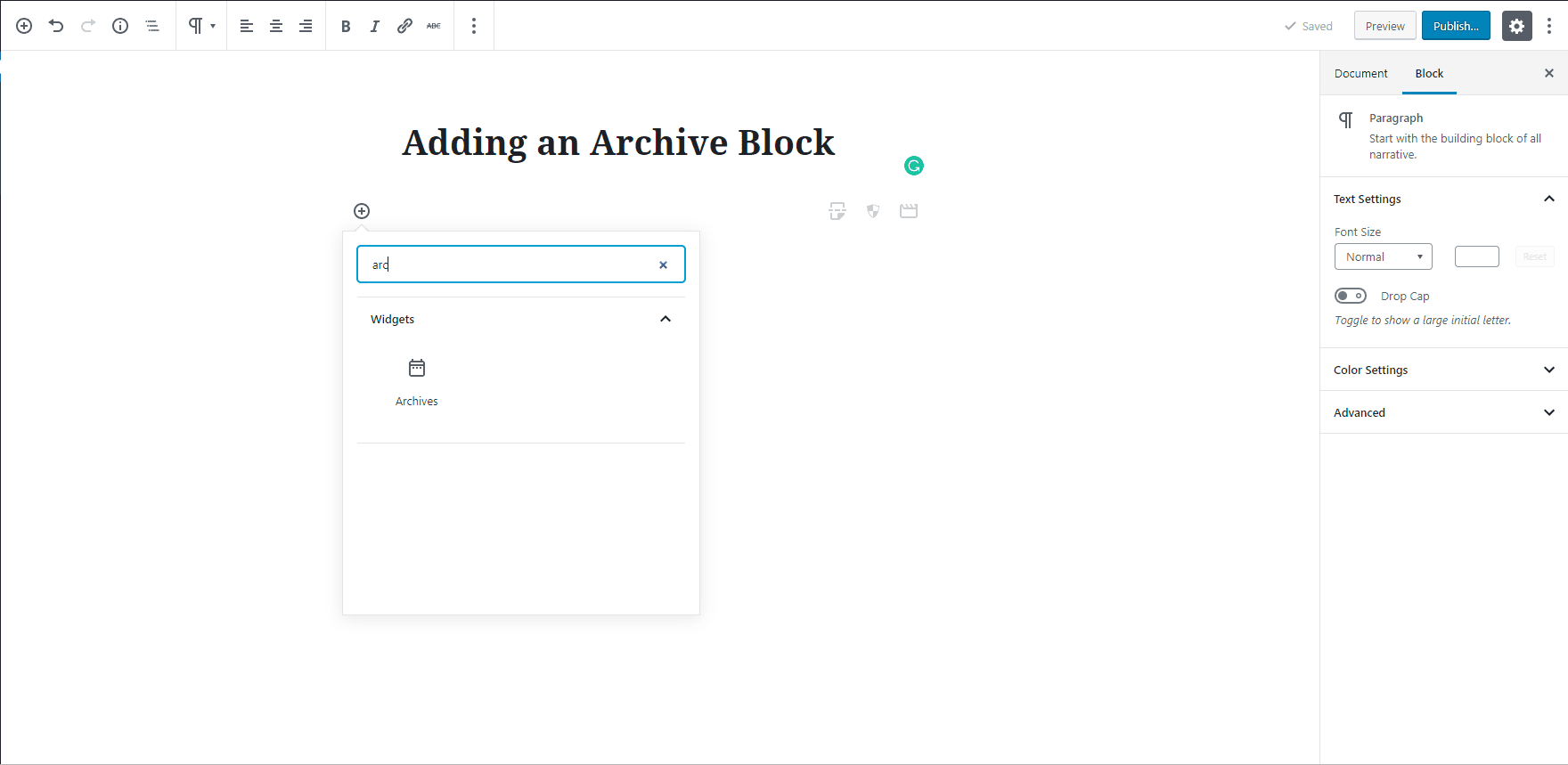
Step 1 - Choose the archive block by either typing into the search bar or scrolling down to the "widgets" category in the block selector.
WT
WP Tutoring TeamWordPress Instructors
Updated Oct 11, 2021
1 min read

The archive block places a listing of the archived posts on your site.  

Step 1- Choose the archive block by either typing into the search bar or scrolling down to the "widgets" category in the block selector.

Archive Widget ( Block ) to Gutenberg

Choose the Archive B``lock underneath the Widget 

Step 2 - You will now see an archive list of your posts based on month and year.
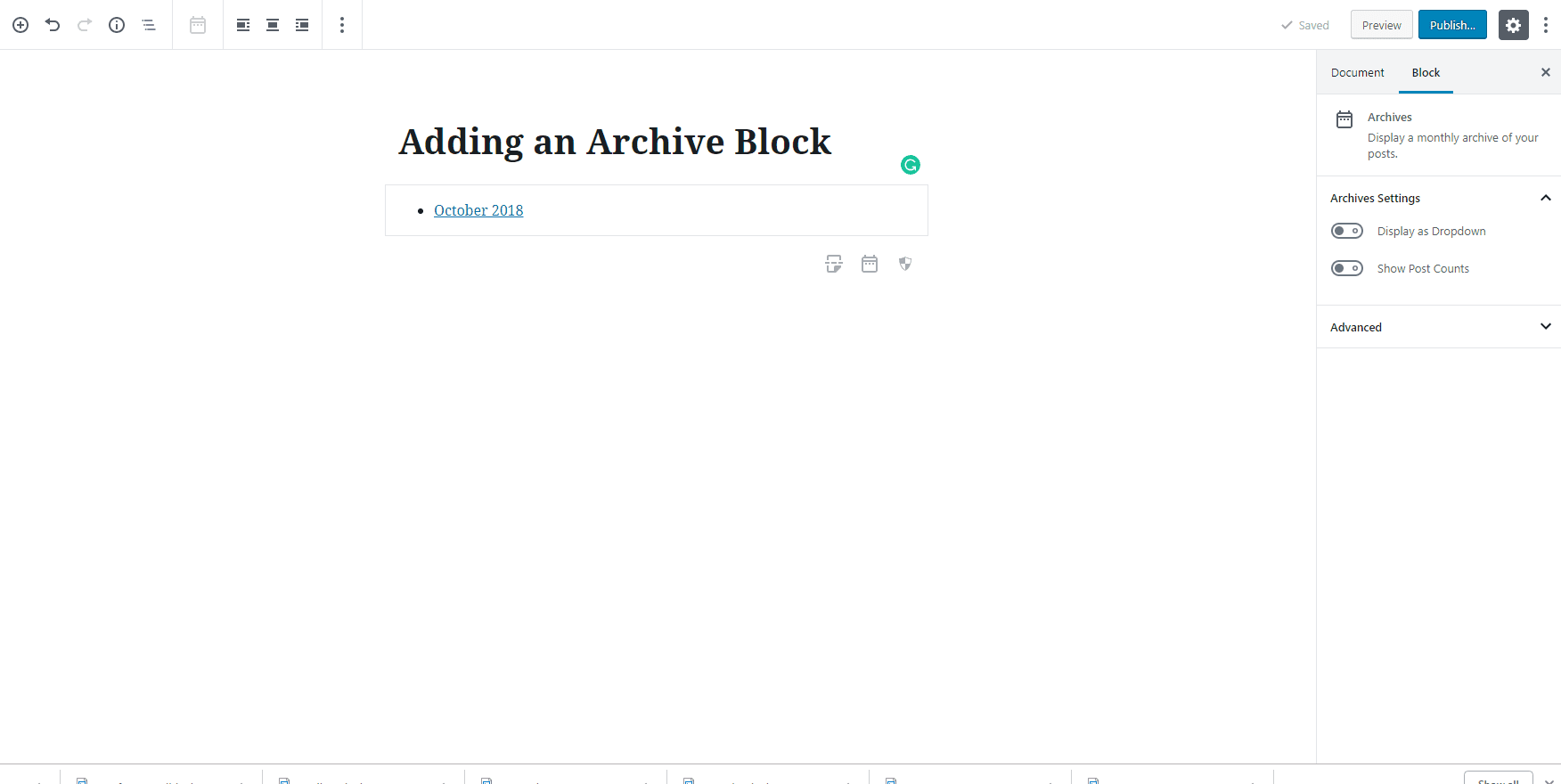
Archive block displaying a list of post archives by month and year

Step 3 - In the block menu on the right, you can choose to make the archive a dropdown or whether or not to show the number of blog posts in each month and year.

WT

WP Tutoring Team

WordPress Instructors

We’ve been teaching WordPress to individuals and businesses since 2013 — through step-by-step tutorials, video courses, and 1-on-1 tutoring sessions.

Leave a comment

Comments are reviewed before they appear.

Get our free WordPress starter guide

Join thousands of site owners and get step-by-step WordPress tutorials in your inbox, plus printable cheat sheets.

Beginner-friendly, no jargon
Printable cheat sheets & checklists
Unsubscribe anytime

Request your session

We’ll reply quickly — usually the same business day.

By using this form you agree with the storage and handling of your data by this site.

Access our WordPress Training Academy videos

Step-by-step video courses covering the block editor, themes, plugins, and everything you need to build a site you’re proud of. Free lessons included — browse the full library before you sign up for anything.

Explore the Academy